
What this integration does
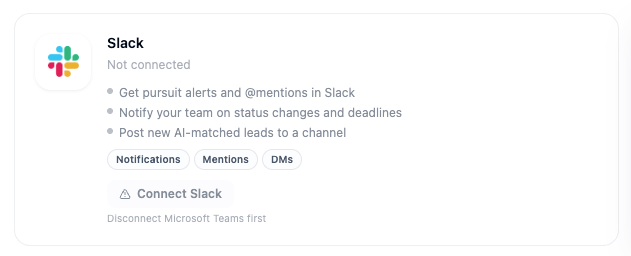
- Get pursuit alerts and @mentions in Slack, as direct messages
- Post a new leads digest and proposal/outline-ready alerts to Slack channels you choose
- Chat with @Sammy one-on-one or in a channel, or use the
/sammyslash command
Part 1 — Connect Slack
1
Open Integrations
In the left sidebar, scroll to Account and click Integrations.
2
Find the Slack card
Scroll to the Messaging & Notifications section. The Slack card shows your current connection status.
3
Click Connect Slack
Click Connect on the Slack card. A confirmation dialog explains this is a shared, org-wide connection — click I understand connect Slack to proceed.
4
Authorize SamSearch in Slack
A popup opens asking you to choose your Slack workspace and authorize the SamSearch app. Review the requested permissions and grant access.
5
Confirm connected status
The popup closes and the Slack card now shows Connected, along with your workspace name.
Unlike some other integrations, a Slack connection doesn’t expire on its own — if Slack notifications stop working, the SamSearch app was most likely removed or reinstalled in Slack. See Connection states for what the Error state looks like either way.
Part 2 — Chat with @Sammy in Slack
Once connected, Sammy is available directly in Slack:- Direct message: open a DM with Sammy in your Slack sidebar and ask it to find opportunities, start a journey, or answer questions about your pipeline.
- Channel mention: type @Sammy in any channel it’s been added to, followed by your question or request.
- Slash command: type
/sammy(or/samsearch) anywhere in Slack:/sammy find <query>jumps straight to a live opportunity search, so results come back almost instantly./sammywith no text after it shows a quick help message with usage examples.- Anything else is treated as a full conversational question to Sammy, answered in the same thread a few seconds later.
Part 3 — Set up notifications
On the connected Slack card, click Configure to control how notifications reach Slack:- Direct messages — toggle on to DM people their own mentions, assignments, replies, and reactions.
-
Interactive replies & buttons — toggle on to add Reply and Mark read buttons to those notification DMs and enable
/sammy. - Events to send — checkboxes for exactly which events trigger a DM: Mentions, Replies, Reactions, Pursuit assignments, Task assignments, and Amendment updates. All are on by default; uncheck any you don’t want.
Posting to a channel
Two notification types post to a channel you choose, instead of a personal DM — and each can go to a different channel:
For each one, pick a channel from the live list in Configure (private channels show a 🔒), or choose — Don’t post — to leave it off, then click Save.
The Microsoft Teams integration uses the same underlying notification settings — the same Direct messages toggle, the same Events to send list, and the same two channel digests. The one difference: Teams doesn’t have a live channel picker, so you paste a “Get link to channel” URL instead of selecting from a list.
Troubleshooting
I don’t see Sammy in my Slack sidebar- Confirm the Slack integration shows Connected on the Integrations page.
- Search for “Sammy” in Slack’s app directory and add it to your sidebar if it isn’t there already.
- Check which events are enabled under Configure on the Slack card, and that a channel is selected for any digest you expect.
- Confirm you haven’t muted the Sammy DM or the notification channel in Slack.
/sammy aren’t working
- Confirm Interactive replies & buttons is turned on under Configure —
/sammyspecifically depends on it. - Confirm Interactivity, Slash Commands & Events are configured on the Slack app side.
- Try reconnecting the integration from the Integrations page if the buttons remain unresponsive.