
Watch the video tutorial
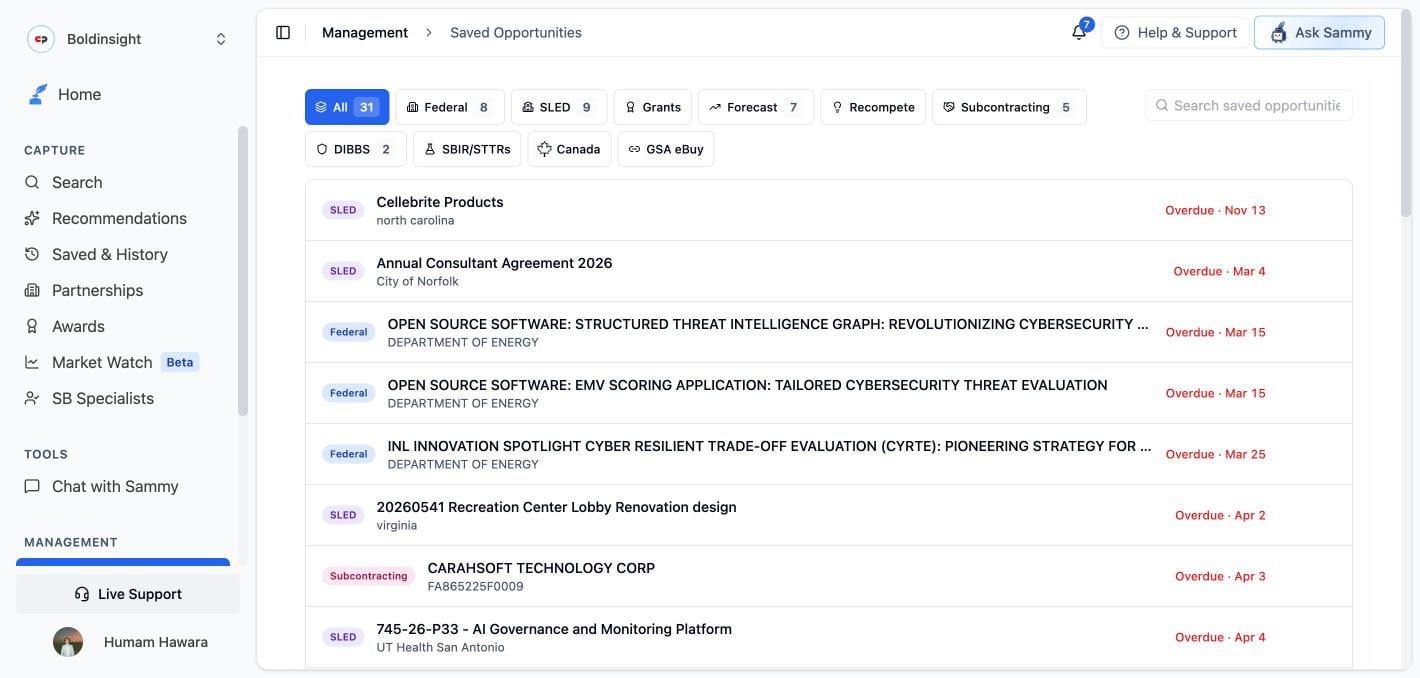
Source tabs
Saved Opportunities has one tab per source, in an order you can customize (it follows the same source order as your Company Profile). Each tab shows a count badge when you have saved items in it.All · Federal · SLED · Grants · Recompete · Forecast · DIBBS · Canada · Subcontracting · SBIR/STTRs · GSA eBuy
Every tab past Federal requires SLED access (Pro and Enterprise plans). Without it, you’ll see just the All and Federal tabs here.
Two ways to view your saves
The All tab and the per-source tabs work differently — worth knowing so the missing search box or pager doesn’t look like a bug.- All tab
- Per-source tabs
A card list, not a table. Each card shows the source badge, title, and a due-date line (
Overdue, Due today, a date, Forecast, or No deadline). Use the Search saved opportunities… box to filter by title. There’s no pagination — every saved opportunity across every source renders on one page.Columns by source
Column headers differ by source, since each one tracks different fields.- Federal
- SLED
- Grants
- Recompete
- Forecast
- DIBBS
- Canada
- Subcontracting
- SBIR/STTR
- GSA eBuy
Title · Deadline · Dept. Sub-Tier · Type · Set-Aside · Set Reminder · Journey · Delete
Set Reminder — Federal opportunities only
The Federal tab has one column no other source has: Set Reminder, a plain on/off switch per saved opportunity.There’s no date picker, note field, or frequency option. It’s a “don’t let me forget this one” flag, not a scheduled reminder. No other opportunity type has this column.
Saving opportunities
Save an opportunity from anywhere you find one:- Search results — Click the star/bookmark icon on any result card
- Opportunity detail pages — Click Save in the header
- Recommendations — Save any recommended opportunity from its card
Saving doesn’t show a confirmation toast — the star or bookmark icon just fills in to show it worked. If you’re not sure whether a save went through, check the icon state rather than watching for a popup.
Removing a saved opportunity
Click Delete on any row (or the same icon on an All-tab card) to remove it.From saved opportunity to Journey
1
Save the opportunity
Save any interesting opportunity from Search, Recommendations, or its detail page.
2
Review details
Click the title to open the full opportunity and read the requirements.
3
Assess fit
Determine if it matches your capabilities and certifications.
4
Start a Journey
Click Start Journey in the Journey column (or on the opportunity detail page) to begin tracking it in Journey Hub. A toast confirms the journey was created, with a View button to jump straight to it — it won’t navigate you there automatically.
5
Track progress
The Journey column reflects your current pipeline stage. If a journey already exists for a saved opportunity, the column shows Already in Journey Hub — click to view instead of the Start Journey button.
Exporting
Per-source tabs (not the All tab) show an Export button that downloads that source’s saved opportunities as a CSV, using the columns shown above.Export only appears when there’s at least one saved opportunity for the selected tab.