
Looking for notification or email-alert preferences? They aren’t on this page — they live on Company Profile → Sources & Alerts, alongside the Recommendation volume setting that controls how many AI recommendations you see and get emailed.
Current Plan
A banner at the top shows your plan name and, if a cancellation is scheduled, aCancels on {date} badge. Your plan name is read live from your subscription — see Subscription Plans & Upgrades for what Pro and Enterprise unlock.
Account & Preferences
- Profile Picture — Upload a personal photo. JPG, PNG, or GIF, up to 5MB.
- Reset Password — Takes you to a dedicated password-reset flow.
Dark mode isn’t on this page — it’s a toggle inside your avatar dropdown menu, right next to where you get here.
How you sign in
SamSearch supports email + password, Google, LinkedIn, and — for Enterprise customers — Company SSO. Every sign-in and sign-up attempt is protected by reCAPTCHA. Forgot your password? Use Forgot Password? on the sign-in screen, or Reset Password above once you’re logged in.Team & Organization
Everything about your team lives in the Organization card on this same page.Organization identity
Owners, admins, and members who’ve been granted the Edit organization permission can edit the organization name (inline, with a pencil icon) and upload an organization logo (JPG/PNG/GIF, up to 5MB) — this is separate from your personal profile picture above.At a glance
Four stat tiles show:
Every account starts with 1 seat included; additional seats are a paid add-on. Smaller accounts can purchase more seats instantly (price shown up front, charged to the card on file); everyone else gets a one-click request that the SamSearch team follows up on. The same applies to AI Profiles — see Company Profile → AI Profiles for the full purchase flow, which is identical for both.
Inviting teammates
Click Invite Member (owners, admins, and members with the Invite members permission — and only visible when you have a seat available):- Enter their email address.
- Choose their role — Member or Admin. (You can’t invite someone directly as Owner — ownership isn’t assignable through an invite.) The role picker only appears for owners and admins; a member with the Invite members permission can only invite people as Member.
- Click Send Invite. They receive an invitation email and appear in your member list with a Pending badge until they accept.
If an invited teammate never receives the email (and it’s not in spam, and the address is spelled correctly), the reliable fix is to have them sign up directly with that same email address instead of waiting on the invite email — their pending invite will link up automatically.
Managing your team
From the Team Members list, owners and admins can:- Grant individual permissions — Click Permissions on any Member row to give that person specific admin abilities without making them an Admin (see below). The button shows a count once something is granted, e.g. Permissions (2).
- Change a member’s role — Member ↔ Admin, using the role dropdown next to any non-owner row.
- Remove a member — with a confirmation prompt.
There’s currently no way to transfer ownership through the app. If you need to change who owns the account, contact support@samsearch.co.
Member permissions
Owners and admins can give a Member individual admin abilities — for example, letting a proposal lead edit the company profile or a BD manager rearrange Journey Hub columns — without promoting them to Admin. Click Permissions on a Member’s row to openPermissions for {name}. Permissions are grouped in a left-hand rail (each group shows how many of its permissions are on, e.g. 1/4); pick a group, flip the switch next to each permission, or use Grant all / Revoke all for the whole group. The footer shows {n} of {total} permissions granted. Click Save to apply — nothing changes until you save.
The Permissions button only appears on Member rows — owners and admins already hold every permission. A few things can never be granted to a Member and stay with owners and admins: removing members, changing roles, granting permissions, and managing CRM/Slack/Teams integrations. Billing stays Owner only.
Roles
Integrations
A link out to Integrations — connect your CRM, cloud storage, and messaging apps from there.Email signature
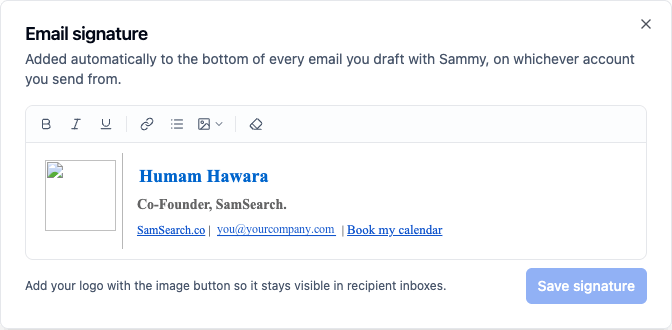
You’ll need a Google or Microsoft Workspace connection first. See Integrations to connect one.
Billing
- Manage plan — Opens the Stripe customer portal (invoices, payment method, billing address). Owner only.
- Cancel Subscription — A short, three-step flow: first a quick “before you go” message with an option to book a call instead; then a required cancellation reason (minimum 20 characters) with an option to send that reason to the team and have them follow up, rather than cancelling in-app; then a final confirmation that spells out exactly what you’ll lose (saved proposals, saved contracts, scheduled AI queries, integrations) and requires you to check a box acknowledging it.
- Renew Subscription — Appears in place of Cancel once a cancellation is scheduled.
Cancelling doesn’t cut you off immediately. You keep access through the end of your already-paid period, and you won’t be charged again. You may still get an automated renewal-reminder email after cancelling — that’s expected and doesn’t mean you’ve been re-subscribed or charged.