
At a glance
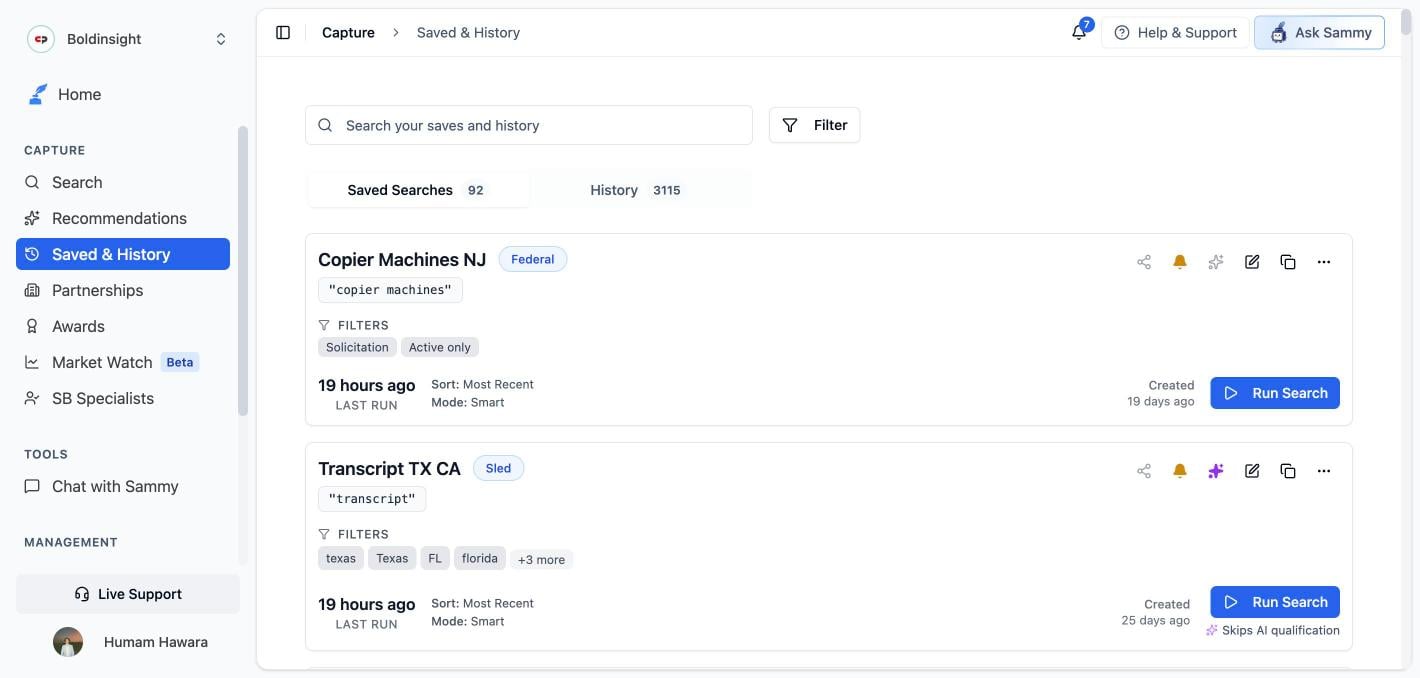
Open Saved & History from the main navigation. The page has two tabs:- Saved Searches — queries you saved from the Search page, with alerts and quick actions
- History — an automatic log of every search you have run
There’s no cap on the number of saved searches you can create, on any plan.
Saved Searches tab
Saving a search
- Run a search on the Search page with your desired query, source, mode, and filters.
- Click Save Search and give it a descriptive name.
- Your saved search appears on the Saved Searches tab.
You can’t save a search made in GSA eBuy or in Multi-Source mode with more than one source selected. Switch to a single source first.
Reading a saved search card
Each card shows:- Name — the title you gave the search
- Source badge — e.g., Federal, SLED, DIBBS
- Query — the keyword or phrase used
- Filters — any active filters (if set)
- Mode — Smart or Keyword
- Last Run — when the search was last executed
- Created — when the search was saved
- Run Search — re-run immediately

Card actions
Running a saved search
Click Run Search on any card to execute it with current data. Results open on the Search page.Editing a saved search
Editing takes you back to Search in Edit Mode:- Click the pencil icon on the saved search card.
- You’re taken to the Search page with your saved query pre-loaded and an Edit Mode banner at the top.
- Adjust the query, source, mode, or filters as needed.
- Click Update Saved Search to save, or Cancel Edit to discard changes and return to Saved & History.
Changes are not saved until you click Update Saved Search. Navigating away without saving discards your changes.

Renaming, duplicating, and deleting
- Rename — open the … menu and choose Edit Title
- Duplicate — click the copy icon on the card
- Delete — open the … menu and choose Delete
- Delete multiple — open the … menu and choose Delete multiple, then Select all or pick specific cards and confirm Delete selected
Email alerts
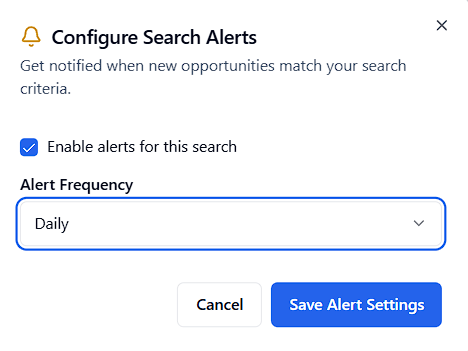
Click the bell icon on a card to open Configure Search Alerts: “Get notified when new opportunities match your search criteria.”- Enable alerts for this search — checkbox to turn alerts on or off
- Frequency — exactly three options: Daily, Weekly, or Monthly
- Gold bell — alerts enabled
- Grey bell — alerts disabled
Email alerts work with your Company Profile. Complete your profile so alert emails include relevant context, and turn on AI Qualification on the saved search itself if you only want alerts for opportunities that match your business — see the warning above about when AI qualification actually runs.
AI Qualification on a saved search
When saving or editing a search, you can turn on AI-powered qualification of results with one of two modes:- Company Profile — qualify results against your active AI Profile
- Custom Criteria — qualify against text you write yourself (required once you pick this mode)
Sharing a saved search
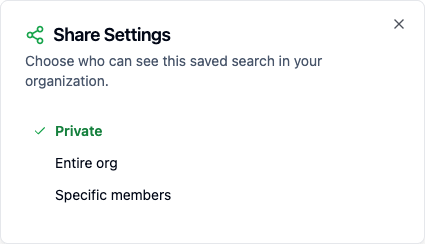
Every saved search has one of three visibility levels:1
Open Share Settings
Click the Share icon on a saved search card (or open the … overflow menu and choose Share).
2
Choose who can see it
Pick Private, Entire org, or Specific members — for Specific members, select the teammates individually.
3
Save
Shared teammates see the search appear in their own Saved Searches tab.
Subscribing to a shared search
- The original owner keeps edit and delete rights over the search.
- On a Specific members share, teammates can leave the search entirely.
- On an Entire org share, teammates can’t leave the search, but they can unsubscribe from its alerts at any time — this doesn’t affect the owner’s alerts or anyone else’s.
- Sharing requires being part of an organization with teammates. See team collaboration for how to invite teammates from Settings → Team & Organization.
History tab
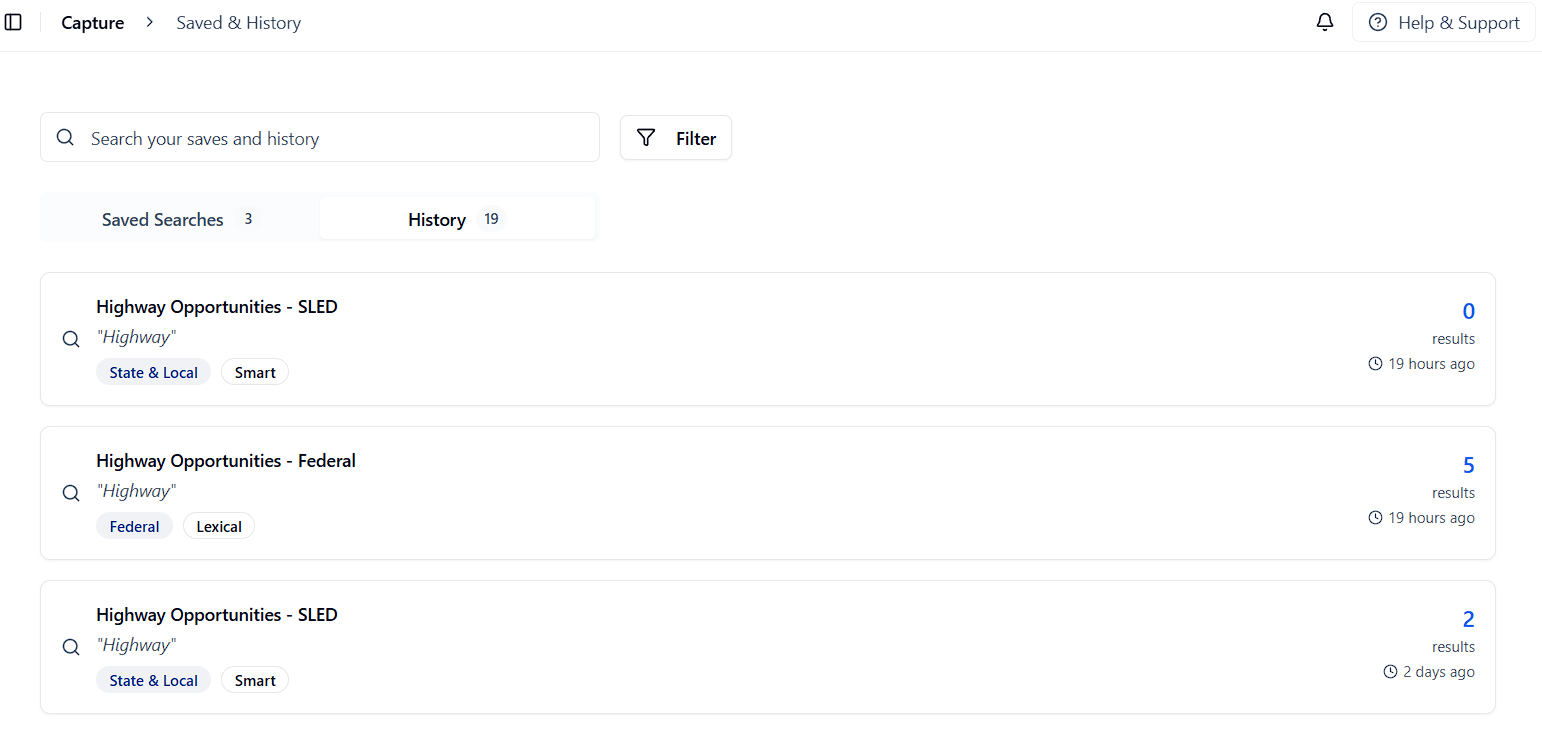
The History tab is an automatic log of every search you have run in SamSearch, including searches you did not save. Each history entry shows:- Search query
- Source (Federal, SLED, DIBBS, etc.)
- Search mode (Smart or Keyword)
- Number of results returned
- Time the search was run
- Re-run a recent search you forgot to save
- Review what you have already searched
- Find a past search and save it from the Search page
Finding a saved search
Use the search bar at the top of Saved & History to filter your list by name or query term. Click Filter to narrow by:- Search Method — All Methods, Smart Search, Keyword Search
- Search Type — the source it was saved against
- Last Run — Any Time, Today, This Week, This Month, Never Run
- Visibility — All, My searches, Shared by me, Shared with me
Relative date filters never go stale
If your saved search includes a date filter like “Active only” or “posted in the last 7 days,” that filter is saved as a relative range, not a fixed date. SamSearch resolves it fresh every time the search runs — so a saved search never silently starts returning expired results just because time has passed since you saved it.FAQ
Q: How many searches can I save? A: There is no limit to the number of saved searches you can create. Q: Can I share saved searches with my team? A: Yes. Click the Share icon on a saved search card to choose Private, Entire org, or Specific members. Anyone with access can subscribe to alerts on their own schedule — independent of yours. Q: Can I export my saved searches? A: Exporting saved searches is not currently available from this page. Q: What happens if I delete a saved search? A: Deleting a search removes it permanently, but you can recreate it from History or by saving a new search on the Search page. Q: How do I know if my alerts are working? A: Confirm the bell icon is gold (enabled) and the frequency in Configure Search Alerts is what you expect. Check your email inbox and spam folder for alert messages — remember alerts only go out Daily, Weekly, or Monthly, never instantly. Q: Why did an opportunity from my saved search show up on Search but not get emailed to me, or appear on Recommendations? A: AI qualification (if enabled on the search) only evaluates results during the scheduled email alert. A manual Run Search always shows every raw match, unscored — it never triggers qualification or an email.Next step: Save individual opportunities from your search results to Saved Opportunities.