
What is a Journey?
A Journey (also called a “pursuit”) is created when you decide to actively pursue an opportunity. It tracks everything from your initial assessment through final submission — documents, tasks, notes, contacts, compliance, and the generated proposal all live in one workspace per bid. Journey Hub is shared across your whole organization — every journey a teammate creates is visible to the rest of the org (subject to the visibility setting on that specific journey). This is different from Saved Opportunities, which are private to each login and do not sync between teammates. If you and a colleague both use SamSearch, the fastest way to make sure you’re both looking at the same pipeline is to work in Journey Hub, not each person’s individual saved list.Creating a Journey
There are two ways to start a journey, and they are not equivalent.From an Opportunity (recommended)
- Open any opportunity from Search, Leads, or Recommendations
- Click Start Journey
- A journey is created automatically with the opportunity’s details pre-filled, and stays linked to that source listing
From Journey Hub Directly
- Go to Journey Hub under the Management section of the left sidebar
- Click + New Journey in the top right corner (or use the inline + on any column to create it directly in that stage)
- Fill in the title, status, due date, visibility, assignees, and optional description
- Click Create Journey
Pipeline Stages
Every organization starts with five default stages, each carrying a default win probability used to weight your pipeline value:
Two separate locks are at work here, and it’s easy to mix them up:
- Deletion lock — Assessment, Won, and Lost/No-Bid can never be deleted, even if empty. In Progress and Submitted can be deleted (once empty) despite being default columns.
- Win-probability lock — only Won (always 100%) and Lost/No-Bid (always 0%) have a probability you cannot change. Assessment’s 10% is just a normal default and can be edited like any custom column.
Customizing Board Columns
Only Admins, Owners, and members who’ve been granted the Edit Board Columns permission can edit board columns. Everyone else sees the columns as configured by their organization. Columns are shared across every AI Profile in your org — a change here affects everyone.
- Add a new column
- Rename any column — including Assessment, Won, and Lost/No-Bid
- Reorder columns by dragging them in the manager
- Delete a non-locked, empty column
- Set a win probability on any non-locked column, using the slider or preset percentages
A win probability is optional on a custom column. A column with none set shows
no win % set under its name and contributes nothing to your Weighted pipeline figure — its journeys still count toward the raw Pipeline total. Set a probability on every column you want reflected in the weighted number.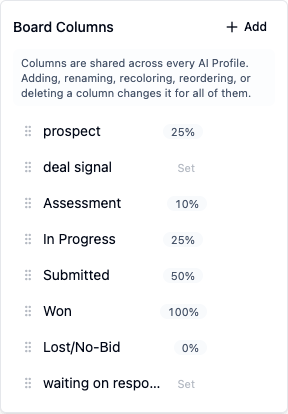
View Modes
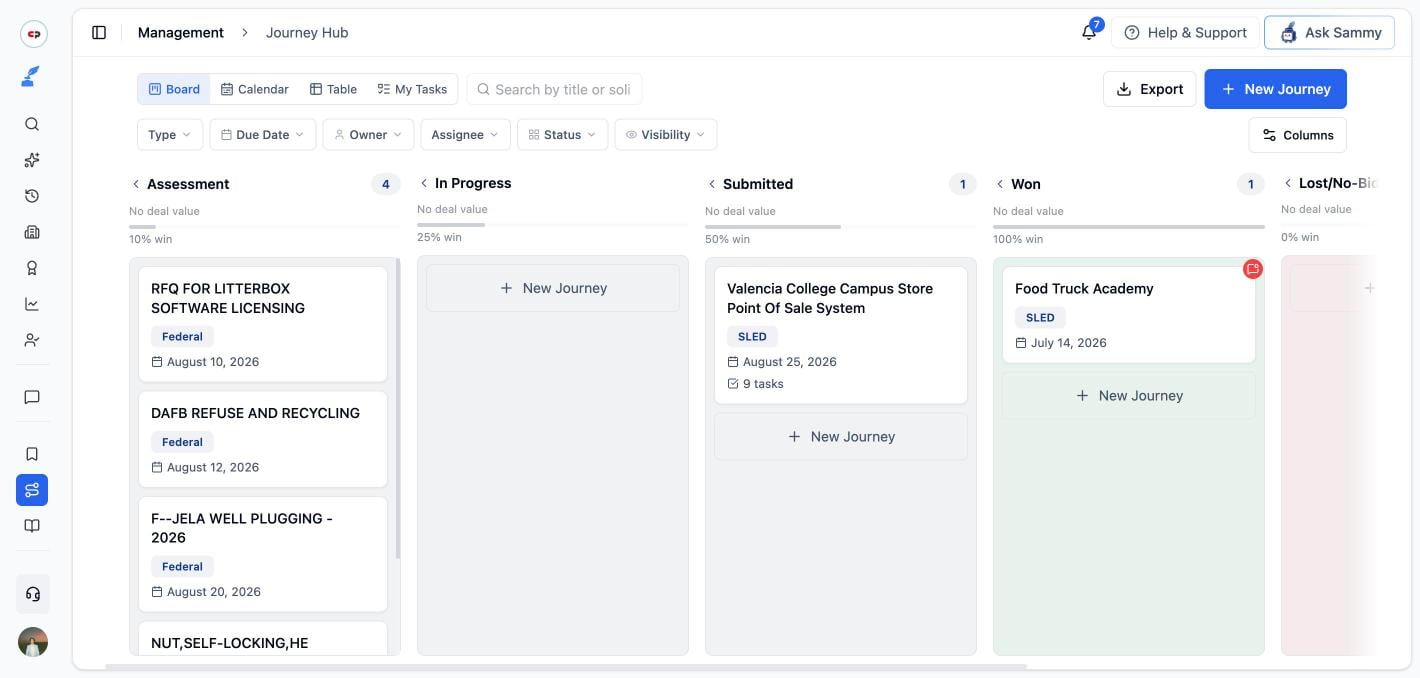
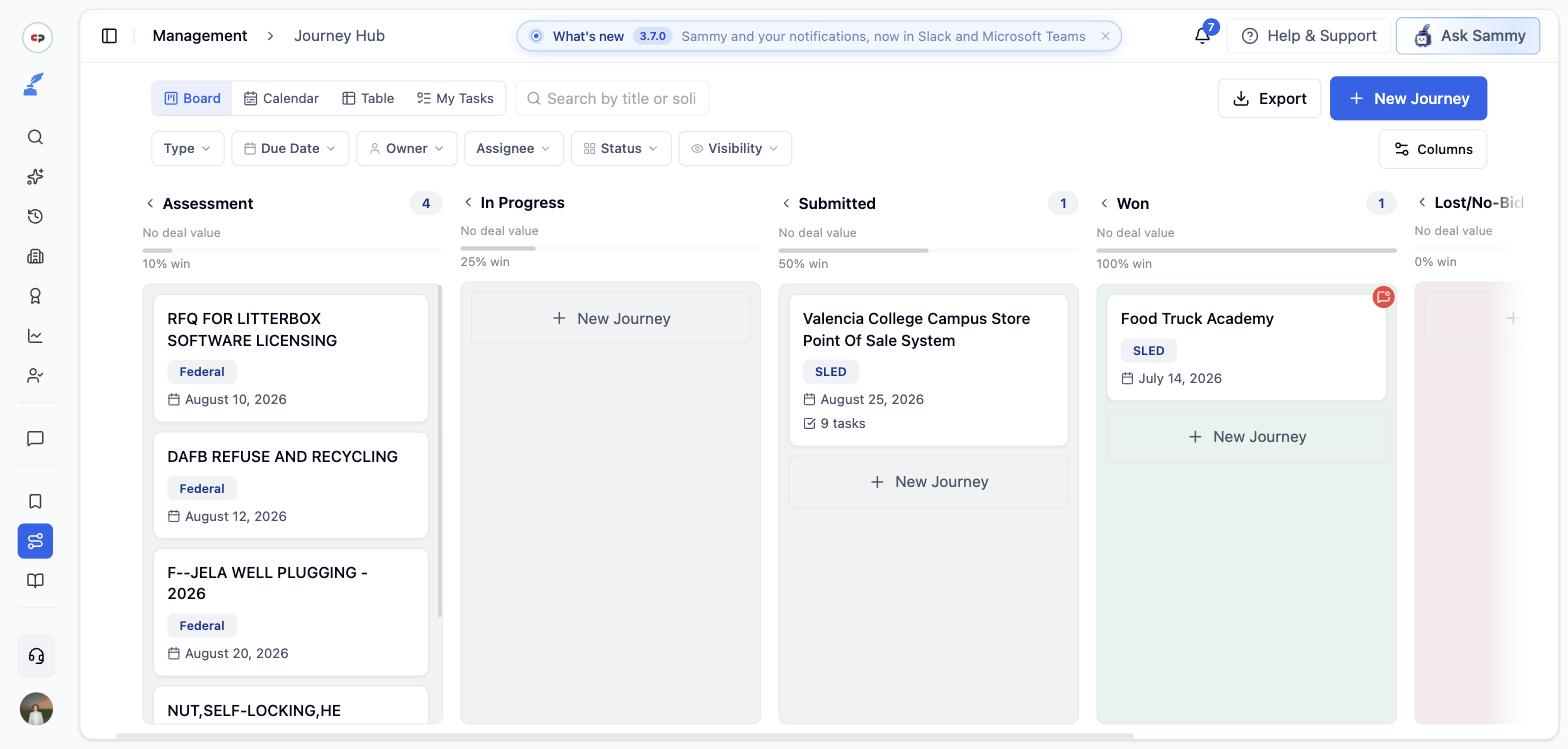
Switch between four views using the controls at the top of Journey Hub:Board
The default view — journeys organized by pipeline stage. Drag and drop cards between columns to update status. Columns can be collapsed to a narrow strip to save space, and you can still drop a card into a collapsed column.
Calendar
Journeys with a due date plotted on a month grid. Drag an event to a new day to reschedule it. Journeys in Lost/No-Bid show a red “Lost / No-Bid” pill instead of a due-date label.
Table
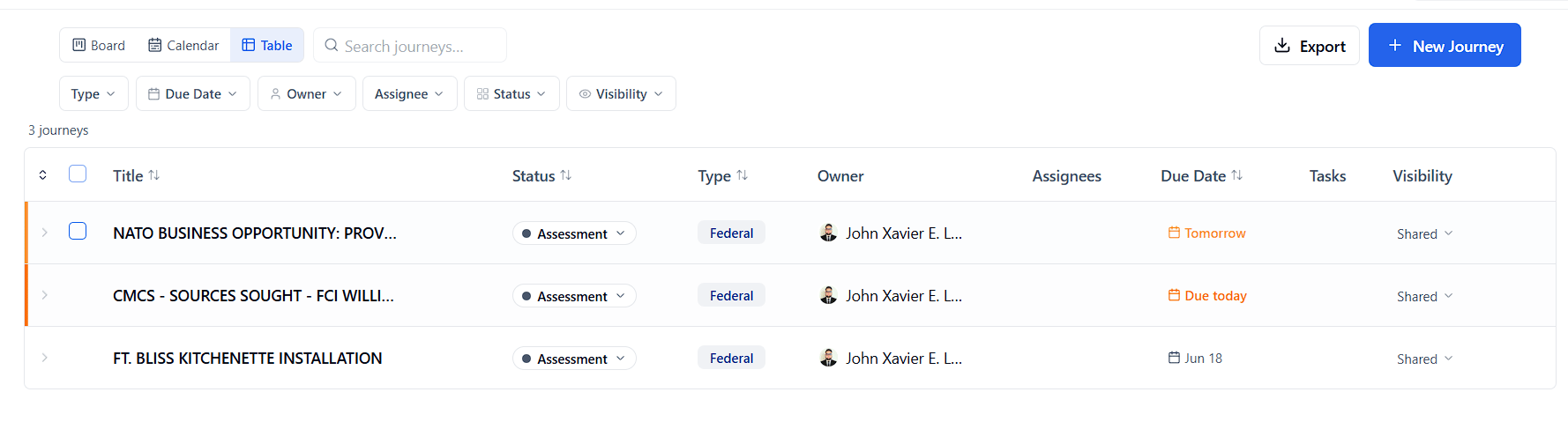
A sortable, filterable grid with inline editing, bulk actions (status, assignment, delete), and keyboard navigation. An overdue counter and toggle let you isolate just what’s late.
My Tasks
Your personal task workspace — every task assigned to you across all journeys, plus your @mentions and the journeys you’re involved in. See below for full details.
My Tasks
- Click My Tasks in the view switcher at the top of Journey Hub
- Or open your Dashboard and click the My Tasks card
Tasks Tab
Shows your assigned tasks, with:- Quick filters — All / Overdue / Today / This week (each with a live count)
- Status filter — All / To Do / In Progress / Done
- Group by — Due date (default: Overdue, Today, This week, Later, Completed), Journey, Status, or Priority
- Scope toggle — My tasks (assigned to you) vs. All tasks (every task across all your journeys, with assignee avatars shown)
Mentions Tab
Every @mention directed at you across every journey — who mentioned you, the message, the parent journey or task, and a timestamp. Unread mentions are highlighted; clicking one marks it read and takes you to the task (or the journey Overview if it wasn’t task-specific).Journeys Tab
Every journey you own or are actively assigned to, with a progress bar of your own tasks within that journey (done vs. total). Click any journey card to open it.Filters
The filter bar has six chips:
There’s also a free-text search box (matches title and solicitation number) and an Export button that downloads the currently filtered list as CSV.
Journey Features
Each journey opens into its own workspace with several tabs.Overview

- Type @ to mention a teammate or a journey contact — both are searchable from the same menu
- Type / for slash commands:
/taskcreates a real task on this journey without leaving the notepad, plus quick-inserts for the journey’s due date, solicitation number, today’s date, and any contact’s name/email/phone
Comments

- Multi-line text, so you can leave detailed notes
- Type @ to tag a teammate — they’ll see it in their Mentions tab
- Reply threads, and react to any comment with an emoji (a quick row of eight, or the full picker)
Activity Log

Tasks
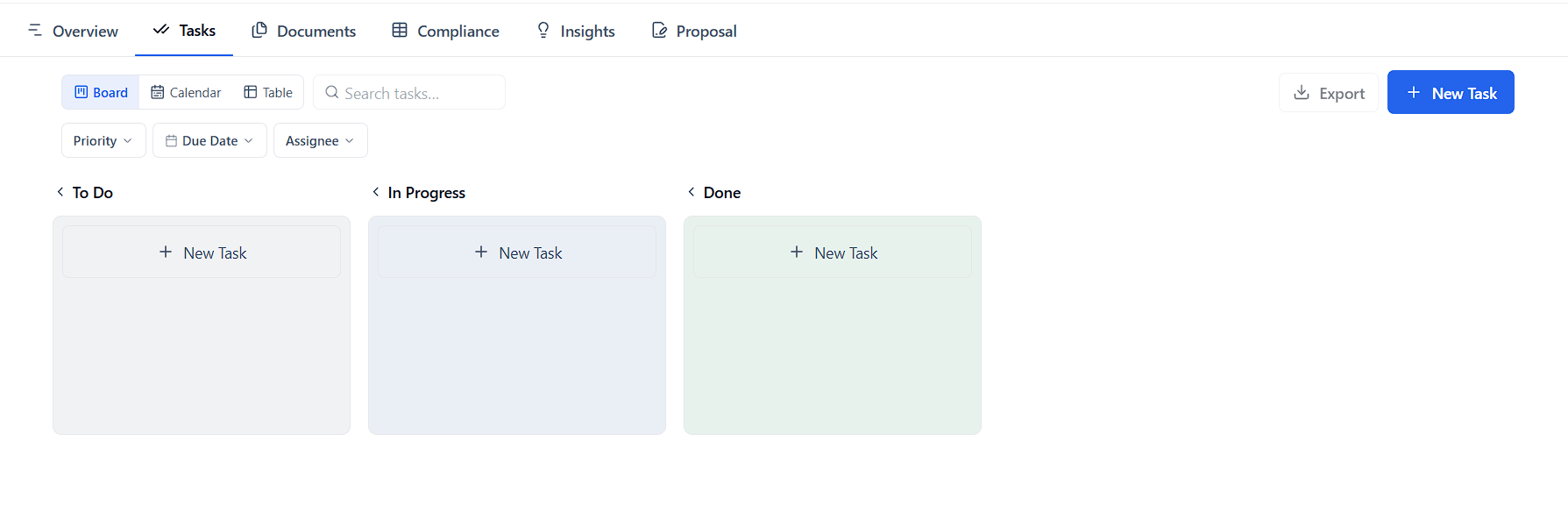
- Statuses: To Do, In Progress, Done — fixed, not customizable
- Priorities: Low, Medium, High
- Assign one or more teammates to any task
- Click a task to open its task detail page — full description, status/priority/due-date controls, and its own comment thread with the same @mention, reply, and emoji-reaction system used on the journey Overview. Unread mentions in a task’s comments are highlighted, and the page scrolls to and flags the first unread one automatically.
Want to see all your tasks across every journey at once instead of one journey at a time? Use My Tasks in the Journey Hub view switcher.
Documents
Store every bid-related file inside the journey — solicitation attachments, drafts, past performance, certifications, and anything you upload.- Limits: up to 50 MB per file, 20 files per upload
- Accepted types:
.pdf.doc.docx.xls.xlsx.pptx.csv.txt
Where you upload a document changes what it feeds. Documents uploaded to your Company Profile feed both Sammy chat and proposal generation across every opportunity. Documents uploaded only inside a single Journey are used for that journey’s proposal and chat, but feed the Strategy Insights and compliance assessment less strongly than Company Profile documents do. If a capability statement or past-performance record is something you’ll want referenced everywhere, put it in your Company Profile, not just one journey.
Need a document that isn’t attached to the opportunity at all — for example something only available through a FOIA or agency records request? Use Request documents or Request records on the opportunity page, or reach out through Live Support, and the SamSearch team will make the request for you, typically within 48 business hours. See Requesting missing documents.
Compliance
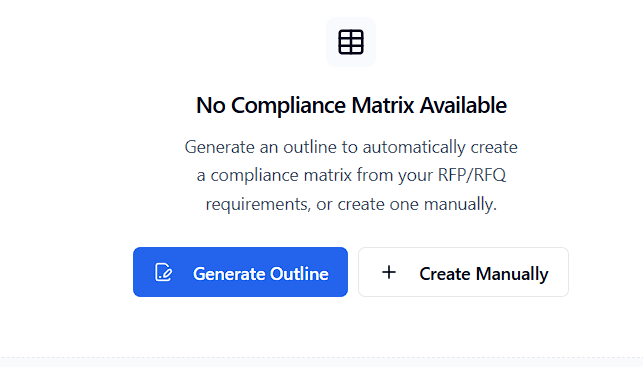
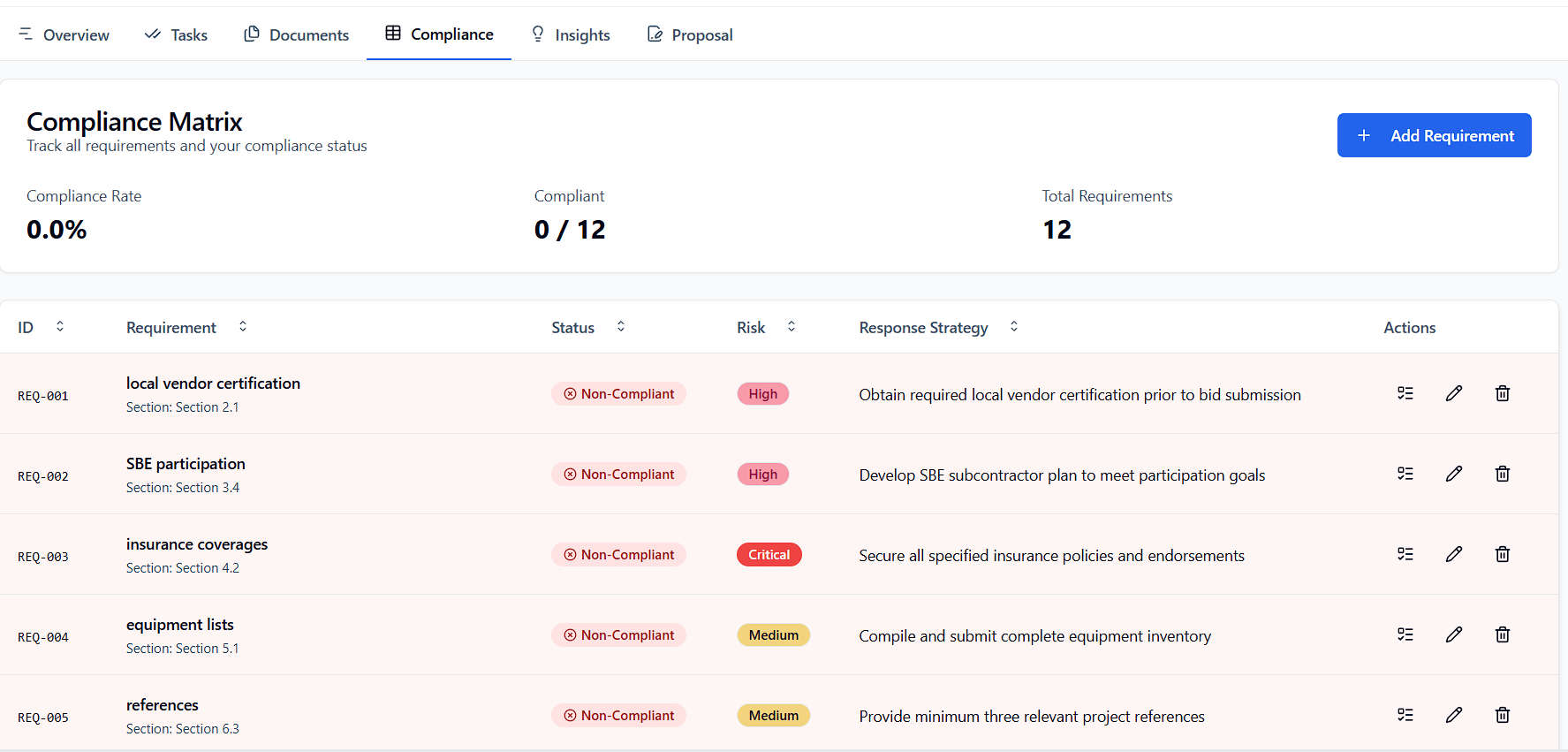
A new matrix starts entirely TBD — a background pass assesses each requirement against your company’s documents shortly after generation and fills in a status automatically; you can override any AI assessment yourself. A Compliance Rate percentage at the top gives a quick read on bid readiness.
Click Create Task on any row to spin up a task pre-filled with that requirement’s details, or View source to open the exact page and passage in the solicitation the requirement was extracted from.
If a solicitation amendment changes the requirements after your matrix already exists, use Re-shred requirements to see exactly what was added, changed, or removed — nothing updates until you review the diff and click Apply. Full detail on the reshred flow, and on Fill & Sign, is covered in our Help Center’s “Compliance Matrix and Fill & Sign” guide.
Strategy Insights
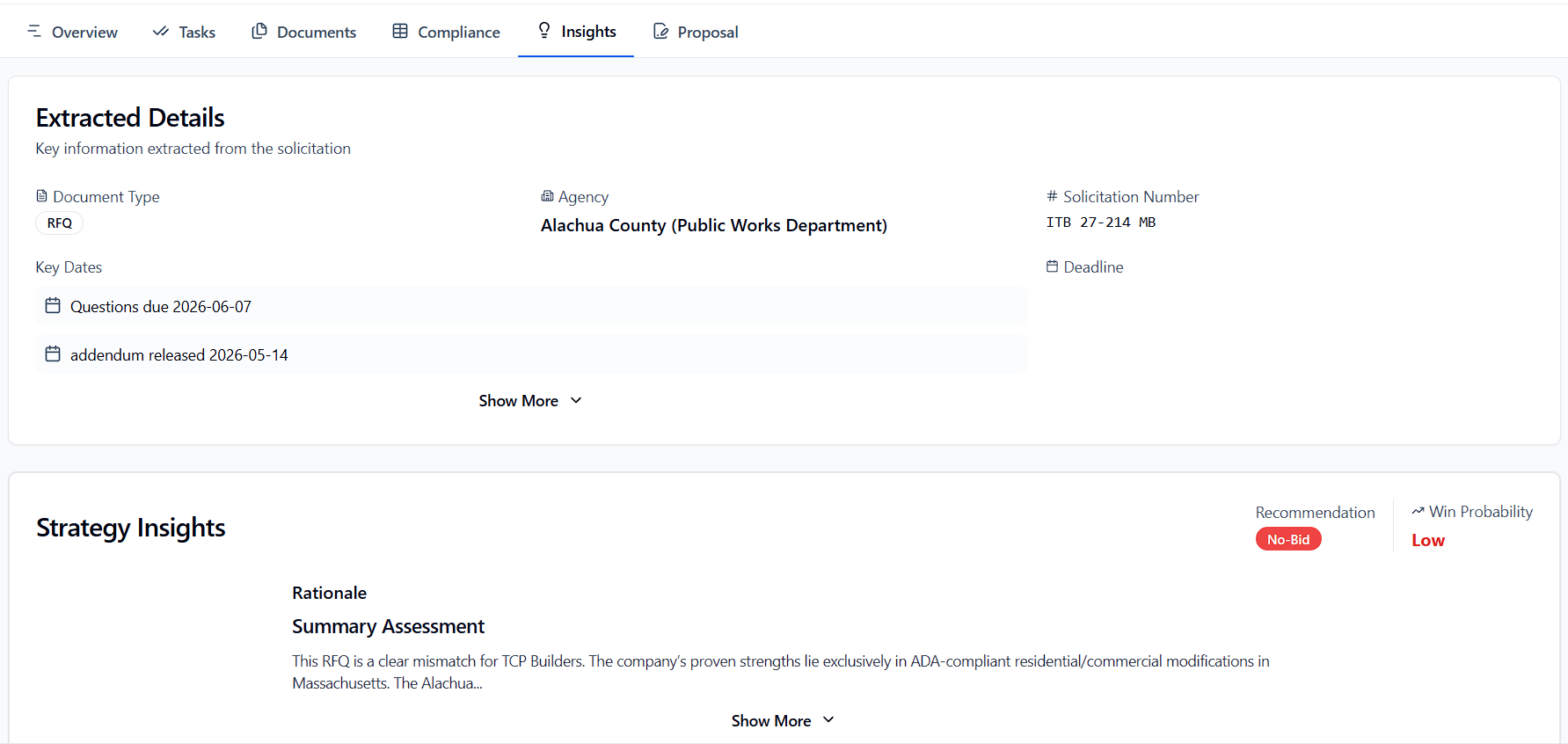
- Our call — a bid/no-bid recommendation with rationale, plus a win-probability read (high/medium/low)
- Win themes — the differentiators the AI thinks should anchor your proposal
- Risks & how to handle them — each paired with a suggested mitigation
- Key dates, snapshot, format rules, and contacts — set-aside, NAICS/PSC, place and period of performance, contract type, estimated value, and incumbent, pulled straight from the solicitation
AI Chat (Sammy)
Click Open Chat from the Overview tab to talk to Sammy with this journey’s documents already in context — analyze the RFP, understand requirements, or get help drafting content. Learn more about Sammy →Submit
Your pre-submission workspace, built on the same outline/proposal pipeline as everything above:- Bid Checklist — every submission-logistics item (forms to fill, signatures, uploads, registrations), grouped into Prerequisites → Drafting → Forms & Pricing → Final Assembly, each linked back to the compliance requirements it satisfies
- Proposal Outline — the section-by-section structure the narrative will follow, editable before you generate
- Generate Proposal — produces the full draft from your outline, documents, and compliance data
Visibility & Sharing
Journeys can be set to:- Shared — visible to every member of your organization
- Private — visible only to you and anyone directly assigned
You can’t switch a journey to Private while it still has active assignees — remove all assignees first. This prevents accidentally hiding a journey from people who are actively working on it.
Deleting a Journey
From the journey’s kebab menu (or the Table view’s row/bulk actions), click Delete. You’ll see a confirmation: “This action cannot be undone and will permanently delete this journey and all its tasks.” There’s no undo — the journey and every task, comment, document reference, and the compliance matrix are removed immediately. A deleted journey still counts toward historical totals in Reports, which can include it when Include archived journeys is on.Supported Opportunity Types
Journey Hub works with every opportunity type: Federal, SLED, Grants, Forecasts, Recompete, Subcontracting, DIBBS, GSA eBuy, Canada, and manually-created (“Upload”) journeys.Team Collaboration
Team collaboration in Journey Hub needs more than one seat. Invite teammates from Settings → Team & Organization first.
Team members and roles
Inviting teammates, roles (Owner, Admin, Member), and individual member permissions such as Edit Board Columns and Change journey visibility are all managed in Settings → Team & Organization.Assigning Journeys and Tasks
Each journey has an Owner and can have one or more Assignees. Use the Owner and Assignee filters to see your own pipeline, a specific teammate’s, or the whole team’s. Individual tasks within a journey can be assigned separately from the journey itself.Best Practices
- Start journeys from the opportunity, not from scratch — this is the only way to get ongoing amendment tracking
- Use clear titles — make each journey easy to identify at a glance
- Set due dates early — allow time for review and revision, not just submission
- Break work into tasks — specific tasks are easier to complete than vague to-dos
- Keep past performance and capability statements in your Company Profile, not just a single journey, so every proposal and chat can draw on them
- Use Visibility settings — keep sensitive journeys private; share the rest with your team
- Check My Tasks daily — start your day there to see what’s overdue, due today, and coming up this week across every active bid