
Overview
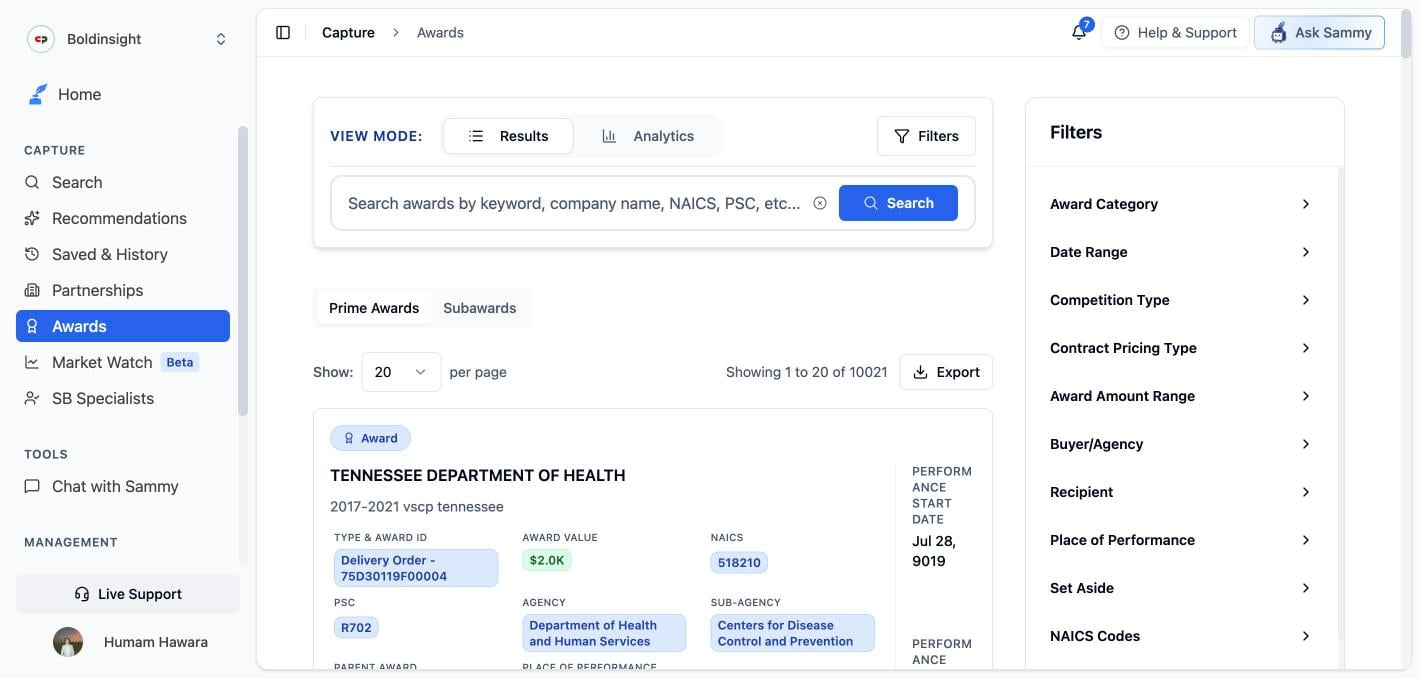
Awards is a search and analytics interface over federal contract award data, so you can research past spending, benchmark pricing, and study competitors before you bid.Awards is a live, real-time connection to USAspending.gov — SamSearch does not store or cache this data. Every search, chart, and award detail page queries USAspending.gov directly, on demand. That means award freshness follows USAspending’s own publication schedule, not SamSearch’s — if a very recent award is missing, it likely hasn’t appeared in USAspending’s own data yet. Very rapid, repeated searching can occasionally hit USAspending’s own rate limits; if that happens, wait a few seconds and search again.
Awards requires SLED access, which comes with the Pro and Enterprise plans. Without it, this page isn’t available.
View modes
Toggle Results / Analytics at the top of the page:- Results — a searchable, filterable list of individual award and subaward records. Click View Details on any card to open the full award page.
- Analytics — six spending charts computed from your current search and filters (see Awards Analytics below).
Searching
The search box accepts keywords, company names, NAICS codes, and PSC codes (placeholder: “Search awards by keyword, company name, NAICS, PSC, etc…”). Press Enter or click Search to run it; an active search term or any active filter enables the button.Filters
Open Filters to narrow results. Sections auto-expand only when they already hold a non-default value.Reading results
Each result card shows a Award or Subaward badge, the recipient name (linked), a truncated title, and whichever fields are populated: Award ID and Type, Award Value, Total Outlays, NAICS/PSC (hover for the full description), Agency and Sub-Agency, Parent Award, Place of Performance, and the relevant performance dates. From any card you can send the award to HubSpot as a lead, or click View Details to open the full award (or subaward) page.- Sort by Relevance, Date (Newest/Oldest), or Amount (High to Low / Low to High).
- Page size is 20, 50, or 100 — there’s no “show all” option.
- Export downloads the currently loaded page as a CSV (
awards-export-{date}.csv). This exports only the page you’re viewing, not every matching result — with 100 rows per page selected, that’s a maximum of 100 rows per export. To pull a larger set, page through and export each page separately.
Award details
Opening an award gives you the full USAspending record:- Financial Progress — Outlayed, Obligated, Current Award, and Potential Award amounts, plus a progress bar showing how much of the potential value has been outlaid vs. obligated vs. remaining.
- Award Timeline — Solicitation Date, Performance Start, and Performance End.
- Award Information — description, contract type, extent competed, and links to the buying Agency and Sub-Agency.
- Government Contact — SamSearch automatically looks up a matching SBA Small Business Specialist for the buying agency (the same contact data behind the SB Specialists page) and surfaces up to three matches, with a link to search all SB contacts if you need more options.
- Request records — at the bottom of the Award Information card, just below Government Contact. Award documents such as the winning proposal, its pricing, and the evaluation are almost never published with the award, so a records (FOIA) request is usually the only way to get them. Clicking Request records opens a Request Documents ticket in the in-app support messenger with this award’s details already attached, and the SamSearch team files the request for you. It’s offered on every award, not just ones with missing data. See Requesting missing documents for how the request works.
- Recipient Information — company details plus contact info (email, phone, website, certifications) pulled from the same DSBS-backed dataset as Partnerships, when the recipient’s UEI matches a record there.
- Place of Performance & Classification — location, plus NAICS and PSC codes linked to their analytics pages, each with a category breadcrumb.
- Transactions, Subawards, and Federal Account Funding — three paginated tables (10 rows per page). The subaward total shown is approximate, so treat “N subawards” as a lower bound rather than an exact figure.
Awards Analytics
Switch to Analytics to see six charts computed from your current search and filters, stacked vertically (there are no sub-tabs): Top Agencies, Top Subagencies, Top Recipients, Top NAICS, and Top PSC (each a top-10 bar chart by total award value), plus Awards Over Time (quarterly by default). All six refresh together whenever you change your search term or filters.Use Cases
Finding Target Agencies
Use awards data to identify agencies that align with your business capabilities.1
Filter by your codes
Start by filtering by your NAICS or PSC codes to narrow down relevant awards.
2
Identify frequent buyers
Look for agencies that frequently award contracts in your industry — the Top Agencies and Top Subagencies charts in Analytics make this easy to spot.
3
Match contract size
Focus on agencies whose award amounts fall in your company’s size range (small business, 8(a), etc.) using the Award Amount Range and Set Aside filters.
4
Review procurement cycles
Review the Awards Over Time chart to understand seasonal patterns and timing.
An agency’s spending patterns in your area should align with their mission and budget size.
Benchmarking Your Pricing
Compare your pricing strategy against historical awards to ensure competitiveness.1
Search for similar awards
Search for awards similar to your offerings (same NAICS/PSC, scope, size).
2
Review contract values
Review award values and outlaid amounts across multiple comparable awards.
3
Analyze pricing trends
Use the Awards Over Time chart to see how award values in your market have moved.
4
Develop competitive pricing
Develop competitive pricing that aligns with what you’re seeing in comparable awards.
Understanding Market Dynamics
Multi-Year Patterns
Review the Awards Over Time chart across multiple years to identify long-term trends.
Growth Areas
Watch for agencies or NAICS codes where award volume is increasing.
Seasonal Patterns
Look for seasonal patterns in contract awards to time your proposals.
Emerging Opportunities
Spot NAICS/PSC codes with rising award activity but few dominant recipients.
Analyzing Your Competition
Study competitor award history to inform your business development strategy.1
Search for competitors
Search or filter by recipient name to find a competitor’s award history.
2
Review their awards
Look at the Top Recipients chart and their individual award records to see total value and volume.
3
Identify strengths
Identify the agencies and NAICS/PSC codes where they’re winning most often.
4
Find gaps
Look for agencies or codes in your market where they’re less active — that’s where you have more room to compete.
5
Understand positioning
Compare their award values against the market to understand their pricing and positioning.
Best Practices
Focus Your Analysis
Focus Your Analysis
Start with your specific NAICS or PSC codes rather than browsing all awards. This will give you the most relevant insights and save time.
Look at Trends, Not Snapshots
Look at Trends, Not Snapshots
Review multi-year data in the Awards Over Time chart rather than focusing on individual awards. Trends reveal opportunities that single data points cannot.
Consider Agency Context
Consider Agency Context
An agency’s spending patterns in your area should align with their mission and budget size. Don’t expect small agencies to have large contract volumes.
Compare Similar Contracts
Compare Similar Contracts
When benchmarking pricing or analyzing competition, ensure you’re looking at similar contract types, scopes, and requirements.
Use Transaction Data
Use Transaction Data
Don’t just look at initial award amounts. Open an award’s Transactions table to see how it evolved through modifications and extensions.