
1
Retrieval
Gather candidate opportunities from every source you’ve enabled for recommendations.
2
Qualification
Decide whether each candidate is your kind of work at all, and whether anything disqualifies it.
3
Scoring
Score what survives qualification across four weighted dimensions.
4
Delivery
Save every scored result, and email only the ones that clear the score threshold.
Stage 1: Retrieval
For each source, SamSearch combines candidates found three ways:- By your codes — recent opportunities that match your NAICS/PSC codes.
- By your profile — searches generated from your business description and other profile fields.
- By your keywords — a separate search for each positive keyword on your profile.
The signal gate: the #1 reason recommendations don’t appear
This is the single most common cause of “I set everything up and I’m getting nothing.” If your Recommendations page is empty and a manual refresh reports success anyway, check these four fields first — see the checklist below.Keywords are literal substring matches
Positive keywords are one of the strongest signals in retrieval — every source supports them the same way, and each one runs as its own search. But matching is literal substring matching, not semantic. Phrasing has to appear close to verbatim in the opportunity text.Prefer short, common phrases over long, specific ones. A keyword like
HVAC or janitorial will fire far more often than a five-word phrase that has to match verbatim. Add several short keywords rather than one long one."construction" as a negative keyword suppresses “construction,” but won’t touch “site renovation” even if that’s construction work in practice.
NAICS and PSC codes are trusted differently by source
Codes only filter candidates in the code-based search above; in the other two they act as a ranking boost, not a filter. How much a code match (or mismatch) matters also depends on where the opportunity came from:
In practice: if you rely on NAICS codes to find SLED, Canada, or DIBBS opportunities, know that the code is SamSearch’s best guess, not the issuer’s — a wrong guess won’t hide a good match, but a matching guess won’t guarantee one either.
Stage 2: Qualification
Every candidate that survives retrieval goes through a two-part AI decision:- Is this the company’s kind of work at all? If not → reject. Rejected opportunities are never shown.
- Is anything blocking the award? (a set-aside you can’t hold, a location you can’t serve, a clearance you don’t have) If so → low fit. Otherwise → pass.
- Operating region — if you haven’t set one, location is left out of qualification entirely. The AI doesn’t consider geography for your profile until you set a region.
- Certifications — with none listed, set-aside eligibility is treated as unknown, not as “not eligible.” An opportunity requiring a set-aside you might hold won’t be auto-rejected for a missing certification — the AI weighs it with incomplete information.
The qualification cache: why recommendations stop changing
If your Recommendations feed looks static run after run, this cache is almost always why: every previously-decided opportunity is skipped on the next run, deadline-less opportunities most of all. This is expected behavior, not a stuck refresh.The not-recommended banner on contract pages
If you open an opportunity that was rejected or marked low fit, and it currently has no live recommendation, the contract page shows a banner instead of hiding the decision:- Rejected → “We reviewed this and didn’t recommend it,” with the deal-breakers found.
- Low fit → “We showed this to you, but it scored low,” with the issues found. A footnote reminds you these are surfaced deliberately — if the blocking issue is one you can work around (teaming on a set-aside, partnering in another region), it may still be worth pursuing.
Stage 3: Scoring
Whatever passes qualification (or is marked low fit) gets scored across four weighted dimensions:
A low-fit opportunity has its final score reduced rather than zeroed, so it ranks below equivalent work without the blocking issue but keeps its relative position among other low-fit results.
Fit tiers
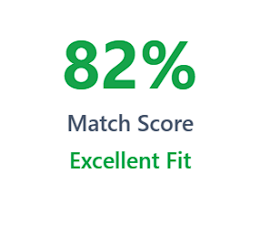
The Fit Ring on each card fills proportionally to each dimension’s weight, so the total filled arc equals the final score. When the AI’s confidence is low, the ring is drawn dashed and faded — a visual cue that the AI itself was less certain, not a rendering bug.
Needs review and Low fit badges
- Needs review — the AI couldn’t confirm fit from the available attachments. You’ll see one of two explanatory messages depending on why the attachments fell short.
- Low fit — shown deliberately rather than hidden (when your Recommendation volume includes low-fit results). The card explains what’s blocking it: “Shown because it is related to your work, scored low because of this: [reason].”
Learned insights: what thumbs feedback actually changes
Thumbs feedback doesn’t retrain anything in real time. A nightly digest reads feedback submitted since the last run and turns it into a capped list of learned patterns that the AI takes into account in future qualification, scoring, and retrieval. You can see and remove these patterns under Learned From Your Feedback in the Memories tab of your Company Profile.Insights can only move a score — they are explicitly forbidden from causing a reject. A thumbs-down never removes an entire category of work from your feed.
- Feedback is shared across your org. Insights are profile-scoped, not per-teammate, so a thumbs-down from any team member trains the same profile everyone else sees.
- The pattern list is capped. Once it’s full, a new pattern can only get added by displacing an existing one. If your recent feedback doesn’t seem to be changing anything, this is often why — it’s competing with older patterns for a limited number of slots.
Stage 4: Delivery
Every scored result is saved, whether or not it gets emailed.The email floor
Manual refresh: 5 per day, shared across your org
A manual refresh only regenerates profile-based recommendations (what you see under the Profile tab, and the profile-based portion of All). It does not touch Saved Searches-tab recommendations — those come from your saved searches’ scheduled email alerts instead. Refreshing won’t change them; see AI Qualification for how that pipeline runs.
The three dismissed surfaces

If you dismissed something from your Recommendations feed and are looking for a way to bring it back, it isn’t there — only opportunities dismissed from a manual Search have a Restore option.
Feedback reasons
Both thumbs buttons open a dialog that requires at least one reason:- Thumbs up (adds the opportunity to Journey Hub): strong capability match, right location, right NAICS/certifications, right budget, agency relationship, realistic timeline, or other.
- Thumbs down (dismisses the opportunity): wrong industry/NAICS, wrong location, budget mismatch, wrong contract type, capability mismatch, timeline too short, or other.
The plain Dismiss (✕) button on a card removes the opportunity with no reason required, and doesn’t feed the learned-insights digest.
Why am I not seeing recommendations?
Nothing shows up at all, even after a refresh that reports success
Nothing shows up at all, even after a refresh that reports success
Check your Company Profile for the signal gate: you need at least one of positive keywords, NAICS codes, PSC codes, or a 40+ character business description. Without one of these, generation is skipped silently and the run still reports success.
An opportunity I know matches my keyword isn't showing up
An opportunity I know matches my keyword isn't showing up
Keyword matching is a literal substring match, not semantic. Check whether your exact phrase appears in the opportunity text — a close synonym or reordered phrase won’t match.
Opportunities with the wrong NAICS/PSC code still show up, or right-coded ones don't
Opportunities with the wrong NAICS/PSC code still show up, or right-coded ones don't
Code trust depends on the source. On SLED, Canada, and DIBBS, NAICS is SamSearch’s own inferred guess — a mismatch is ignored, not penalized. Codes also act mostly as a ranking boost rather than a strict filter.
Recommendations from outside my service area keep appearing
Recommendations from outside my service area keep appearing
If your Company Profile has no Operating Region set, location is left out of qualification entirely — the AI isn’t considering geography for your profile at all. Add an operating region to change this.
My recommendations feed looks frozen — same results every time
My recommendations feed looks frozen — same results every time
This is almost always the qualification cache. Every previously decided opportunity is skipped in future runs. Opportunities with no response deadline are excluded permanently, since their cached decision never expires.
I gave thumbs-down feedback but I'm still seeing similar opportunities
I gave thumbs-down feedback but I'm still seeing similar opportunities
Learned insights can only move a score, never cause a reject — a thumbs-down can’t remove a whole category of work. The insight list is also capped; if it’s full, your recent feedback may need to displace an older pattern before it has any visible effect.
I'm not getting recommendation emails, but I see results in-app
I'm not getting recommendation emails, but I see results in-app
Only results scoring 50% or higher are included in the email digest — this is the email floor. Lower-scoring results are visible on the page but intentionally never emailed.
I refreshed, but my Saved Searches-tab recommendations didn't change
I refreshed, but my Saved Searches-tab recommendations didn't change
Manual refresh only regenerates profile-based recommendations. Saved Searches-tab results come from each saved search’s scheduled email alert instead — see AI Qualification.
I see a 'Needs review' or 'Low fit' badge and don't know what it means
I see a 'Needs review' or 'Low fit' badge and don't know what it means
Needs review means the AI couldn’t confirm fit from the available attachments. Low fit means the opportunity is related to your work but scored low for a stated reason — shown deliberately rather than hidden. Both are explained under Needs review and Low fit badges.
I dismissed something and now I can't find a way to restore it
I dismissed something and now I can't find a way to restore it
Check which of the three dismissed surfaces it’s in. Only opportunities dismissed from a manual Search (the Dismissed Opportunities page) can be restored — recommendations dismissed from the Recommendations page cannot.
Back to AI Recommendations
Return to the page reference — tabs, filters, and available actions.