
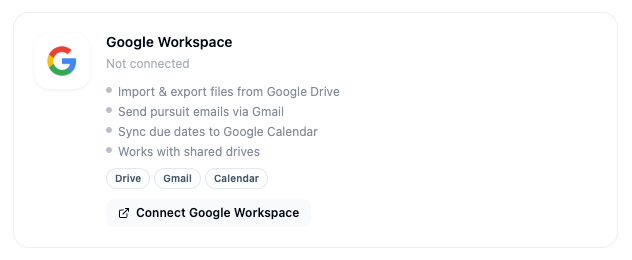
What this integration does
- Drive — import files into pursuits, export SamSearch documents back to Drive, and manage proposal templates. Works with shared drives.
- Gmail — send pursuit emails from within Journey Hub, using your connected Gmail account, with per-pursuit tracking
- Calendar — pursuit due dates sync automatically to your selected Google Calendar, with deadline reminders and Google Meet scheduling
Part 1 — Connect Google Workspace
1
Open Integrations
In the left sidebar, scroll to Account and click Integrations.
2
Find the Google Workspace card
Scroll to the Cloud Storage section. The Google Workspace card shows your current connection status.
3
Disconnect Microsoft Workspace first (if you have it connected)
Google Workspace and Microsoft Workspace can’t both be connected under your account at the same time. If your Microsoft Workspace card shows Connected, click Disconnect on it before continuing.
4
Click Connect Google Workspace
Click Connect on the Google Workspace card. A dialog lists exactly which Google services SamSearch is requesting: Drive, Gmail, Calendar, and Meet. Review it and click Connect with Google.
5
Sign in with Google
A popup opens for you to sign in with your Google account and grant the requested access.
6
Confirm connected status
The popup closes, the Google Workspace card shows Connected along with your Google account email, and the Configure panel opens automatically so you can review the three service toggles below.
Part 2 — Configure Drive, Gmail, and Calendar
Each service has its own Enabled / Off toggle:- Drive — import files into pursuits, export documents to Drive, and proposal template management.
- Gmail — send from within Journey Hub and track emails per pursuit, using your connected Google account. You can also set a custom Sender display name, and manage your email templates and signature from the same panel.
- Calendar (+ Meet) — auto-sync due-date changes, get deadline reminders, and schedule Google Meet calls. Pick your Default calendar from a dropdown of your live Google calendars.
Using the integration
- Attach a Drive file: from a pursuit, attach a file from Google Drive — it imports a copy into SamSearch.
- Export to Drive: export a SamSearch document back to your connected Google Drive.
- Send an email: from a pursuit, send via Gmail using your connected account.
- Calendar sync: pursuit due dates automatically appear on your connected Google Calendar. Updating a due date in SamSearch updates the calendar event.
If your organization connected Google Drive before the unified Google Workspace integration shipped, you may still see a standalone Google Drive card. It behaves the same way — SamSearch routes actions to whichever connection is actually active.
Troubleshooting
“Can’t connect — Microsoft Workspace is already connected”- Google Workspace and Microsoft Workspace are mutually exclusive per person. Disconnect Microsoft Workspace on the Integrations page, then try connecting Google Workspace again.
- Confirm the integration status is Connected — an expired or revoked token shows as an Error state with a Reconnect link. See Connection states.
- Confirm Drive is toggled Enabled under Configure.
- Confirm you have view access to the file in Google Drive — SamSearch can only import files your Google account can already access. Shared drive files require your account to be a member of that shared drive.
- Confirm Calendar is toggled Enabled and a Default calendar is selected under Configure.
- Confirm Calendar permission was granted during the OAuth step — re-run the connection if you declined it initially.
- If Save preferences wouldn’t save, you likely lack write access on the chosen calendar — pick one you can edit, or grant edit access to your connected Google account.