
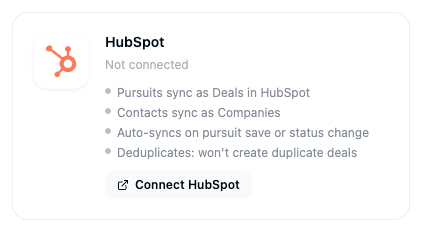
What this integration does
- Pursuits sync as a Deal —
dealnamefrom the pursuit title,dealstagefrom your stage mapping (set in the Map your pipeline stages step below),closedatefrom the pursuit’s due date, andamountfrom the opportunity’s estimated value - The Deal description combines the opportunity’s description with an Agency / Notice ID / Type summary
- Two custom properties are set on the Deal: a link back to the pursuit in SamSearch, and the AI Profile it came from
- Contacts sync to HubSpot as Companies
- Syncing is real-time — it fires the moment you save a pursuit or change its status, not on a delay
- Before creating a Deal, SamSearch searches for an existing one with the same name and updates it instead of creating a duplicate
Part 1 — Connect HubSpot
1
Open Integrations
In the left sidebar, scroll to Account and click Integrations.
2
Find the HubSpot card
Scroll to the CRM section. The HubSpot card shows your current connection status.
3
Click Connect HubSpot
Click Connect on the HubSpot card. Because this is a shared, org-wide connection, a confirmation dialog explains that every team member will share it and see synced data — SamSearch recommends using a dedicated work account (e.g.
ops@yourcompany.com) rather than a personal one. Click I understand connect HubSpot to proceed.4
Choose your HubSpot account
A popup opens showing the HubSpot accounts you have access to. Select the one you want to connect and click Choose Account.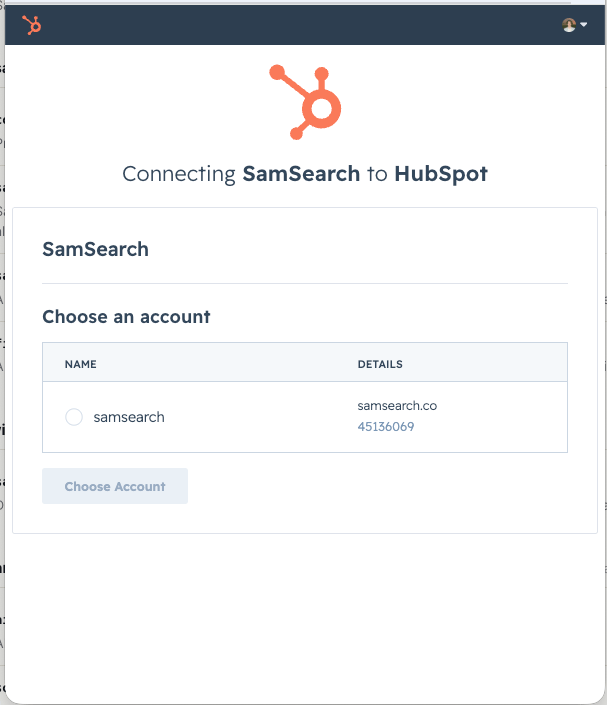
5
Review and grant permissions
HubSpot lists exactly what SamSearch is requesting access to — companies, contacts, and deals. Review the list and click Connect app.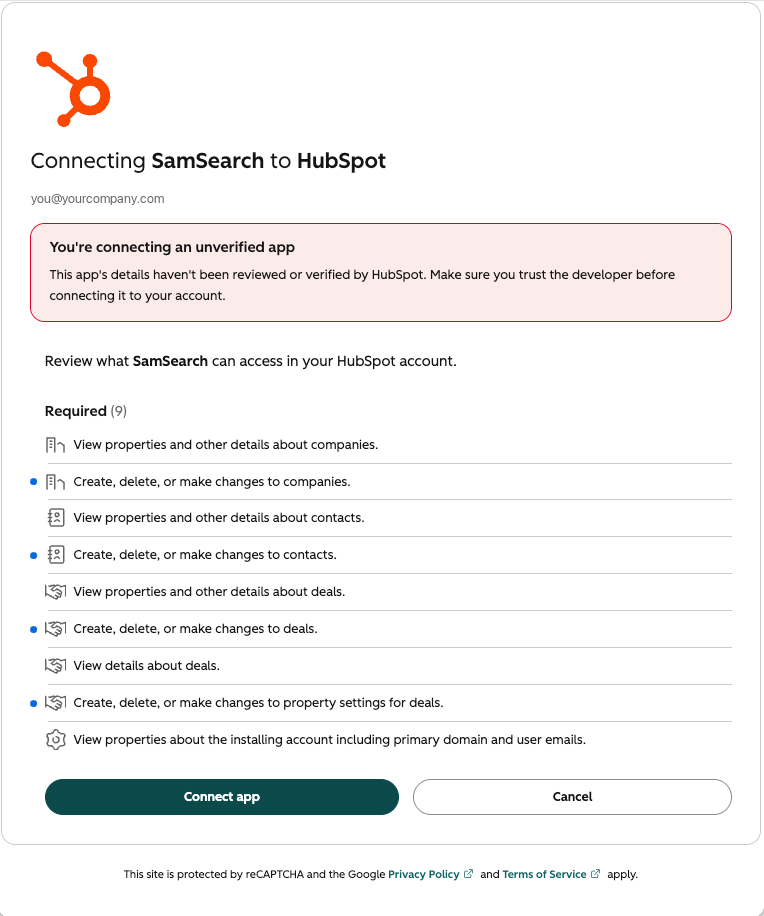
6
Accept the unverified app warning
Because SamSearch’s HubSpot app hasn’t gone through HubSpot’s app marketplace review, HubSpot shows an “unverified app” warning. Type I accept the risk in the field and click Connect to proceed.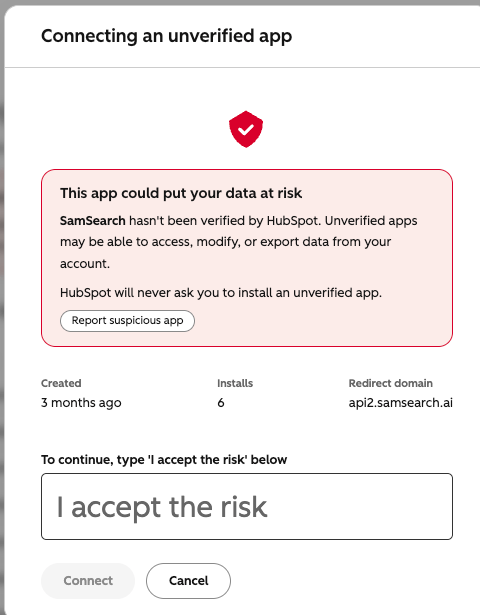
7
Map your pipeline stages
The popup closes, the HubSpot card shows Connected, and the Configure panel opens automatically. Map each SamSearch pipeline column to a HubSpot Deal pipeline stage, then click Save. If no stages appear, click Refresh above the list.
On first connect, SamSearch copies every existing pursuit into HubSpot as a Deal — you’ll see the card in a Syncing state with a live counter until it finishes. See Connection states for what each card state means, including what an expired connection looks like.
Troubleshooting
Deals aren’t showing up in HubSpot- Confirm the integration status is Connected on the Integrations page — an expired or revoked token shows as an Error state with a Reconnect link.
- Confirm you completed the stage-mapping step in Configure; syncing needs a mapped stage for the pursuit’s current column.
- Syncing fires on save or status change; editing unrelated fields won’t trigger a new sync.
- SamSearch matches by exact deal name before creating a new one. If a deal was created manually in HubSpot with a different name before you connected, it won’t automatically merge with the synced deal — merge it manually in HubSpot.
- Make sure pop-ups aren’t blocked for SamSearch in your browser.
- Confirm you have permission to authorize apps in your HubSpot portal.