
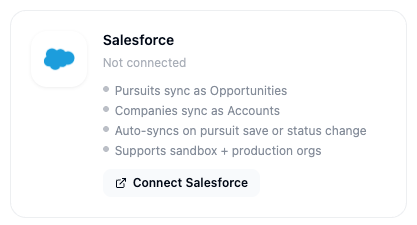
What this integration does
- Pursuits sync as an Opportunity —
StageNamefrom your stage mapping (set in the Map your pipeline stages step below), andCloseDatefrom the pursuit’s due date (defaults to one year out if the pursuit has no due date, since Salesforce requires this field) - Companies sync as Accounts, and Contacts are linked to the Opportunity via an Opportunity Contact Role
- Syncing is real-time — it fires the moment you save a pursuit or change its status, not on a delay
- Supports both Production and Sandbox orgs
- Removing a pursuit from SamSearch’s side doesn’t delete the Opportunity in Salesforce — it sets
StageNameto Closed Lost instead
Part 1 — Connect Salesforce
1
Open Integrations
In the left sidebar, scroll to Account and click Integrations.
2
Find the Salesforce card
Scroll to the CRM section. The Salesforce card shows your current connection status.
3
Click Connect Salesforce
Click Connect on the Salesforce card. Because this is a shared, org-wide connection, a confirmation dialog explains that every team member will share it and see synced data — SamSearch recommends using a dedicated work account (e.g.
ops@yourcompany.com) rather than a personal one. Click I understand connect Salesforce to proceed.4
Authenticate with Salesforce
A popup opens for you to log in to Salesforce and authorize SamSearch. Log in with the credentials for whichever org — Production or Sandbox — you want SamSearch to sync with, and grant the requested access.
5
Map your pipeline stages
The popup closes, the Salesforce card shows Connected, and the Configure panel opens automatically. Map each SamSearch pipeline column to a Salesforce Opportunity stage, then click Save. If no stages appear, reconnect to refresh the list.
On first connect, SamSearch copies every existing pursuit into Salesforce as an Opportunity — you’ll see the card in a Syncing state with a live counter until it finishes. See Connection states for what each card state means, including what an expired connection looks like.
Troubleshooting
Opportunities aren’t showing up in Salesforce- Confirm the integration status is Connected on the Integrations page — an expired or revoked token shows as an Error state with a Reconnect link.
- Confirm you connected the correct org — a sandbox connection won’t sync to your production org, and vice versa.
- Confirm you completed the stage-mapping step in Configure; syncing needs a mapped stage for the pursuit’s current column.
- Syncing fires on save or status change; editing unrelated fields won’t trigger a new sync.
- Click Disconnect on the Salesforce card, then reconnect and log in with the credentials for the correct org (Production or Sandbox).
- Your Salesforce user needs API access and permission to authorize connected apps. Ask your Salesforce admin to grant these, then try connecting again.