> ## Documentation Index
> Fetch the complete documentation index at: https://docs.samsearch.co/llms.txt
> Use this file to discover all available pages before exploring further.
# Slack Setup
> Connect Slack to chat with Sammy and get pursuit notifications without leaving your team chat
Connect Slack to message Sammy for opportunity searches and pipeline questions, and to receive mentions, assignments, and proposal-ready alerts as Slack messages.
**This is a shared, org-wide integration — not per AI Profile.** Connecting Slack applies to your entire SamSearch organization; every AI Profile and every team member shares the same connection and can see synced data. It is **not** possible to connect a specific AI Profile to a specific Slack workspace — there is one Slack connection per SamSearch account. SamSearch strongly recommends connecting with a dedicated work account (e.g. `ops@yourcompany.com`) rather than a personal account, so the connection persists if an individual leaves.
 ## What this integration does
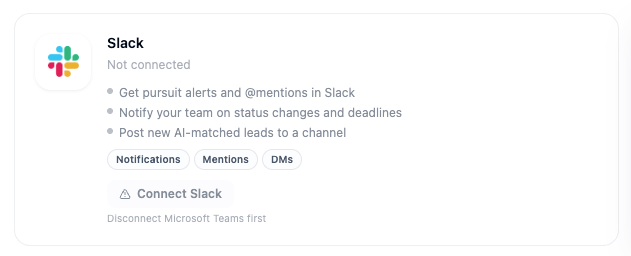
* Get pursuit alerts and @mentions in Slack
* Notify your team on status changes and deadlines
* Post new AI-matched leads to a channel
* Supports Notifications, Mentions, and DMs
* Chat with **@Sammy** one-on-one or in a channel
***
## Part 1 — Connect Slack
In the left sidebar, scroll to **Account** and click **Integrations**.
Scroll to the **Messaging & Notifications** section. The **Slack** card shows your current connection status.
Click **Connect** on the Slack card.
A popup opens asking you to choose your Slack workspace and authorize the SamSearch app. Review the requested permissions and click **Allow**.
## What this integration does
* Get pursuit alerts and @mentions in Slack
* Notify your team on status changes and deadlines
* Post new AI-matched leads to a channel
* Supports Notifications, Mentions, and DMs
* Chat with **@Sammy** one-on-one or in a channel
***
## Part 1 — Connect Slack
In the left sidebar, scroll to **Account** and click **Integrations**.
Scroll to the **Messaging & Notifications** section. The **Slack** card shows your current connection status.
Click **Connect** on the Slack card.
A popup opens asking you to choose your Slack workspace and authorize the SamSearch app. Review the requested permissions and click **Allow**.
 The popup closes and the Slack card now shows **Connected**, along with your workspace name.
***
## Part 2 — Chat with @Sammy in Slack
Once connected, Sammy is available directly in Slack:
* **Direct message**: open a DM with **Sammy** in your Slack sidebar and ask it to find opportunities, start a journey, or answer questions about your pipeline.
* **Channel mention**: type **@Sammy** in any channel it's been added to, followed by your question or request.
Sammy responds in the same thread, so the rest of the channel can follow along.
***
## Part 3 — Set up notifications
On the connected Slack card, click **Configure** to choose which notification types post to Slack:
| Notification type | What it sends | Where it goes |
| ----------------- | ------------------------------------------------------------- | ---------------------------------------------- |
| **Notifications** | Proposal-ready alerts, deadline reminders, and status changes | Direct message to the individual user in Slack |
| **Mentions** | Any time you're @mentioned on a pursuit or task in SamSearch | Direct message to the individual user in Slack |
| **DMs** | Assignments and direct alerts sent to you individually | Direct message to the individual user in Slack |
Each notification arrives as a Slack message with quick **Reply** and **Mark read** buttons, so you can act without switching to SamSearch.
### Posting to a channel
Some notification types can be routed to a **channel** (rather than a DM) — for example, new AI-matched leads:
1. On the Slack card, click **Configure**.
2. Turn on the channel post you want (e.g. **Post new leads to a channel**).
3. Paste the destination Slack channel and click **Save**.
The [Microsoft Teams integration](/features/microsoft-teams-integration#part-3-configure-notifications) — which shares the same underlying notification system — has **two independently configurable channel destinations** (new leads digest and proposal/outline-ready), each postable to a different channel, with everything else delivered as a personal DM. Slack's Configure panel is very likely structured the same way, but this hasn't been directly verified against Slack's live UI yet. If you need to confirm exact channel-routing options before promising something to a customer, do a real Configure walkthrough or check with product — don't rely on this page's specifics for that one detail yet.
***
## Troubleshooting
**I don't see Sammy in my Slack sidebar**
* Confirm the Slack integration shows **Connected** on the Integrations page.
* Search for "Sammy" in Slack's app directory and add it to your sidebar if it isn't there already.
**Notifications aren't arriving in Slack**
* Check which notification types are enabled under **Configure** on the Slack card.
* Confirm you haven't muted the Sammy DM or the notification channel in Slack.
**Reply and Mark read buttons aren't working**
* Make sure you're using the latest version of the Slack desktop or mobile app.
* Try reconnecting the integration from the Integrations page if the buttons remain unresponsive.
**Still stuck?** Contact [support@samsearch.co](mailto:support@samsearch.co) with your SamSearch account email and your Slack workspace name.
The popup closes and the Slack card now shows **Connected**, along with your workspace name.
***
## Part 2 — Chat with @Sammy in Slack
Once connected, Sammy is available directly in Slack:
* **Direct message**: open a DM with **Sammy** in your Slack sidebar and ask it to find opportunities, start a journey, or answer questions about your pipeline.
* **Channel mention**: type **@Sammy** in any channel it's been added to, followed by your question or request.
Sammy responds in the same thread, so the rest of the channel can follow along.
***
## Part 3 — Set up notifications
On the connected Slack card, click **Configure** to choose which notification types post to Slack:
| Notification type | What it sends | Where it goes |
| ----------------- | ------------------------------------------------------------- | ---------------------------------------------- |
| **Notifications** | Proposal-ready alerts, deadline reminders, and status changes | Direct message to the individual user in Slack |
| **Mentions** | Any time you're @mentioned on a pursuit or task in SamSearch | Direct message to the individual user in Slack |
| **DMs** | Assignments and direct alerts sent to you individually | Direct message to the individual user in Slack |
Each notification arrives as a Slack message with quick **Reply** and **Mark read** buttons, so you can act without switching to SamSearch.
### Posting to a channel
Some notification types can be routed to a **channel** (rather than a DM) — for example, new AI-matched leads:
1. On the Slack card, click **Configure**.
2. Turn on the channel post you want (e.g. **Post new leads to a channel**).
3. Paste the destination Slack channel and click **Save**.
The [Microsoft Teams integration](/features/microsoft-teams-integration#part-3-configure-notifications) — which shares the same underlying notification system — has **two independently configurable channel destinations** (new leads digest and proposal/outline-ready), each postable to a different channel, with everything else delivered as a personal DM. Slack's Configure panel is very likely structured the same way, but this hasn't been directly verified against Slack's live UI yet. If you need to confirm exact channel-routing options before promising something to a customer, do a real Configure walkthrough or check with product — don't rely on this page's specifics for that one detail yet.
***
## Troubleshooting
**I don't see Sammy in my Slack sidebar**
* Confirm the Slack integration shows **Connected** on the Integrations page.
* Search for "Sammy" in Slack's app directory and add it to your sidebar if it isn't there already.
**Notifications aren't arriving in Slack**
* Check which notification types are enabled under **Configure** on the Slack card.
* Confirm you haven't muted the Sammy DM or the notification channel in Slack.
**Reply and Mark read buttons aren't working**
* Make sure you're using the latest version of the Slack desktop or mobile app.
* Try reconnecting the integration from the Integrations page if the buttons remain unresponsive.
**Still stuck?** Contact [support@samsearch.co](mailto:support@samsearch.co) with your SamSearch account email and your Slack workspace name.