> ## Documentation Index
> Fetch the complete documentation index at: https://docs.samsearch.co/llms.txt
> Use this file to discover all available pages before exploring further.
# Saved & History
> Manage your saved search queries, toggle email alerts, and review your full search history.
**Saved & History** keeps your saved searches in one place and logs every search you run — even ones you did not save.
## At a glance
Open **Saved & History** from the main navigation. The page has two tabs:
* **Saved Searches** — queries you saved from the Search page, with alerts and quick actions
* **History** — an automatic log of every search you have run
## Saved Searches tab
### Saving a search
1. Run a search on the [Search](/features/search) page with your desired query, source, mode, and filters.
2. Click **Save Search** and give it a descriptive name.
3. Your saved search appears on the **Saved Searches** tab.
Use the **Saved** dropdown next to **Save Search** on the Search page to load a previously saved query without leaving Search.
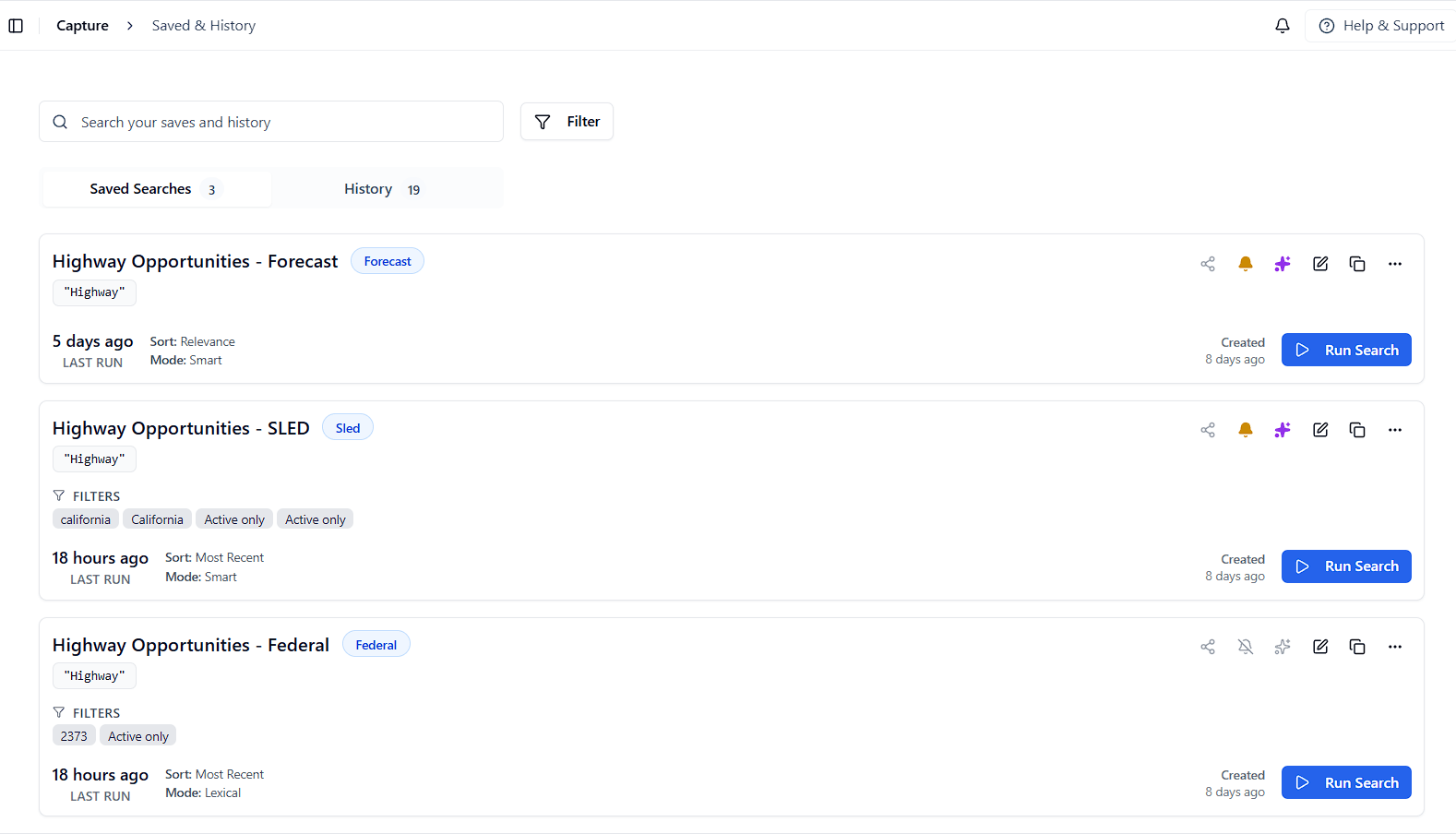
### Reading a saved search card
Each card shows:
* **Name** — the title you gave the search
* **Source badge** — e.g., Federal, SLED, DIBBS
* **Query** — the keyword or phrase used
* **Filters** — any active filters (if set)
* **Mode** — Smart or Lexical
* **Last Run** — when the search was last executed
* **Created** — when the search was saved
* **Run Search** — re-run immediately
### Card actions
| Icon | Action |
| ------ | ---------------------------------------------------- |
| Bell | Toggle email alerts on/off |
| Pin | Pin this search to the top of your list |
| Pencil | Edit the search (opens Edit Mode on the Search page) |
| Copy | Duplicate this saved search |
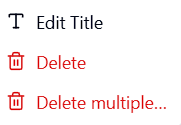
| ... | Overflow menu: Edit Title, Delete, Delete multiple |
### Running a saved search
Click **Run Search** on any card to execute it with the current data. Results open on the Search page.
### Editing a saved search
Editing takes you back to Search in **Edit Mode**:
1. Click the **pencil icon** on the saved search card.
2. You are taken to the Search page with your saved query pre-loaded.
3. An **Edit Mode** banner confirms you are editing: modify your search parameters above, then click **Update Saved Search** to save your changes.
4. Adjust the query, source, mode, or filters as needed.
5. Click **Update Saved Search** to save.
6. Click **Cancel Edit** to discard changes and return to Saved & History.
Changes are not saved until you click **Update Saved Search**. Navigating away without saving discards your changes.
### Renaming, duplicating, and deleting
* **Rename** — open the **...** menu and choose **Edit Title**
* **Duplicate** — click the **copy** icon on the card
* **Delete** — open the **...** menu and choose **Delete**
* **Delete multiple** — open the **...** menu and choose **Delete multiple**
### Email alerts
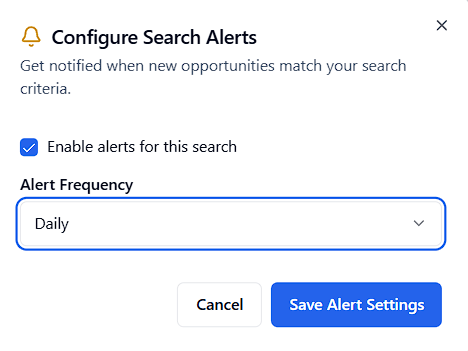
To receive email notifications for a saved search, click the **bell icon** on its card.
* **Gold bell** — alerts enabled
* **Grey bell** — alerts disabled
Alerts are sent by **email only**. Check your account email and spam folder if you are not receiving them.
To disable alerts, click the bell again. The card shows a strikethrough bell and a confirmation when the search is updated.
Email alerts work with your [Company Profile](/features/business-profile). Complete your profile so alert emails include relevant context.
## History tab
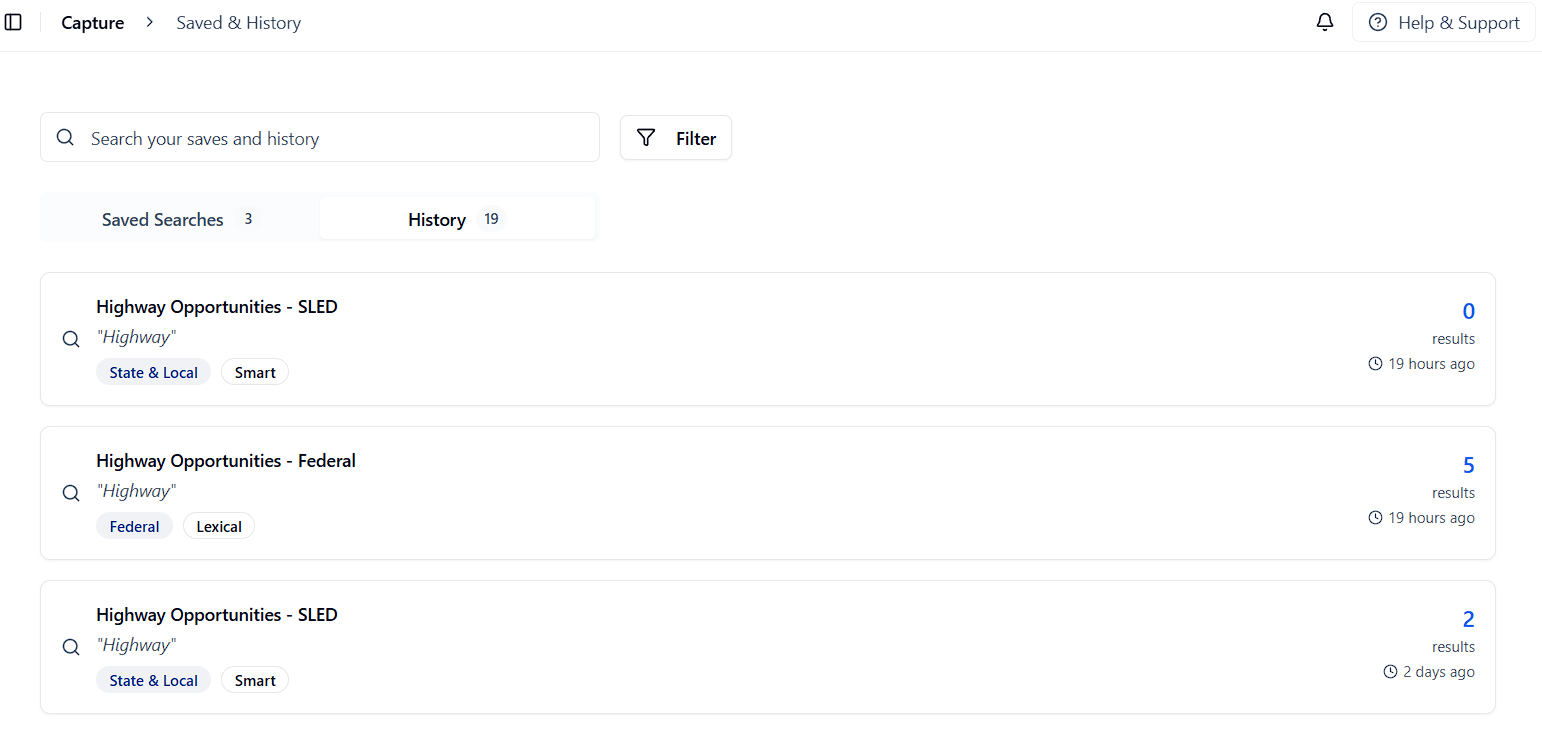
The **History** tab is an automatic log of every search you have run in SamSearch, including searches you did not save.
Each history entry shows:
* Search query
* Source (Federal, SLED, DIBBS, etc.)
* Search mode (Smart or Lexical)
* Number of results returned
* Time the search was run
Use History to:
* Re-run a recent search you forgot to save
* Review what you have already searched
* Find a past search and save it from the Search page
History entries do not have alerts or edit options. To save a query from History, run it on the Search page and use **Save Search**.
## Finding a saved search
Use the **search bar** at the top of Saved & History to filter your list by name or query term.
Click **Filter** to narrow by source, mode, or date range.
## FAQ
**Q: How many searches can I save?**
A: There is no limit to the number of saved searches you can create.
**Q: Can I share saved searches with my team?**
A: Sharing saved searches directly is not currently available. You can share your search criteria manually with teammates.
**Q: Can I export my saved searches?**
A: Exporting saved searches is not currently available from this page.
**Q: What happens if I delete a saved search?**
A: Deleting a search removes it permanently, but you can recreate it from History or by saving a new search on the Search page.
**Q: How do I know if my alerts are working?**
A: Confirm the bell icon is gold (enabled) on the card. Check your email inbox and spam folder for alert messages.
**Next step:** Save individual opportunities from your search results on the [Leads](/features/leads) page.
 ## Saved Searches tab
### Saving a search
1. Run a search on the [Search](/features/search) page with your desired query, source, mode, and filters.
2. Click **Save Search** and give it a descriptive name.
3. Your saved search appears on the **Saved Searches** tab.
Use the **Saved** dropdown next to **Save Search** on the Search page to load a previously saved query without leaving Search.
### Reading a saved search card
Each card shows:
* **Name** — the title you gave the search
* **Source badge** — e.g., Federal, SLED, DIBBS
* **Query** — the keyword or phrase used
* **Filters** — any active filters (if set)
* **Mode** — Smart or Lexical
* **Last Run** — when the search was last executed
* **Created** — when the search was saved
* **Run Search** — re-run immediately
## Saved Searches tab
### Saving a search
1. Run a search on the [Search](/features/search) page with your desired query, source, mode, and filters.
2. Click **Save Search** and give it a descriptive name.
3. Your saved search appears on the **Saved Searches** tab.
Use the **Saved** dropdown next to **Save Search** on the Search page to load a previously saved query without leaving Search.
### Reading a saved search card
Each card shows:
* **Name** — the title you gave the search
* **Source badge** — e.g., Federal, SLED, DIBBS
* **Query** — the keyword or phrase used
* **Filters** — any active filters (if set)
* **Mode** — Smart or Lexical
* **Last Run** — when the search was last executed
* **Created** — when the search was saved
* **Run Search** — re-run immediately
 ### Card actions
| Icon | Action |
| ------ | ---------------------------------------------------- |
| Bell | Toggle email alerts on/off |
| Pin | Pin this search to the top of your list |
| Pencil | Edit the search (opens Edit Mode on the Search page) |
| Copy | Duplicate this saved search |
| ... | Overflow menu: Edit Title, Delete, Delete multiple |
### Running a saved search
Click **Run Search** on any card to execute it with the current data. Results open on the Search page.
### Editing a saved search
Editing takes you back to Search in **Edit Mode**:
1. Click the **pencil icon** on the saved search card.
2. You are taken to the Search page with your saved query pre-loaded.
3. An **Edit Mode** banner confirms you are editing: modify your search parameters above, then click **Update Saved Search** to save your changes.
4. Adjust the query, source, mode, or filters as needed.
5. Click **Update Saved Search** to save.
6. Click **Cancel Edit** to discard changes and return to Saved & History.
### Card actions
| Icon | Action |
| ------ | ---------------------------------------------------- |
| Bell | Toggle email alerts on/off |
| Pin | Pin this search to the top of your list |
| Pencil | Edit the search (opens Edit Mode on the Search page) |
| Copy | Duplicate this saved search |
| ... | Overflow menu: Edit Title, Delete, Delete multiple |
### Running a saved search
Click **Run Search** on any card to execute it with the current data. Results open on the Search page.
### Editing a saved search
Editing takes you back to Search in **Edit Mode**:
1. Click the **pencil icon** on the saved search card.
2. You are taken to the Search page with your saved query pre-loaded.
3. An **Edit Mode** banner confirms you are editing: modify your search parameters above, then click **Update Saved Search** to save your changes.
4. Adjust the query, source, mode, or filters as needed.
5. Click **Update Saved Search** to save.
6. Click **Cancel Edit** to discard changes and return to Saved & History.

 ### Email alerts
To receive email notifications for a saved search, click the **bell icon** on its card.
### Email alerts
To receive email notifications for a saved search, click the **bell icon** on its card.
 * **Gold bell** — alerts enabled
* **Grey bell** — alerts disabled
Alerts are sent by **email only**. Check your account email and spam folder if you are not receiving them.
To disable alerts, click the bell again. The card shows a strikethrough bell and a confirmation when the search is updated.
* **Gold bell** — alerts enabled
* **Grey bell** — alerts disabled
Alerts are sent by **email only**. Check your account email and spam folder if you are not receiving them.
To disable alerts, click the bell again. The card shows a strikethrough bell and a confirmation when the search is updated.

 Each history entry shows:
* Search query
* Source (Federal, SLED, DIBBS, etc.)
* Search mode (Smart or Lexical)
* Number of results returned
* Time the search was run
Use History to:
* Re-run a recent search you forgot to save
* Review what you have already searched
* Find a past search and save it from the Search page
History entries do not have alerts or edit options. To save a query from History, run it on the Search page and use **Save Search**.
## Finding a saved search
Use the **search bar** at the top of Saved & History to filter your list by name or query term.
Click **Filter** to narrow by source, mode, or date range.
## FAQ
**Q: How many searches can I save?**
A: There is no limit to the number of saved searches you can create.
**Q: Can I share saved searches with my team?**
A: Sharing saved searches directly is not currently available. You can share your search criteria manually with teammates.
**Q: Can I export my saved searches?**
A: Exporting saved searches is not currently available from this page.
**Q: What happens if I delete a saved search?**
A: Deleting a search removes it permanently, but you can recreate it from History or by saving a new search on the Search page.
**Q: How do I know if my alerts are working?**
A: Confirm the bell icon is gold (enabled) on the card. Check your email inbox and spam folder for alert messages.
Each history entry shows:
* Search query
* Source (Federal, SLED, DIBBS, etc.)
* Search mode (Smart or Lexical)
* Number of results returned
* Time the search was run
Use History to:
* Re-run a recent search you forgot to save
* Review what you have already searched
* Find a past search and save it from the Search page
History entries do not have alerts or edit options. To save a query from History, run it on the Search page and use **Save Search**.
## Finding a saved search
Use the **search bar** at the top of Saved & History to filter your list by name or query term.
Click **Filter** to narrow by source, mode, or date range.
## FAQ
**Q: How many searches can I save?**
A: There is no limit to the number of saved searches you can create.
**Q: Can I share saved searches with my team?**
A: Sharing saved searches directly is not currently available. You can share your search criteria manually with teammates.
**Q: Can I export my saved searches?**
A: Exporting saved searches is not currently available from this page.
**Q: What happens if I delete a saved search?**
A: Deleting a search removes it permanently, but you can recreate it from History or by saving a new search on the Search page.
**Q: How do I know if my alerts are working?**
A: Confirm the bell icon is gold (enabled) on the card. Check your email inbox and spam folder for alert messages.