> ## Documentation Index
> Fetch the complete documentation index at: https://docs.samsearch.co/llms.txt
> Use this file to discover all available pages before exploring further.
# Salesforce Setup
> Sync pursuits and companies between SamSearch and Salesforce
Connect Salesforce to automatically sync your pursuits as Opportunities and your companies as Accounts — no manual data entry between SamSearch and your CRM.
You must have permission to authorize connected apps in your Salesforce org. If you're not a Salesforce admin, ask one to approve the connection.
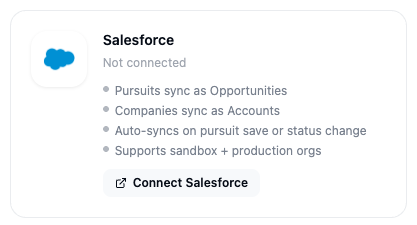 ## What this integration does
* Pursuits sync as **Opportunities**
* Companies sync as **Accounts**
* Auto-syncs on pursuit save or status change
* Supports sandbox + production orgs
***
## Part 1 — Connect Salesforce
In the left sidebar, scroll to **Account** and click **Integrations**.
Scroll to the **CRM** section. The **Salesforce** card shows your current connection status.
Click **Connect** on the Salesforce card.
Before authenticating, select which org you want to connect: **Production** or **Sandbox**. Pick the org that holds the Opportunities and Accounts you want SamSearch to sync to.
A popup opens asking you to log in to Salesforce and authorize SamSearch. Log in with the org credentials for the org you selected, then click **Allow**.
## What this integration does
* Pursuits sync as **Opportunities**
* Companies sync as **Accounts**
* Auto-syncs on pursuit save or status change
* Supports sandbox + production orgs
***
## Part 1 — Connect Salesforce
In the left sidebar, scroll to **Account** and click **Integrations**.
Scroll to the **CRM** section. The **Salesforce** card shows your current connection status.
Click **Connect** on the Salesforce card.
Before authenticating, select which org you want to connect: **Production** or **Sandbox**. Pick the org that holds the Opportunities and Accounts you want SamSearch to sync to.
A popup opens asking you to log in to Salesforce and authorize SamSearch. Log in with the org credentials for the org you selected, then click **Allow**.
 The popup closes and the Salesforce card now shows **Connected**, along with the org name and type (Production or Sandbox).
***
## Troubleshooting
**Opportunities aren't showing up in Salesforce**
* Confirm the integration status is **Connected** on the Integrations page.
* Confirm you connected the correct org — a sandbox connection won't sync to your production org, and vice versa.
* Auto-sync fires on save or status change; editing unrelated fields won't trigger a new sync.
**I connected the wrong org**
* Click **Disconnect** on the Salesforce card, then reconnect and choose the correct org (Production or Sandbox) during setup.
**The OAuth popup shows an "insufficient privileges" error**
* Your Salesforce user needs API access and permission to authorize connected apps. Ask your Salesforce admin to grant these, then try connecting again.
**Still stuck?** Contact [support@samsearch.co](mailto:support@samsearch.co) with your SamSearch account email and your Salesforce org type (Production or Sandbox).
The popup closes and the Salesforce card now shows **Connected**, along with the org name and type (Production or Sandbox).
***
## Troubleshooting
**Opportunities aren't showing up in Salesforce**
* Confirm the integration status is **Connected** on the Integrations page.
* Confirm you connected the correct org — a sandbox connection won't sync to your production org, and vice versa.
* Auto-sync fires on save or status change; editing unrelated fields won't trigger a new sync.
**I connected the wrong org**
* Click **Disconnect** on the Salesforce card, then reconnect and choose the correct org (Production or Sandbox) during setup.
**The OAuth popup shows an "insufficient privileges" error**
* Your Salesforce user needs API access and permission to authorize connected apps. Ask your Salesforce admin to grant these, then try connecting again.
**Still stuck?** Contact [support@samsearch.co](mailto:support@samsearch.co) with your SamSearch account email and your Salesforce org type (Production or Sandbox).