> ## Documentation Index
> Fetch the complete documentation index at: https://docs.samsearch.co/llms.txt
> Use this file to discover all available pages before exploring further.
# Proposal Generating
> Generate detailed, compliant proposals tailored to your company's strengths and the opportunity requirements
.png?fit=max&auto=format&n=8Kvcdr6qag9kDPDb&q=85&s=618248e427b6d56f4df9068da99c837f) ## Overview
The Proposal Generating feature transforms how you create government contract proposals. By combining contract requirements with your company profile, the AI generates comprehensive, compliant proposals that highlight your competitive advantages and address every solicitation requirement.
Before generating a proposal, the opportunity must be added to your Journey Hub:
1. Navigate to the opportunity you want to bid on
2. Click **Star Journey** to add it to your Journey Hub
3. Open the opportunity from your Journey Hub
4. Navigate to the **Overview** section
**Win Themes** are used to tailor the proposal to your business. Clearly explain why your company should be awarded this opportunity by providing key insights specific to this opportunity.
Add your Win Themes in the Overview section before proceeding to proposal generation.
Navigate to the **Proposal** tab within the opportunity. Before generating your outline, you'll need to select which company profile documents the AI should use.
## Overview
The Proposal Generating feature transforms how you create government contract proposals. By combining contract requirements with your company profile, the AI generates comprehensive, compliant proposals that highlight your competitive advantages and address every solicitation requirement.
Before generating a proposal, the opportunity must be added to your Journey Hub:
1. Navigate to the opportunity you want to bid on
2. Click **Star Journey** to add it to your Journey Hub
3. Open the opportunity from your Journey Hub
4. Navigate to the **Overview** section
**Win Themes** are used to tailor the proposal to your business. Clearly explain why your company should be awarded this opportunity by providing key insights specific to this opportunity.
Add your Win Themes in the Overview section before proceeding to proposal generation.
Navigate to the **Proposal** tab within the opportunity. Before generating your outline, you'll need to select which company profile documents the AI should use.
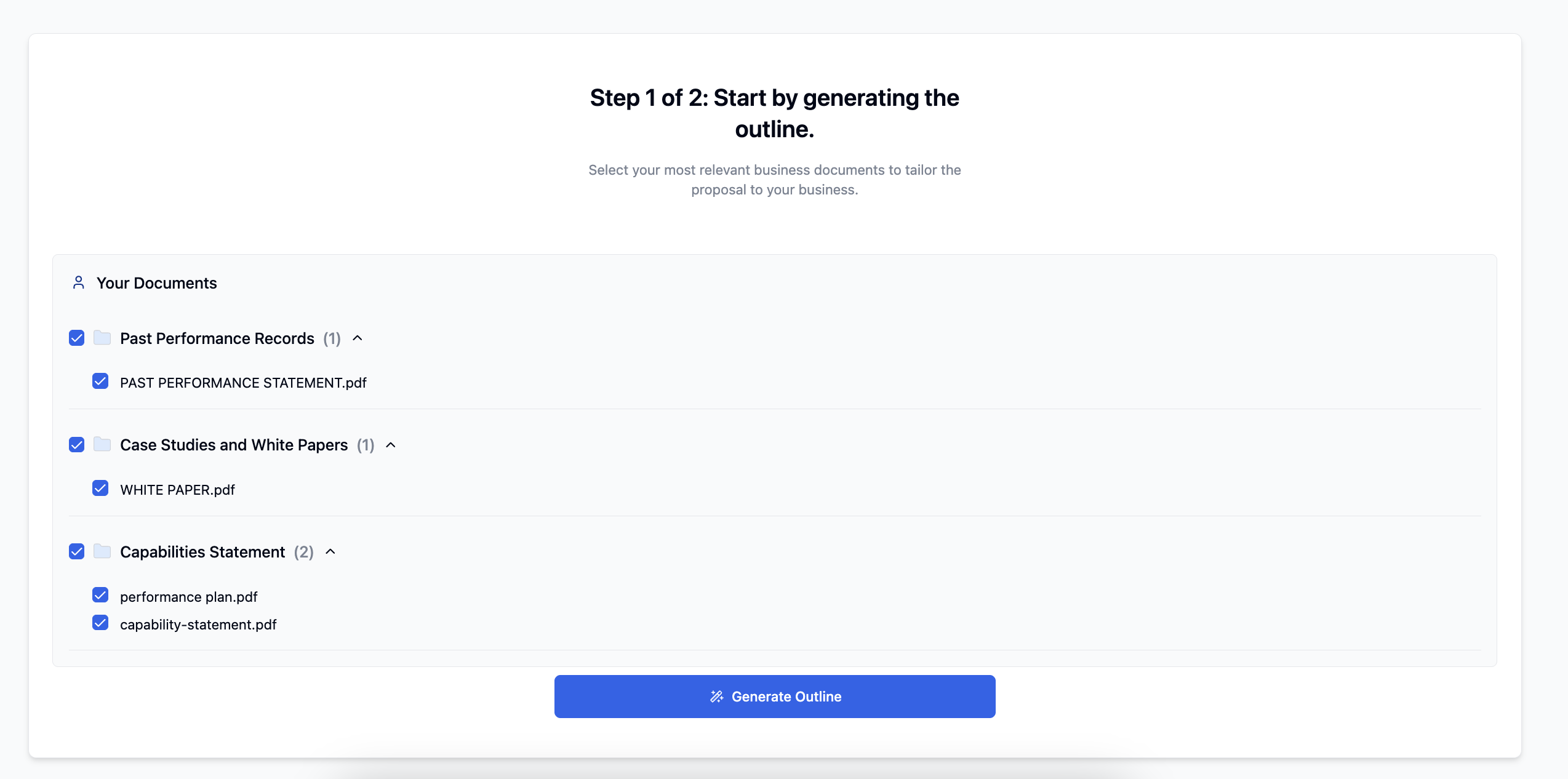 ### Selecting Relevant Documents
Choose from your company profile documents:
Select the most relevant version for this opportunity
Uncheck any past performances that aren't relevant to this contract
Include only documents that strengthen your bid
Only checked documents will be used by the AI to generate your proposal. This ensures your proposal is tailored and relevant to the specific opportunity.
Once you've selected your documents, click **Generate Outline**.
When you generate the outline, two additional tabs are automatically created to help you strategize and ensure compliance.
### Selecting Relevant Documents
Choose from your company profile documents:
Select the most relevant version for this opportunity
Uncheck any past performances that aren't relevant to this contract
Include only documents that strengthen your bid
Only checked documents will be used by the AI to generate your proposal. This ensures your proposal is tailored and relevant to the specific opportunity.
Once you've selected your documents, click **Generate Outline**.
When you generate the outline, two additional tabs are automatically created to help you strategize and ensure compliance.
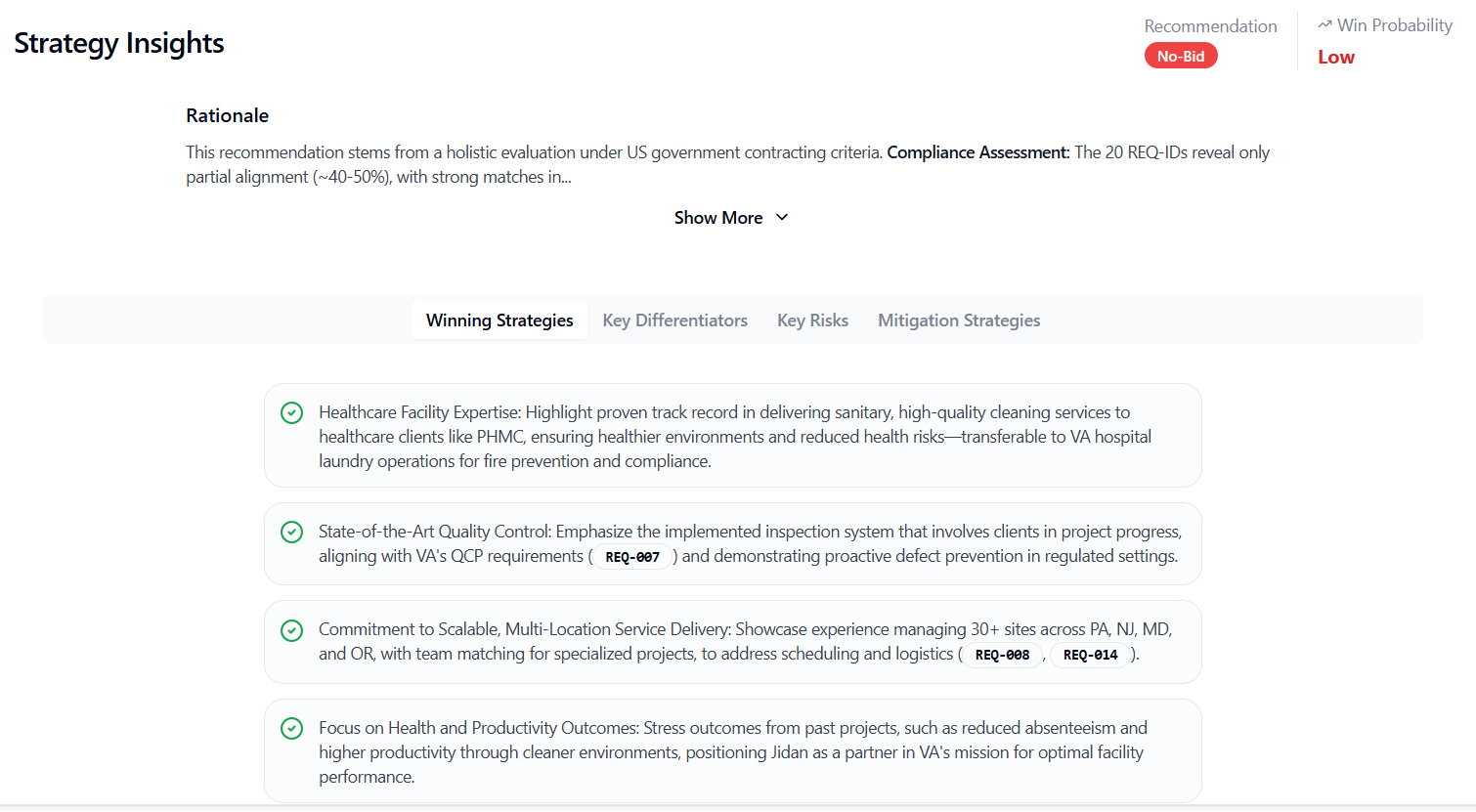 The Insights tab provides strategic intelligence about the opportunity:
**Bid Recommendation**
Strong opportunity aligned with your capabilities
Opportunity has challenges but may be worth pursuing
Significant misalignment with your capabilities or competitive position
**Win Probability Assessment**
Low/Medium/High: Your estimated chances of winning based on requirements, competition, and past performance
**Detailed Analysis**
The AI provides a comprehensive breakdown explaining:
* Why it reached this recommendation
* Your competitive position
* Alignment with your capabilities
* Risk factors to consider
**Strategic Tabs:**
* **Win Themes**: Key messages that differentiate you
* **Key Differentiators**: What makes you stand out from competitors
* **Strategic Mitigation**: How to address weaknesses or gaps
Read the detailed analysis carefully before proceeding. This intelligence can help you make informed bid/no-bid decisions and shape your proposal strategy.
The Insights tab provides strategic intelligence about the opportunity:
**Bid Recommendation**
Strong opportunity aligned with your capabilities
Opportunity has challenges but may be worth pursuing
Significant misalignment with your capabilities or competitive position
**Win Probability Assessment**
Low/Medium/High: Your estimated chances of winning based on requirements, competition, and past performance
**Detailed Analysis**
The AI provides a comprehensive breakdown explaining:
* Why it reached this recommendation
* Your competitive position
* Alignment with your capabilities
* Risk factors to consider
**Strategic Tabs:**
* **Win Themes**: Key messages that differentiate you
* **Key Differentiators**: What makes you stand out from competitors
* **Strategic Mitigation**: How to address weaknesses or gaps
Read the detailed analysis carefully before proceeding. This intelligence can help you make informed bid/no-bid decisions and shape your proposal strategy.
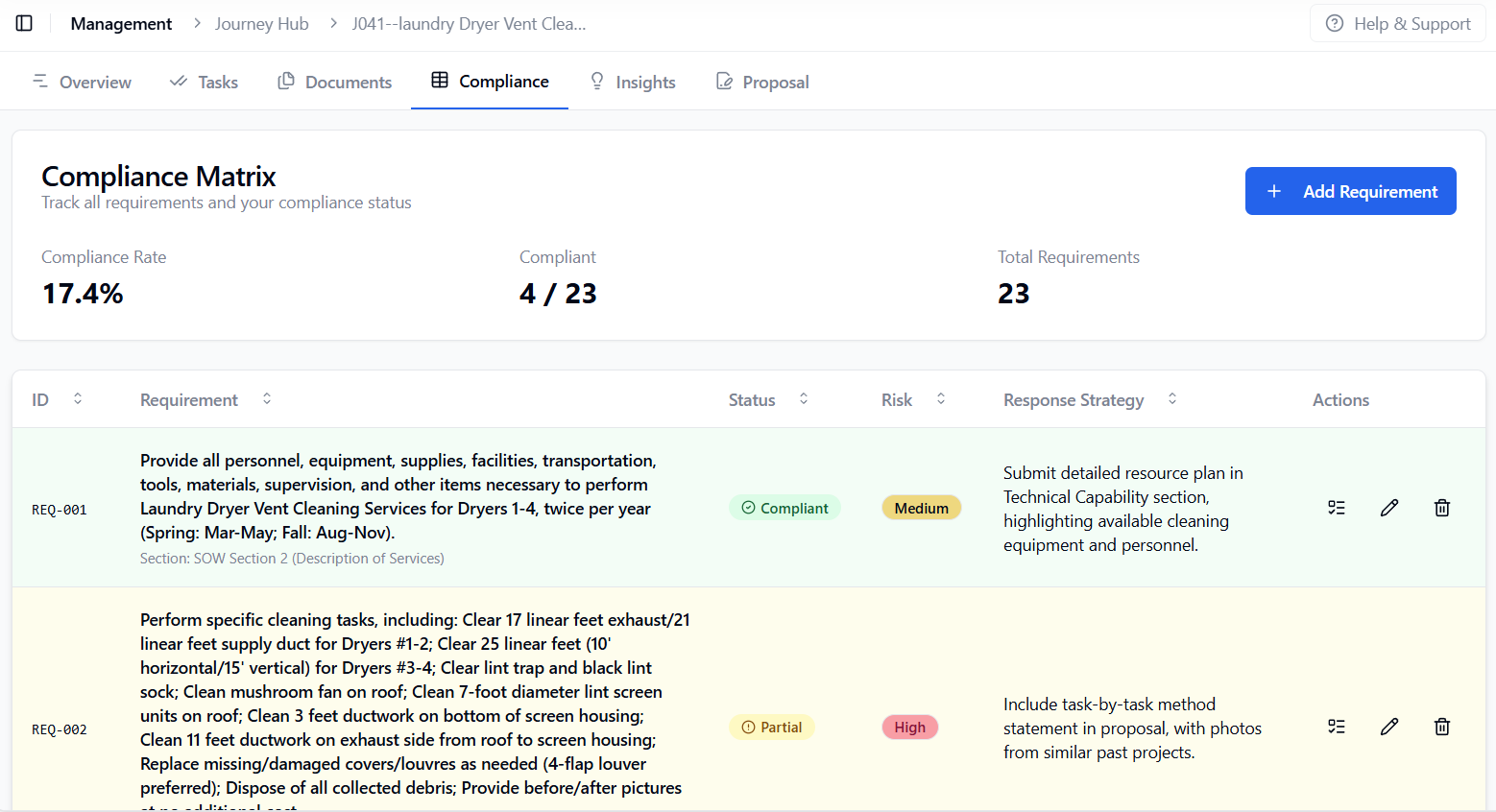 The Compliance Matrix automatically extracts and tracks every requirement from the solicitation.
**Key Features:**
* AI identifies and extracts all requirements from the solicitation
* No need to manually review hundreds of pages
Mark requirements as:
* **Compliant**: You meet this requirement
* **Partial**: You partially meet this requirement
* **Non-Compliant**: You don't meet this requirement
* **TBD**: Needs further review
Smart color coding shows what needs attention at a glance
At the top of the matrix, you'll see:
* Overall compliance percentage
* Compliance score breakdown
If you disagree with the AI's assessment of a requirement:
1. Click on the requirement
2. Click the **TBD** button
3. Change the status to your preferred assessment
Turn non-compliant or partial requirements into actionable tasks:
1. Click on a requirement that needs work
2. Click **Add as Task**
3. The task will be added to your task list with relevant details
4. Assign deadlines and team members to stay organized
Review the Compliance Matrix before finalizing your outline. Understanding compliance gaps early helps you address them in your proposal.
After reviewing Insights and Compliance, return to the **Outline** tab to customize your proposal structure.
The Compliance Matrix automatically extracts and tracks every requirement from the solicitation.
**Key Features:**
* AI identifies and extracts all requirements from the solicitation
* No need to manually review hundreds of pages
Mark requirements as:
* **Compliant**: You meet this requirement
* **Partial**: You partially meet this requirement
* **Non-Compliant**: You don't meet this requirement
* **TBD**: Needs further review
Smart color coding shows what needs attention at a glance
At the top of the matrix, you'll see:
* Overall compliance percentage
* Compliance score breakdown
If you disagree with the AI's assessment of a requirement:
1. Click on the requirement
2. Click the **TBD** button
3. Change the status to your preferred assessment
Turn non-compliant or partial requirements into actionable tasks:
1. Click on a requirement that needs work
2. Click **Add as Task**
3. The task will be added to your task list with relevant details
4. Assign deadlines and team members to stay organized
Review the Compliance Matrix before finalizing your outline. Understanding compliance gaps early helps you address them in your proposal.
After reviewing Insights and Compliance, return to the **Outline** tab to customize your proposal structure.
 The outline is generated using all contract information and attachments. It appears as a table with the following columns:
| Section Title | # of Pages | Writing Plan | Compliance | Actions |
| ------------------ | ---------- | -------------------------------------------- | --------------------------------------------------------------------------------------------------------------------------- | ----------------------------------------------------------------- |
| Executive Summary | 2 | Overview of approach and key differentiators | | |
| Technical Approach | 5 | Detailed methodology and deliverables | | |
| Past Performance | 3 | Relevant project examples | | |
### Compliance Tags
The Compliance column shows requirement tags for sections that address specific solicitation requirements. Click on any compliance tag to jump directly to that requirement in the Compliance Matrix.
### Available Actions
* **Add Section**: Insert a new section below this one
* **Edit Section**: Modify title, page count, or writing plan
* **Delete Section**: Remove this section from the outline
Customize each section to fit the specific needs of your proposal before generating the final draft. Ensure your outline aligns with the solicitation structure and requirements.
Once your outline is finalized, click **Generate Proposal**.
After clicking **Generate Proposal**, the AI will create your first draft by semantically combining:
* Contract information and requirements
* Your selected company profile documents
* Win themes and strategic insights
* Compliance requirements
Proposal generation may take several minutes depending on the complexity and length. You will receive an **email notification** once your proposal is ready for review.
The outline is generated using all contract information and attachments. It appears as a table with the following columns:
| Section Title | # of Pages | Writing Plan | Compliance | Actions |
| ------------------ | ---------- | -------------------------------------------- | --------------------------------------------------------------------------------------------------------------------------- | ----------------------------------------------------------------- |
| Executive Summary | 2 | Overview of approach and key differentiators | | |
| Technical Approach | 5 | Detailed methodology and deliverables | | |
| Past Performance | 3 | Relevant project examples | | |
### Compliance Tags
The Compliance column shows requirement tags for sections that address specific solicitation requirements. Click on any compliance tag to jump directly to that requirement in the Compliance Matrix.
### Available Actions
* **Add Section**: Insert a new section below this one
* **Edit Section**: Modify title, page count, or writing plan
* **Delete Section**: Remove this section from the outline
Customize each section to fit the specific needs of your proposal before generating the final draft. Ensure your outline aligns with the solicitation structure and requirements.
Once your outline is finalized, click **Generate Proposal**.
After clicking **Generate Proposal**, the AI will create your first draft by semantically combining:
* Contract information and requirements
* Your selected company profile documents
* Win themes and strategic insights
* Compliance requirements
Proposal generation may take several minutes depending on the complexity and length. You will receive an **email notification** once your proposal is ready for review.
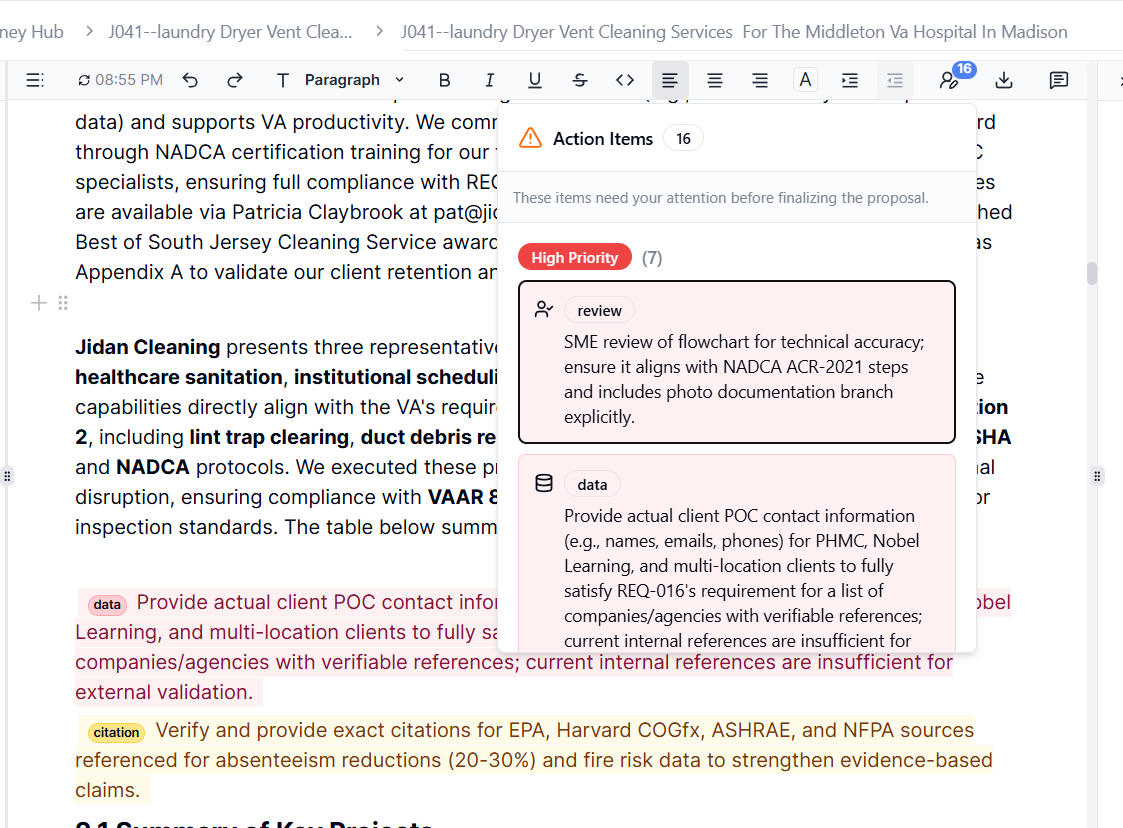 When your proposal is generated, you'll see a person icon with a number badge at the top of the editor. This badge shows how many human tasks require your attention.
Click the icon to view all tasks labeled and color-coded by priority:
* 🔴 **High Priority**: Critical information needed
* 🟡 **Medium Priority**: Important but not blocking
* 🟢 **Low Priority**: Nice to have
**Common Task Types:**
* Insert pricing information
* Review and confirm technical data
* Add company-specific details
* Verify accuracy of generated content
* Upload supporting documents
When you click on a task, you'll be taken directly to the relevant section in the proposal where action is needed.
Complete all human tasks before submitting your proposal. These require information only you can provide and are critical for proposal completeness.
When your proposal is generated, you'll see a person icon with a number badge at the top of the editor. This badge shows how many human tasks require your attention.
Click the icon to view all tasks labeled and color-coded by priority:
* 🔴 **High Priority**: Critical information needed
* 🟡 **Medium Priority**: Important but not blocking
* 🟢 **Low Priority**: Nice to have
**Common Task Types:**
* Insert pricing information
* Review and confirm technical data
* Add company-specific details
* Verify accuracy of generated content
* Upload supporting documents
When you click on a task, you'll be taken directly to the relevant section in the proposal where action is needed.
Complete all human tasks before submitting your proposal. These require information only you can provide and are critical for proposal completeness.
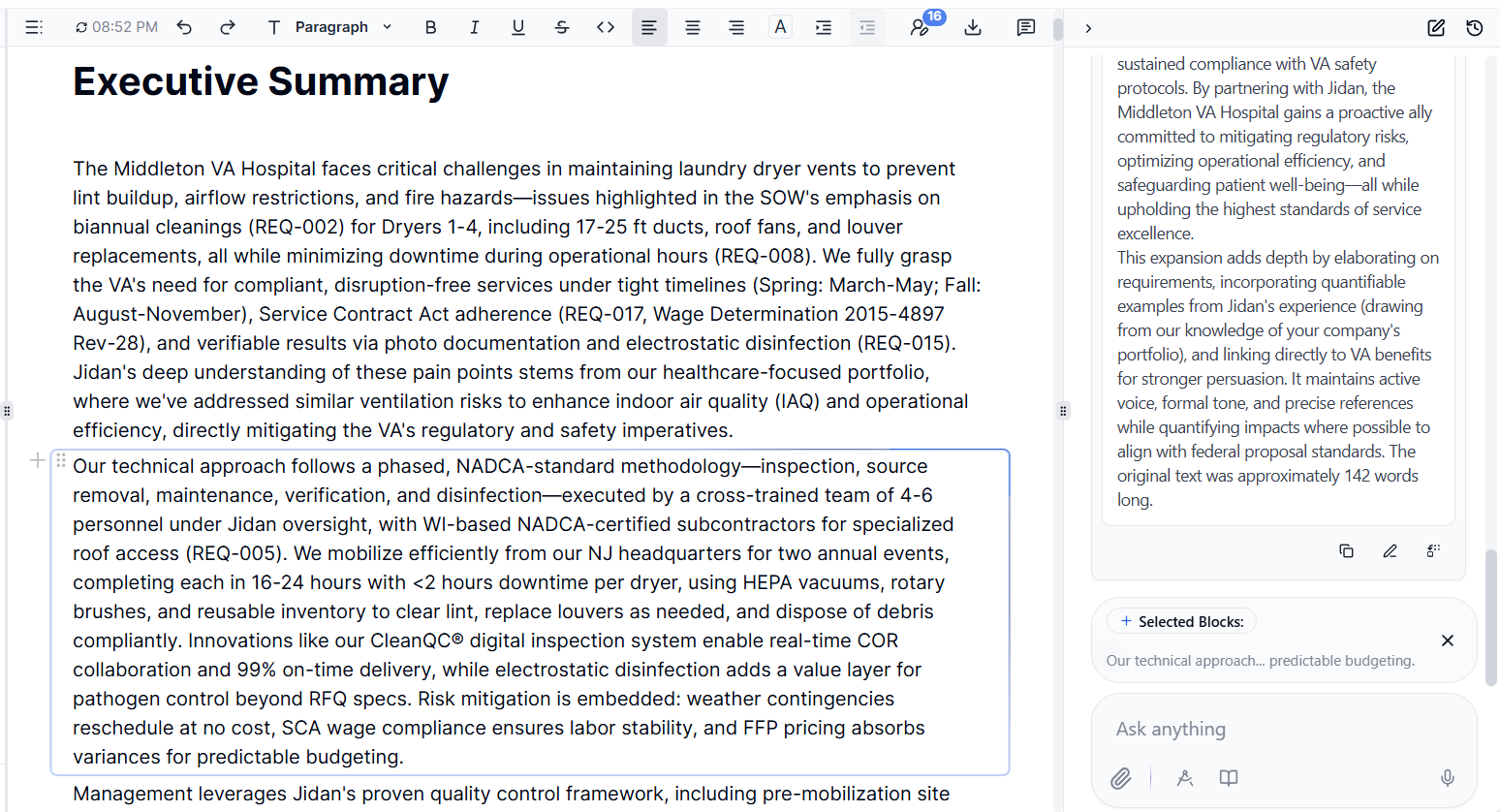 Your proposal can be edited using **Sammy** , our AI editing agent. Sammy helps you refine content, adjust tone, expand sections, and ensure compliance.
[Learn more about editing with Sammy →](/features/chat#write-proposals)
### Adding Custom Content
Type `/` anywhere in the editor to access formatting and content options:
* **Headings**: Structure your content
* **Tables**: Organize data and information
* **Images**: Upload your company logo or custom images
* **Lists**: Create bulleted or numbered lists
* **And more**: Additional formatting tools
Use the `/` command to upload your company logo at the beginning of your proposal for a professional, branded appearance.
Once all edits are complete and human tasks are addressed, download your proposal.
Click the download icon at the top of the editor and select your preferred format:
* **Word Document (.docx)**: For further editing in Microsoft Word
* **PDF**: For final submission or review
### Proposal Drafts
All proposal drafts are automatically saved in the **Proposal Drafts** tab. You can access previous versions, continue editing, or create new versions as needed.
Your proposal is auto-saved as you work. You can safely close the editor and return to your draft at any time.
***
## Best Practices
* Complete your company profile with up-to-date information
* Set clear, compelling Win Themes
* Select only relevant documents from your profile
* Review the Insights tab to understand your competitive position
* Review the Compliance Matrix thoroughly
* Address non-compliant items before finalizing the outline
* Create tasks for gaps that need attention
* Customize the outline to match the solicitation structure
* Complete all human tasks immediately
* Use Sammy to refine and polish content
* Have team members review technical sections
* Verify all pricing and company-specific information
* Download in your required format before the deadline
***
## Frequently Asked Questions
Yes, you can create multiple versions. Each will be saved in your Proposal Drafts tab.
Click on any requirement in the Compliance Matrix and manually adjust its status using the TBD button.
Generation time varies based on proposal complexity, typically 5-15 minutes. You'll receive an email when it's ready.
Yes, Word documents can be edited further. Return to the editor anytime to make changes and re-download.
Your proposal will have placeholder text or missing information in those sections, which could impact your submission quality.
⚠️ Always review your final proposal carefully before submission. While AI generates comprehensive drafts, human review ensures accuracy, compliance, and strategic alignment with your bid strategy.
Your proposal can be edited using **Sammy** , our AI editing agent. Sammy helps you refine content, adjust tone, expand sections, and ensure compliance.
[Learn more about editing with Sammy →](/features/chat#write-proposals)
### Adding Custom Content
Type `/` anywhere in the editor to access formatting and content options:
* **Headings**: Structure your content
* **Tables**: Organize data and information
* **Images**: Upload your company logo or custom images
* **Lists**: Create bulleted or numbered lists
* **And more**: Additional formatting tools
Use the `/` command to upload your company logo at the beginning of your proposal for a professional, branded appearance.
Once all edits are complete and human tasks are addressed, download your proposal.
Click the download icon at the top of the editor and select your preferred format:
* **Word Document (.docx)**: For further editing in Microsoft Word
* **PDF**: For final submission or review
### Proposal Drafts
All proposal drafts are automatically saved in the **Proposal Drafts** tab. You can access previous versions, continue editing, or create new versions as needed.
Your proposal is auto-saved as you work. You can safely close the editor and return to your draft at any time.
***
## Best Practices
* Complete your company profile with up-to-date information
* Set clear, compelling Win Themes
* Select only relevant documents from your profile
* Review the Insights tab to understand your competitive position
* Review the Compliance Matrix thoroughly
* Address non-compliant items before finalizing the outline
* Create tasks for gaps that need attention
* Customize the outline to match the solicitation structure
* Complete all human tasks immediately
* Use Sammy to refine and polish content
* Have team members review technical sections
* Verify all pricing and company-specific information
* Download in your required format before the deadline
***
## Frequently Asked Questions
Yes, you can create multiple versions. Each will be saved in your Proposal Drafts tab.
Click on any requirement in the Compliance Matrix and manually adjust its status using the TBD button.
Generation time varies based on proposal complexity, typically 5-15 minutes. You'll receive an email when it's ready.
Yes, Word documents can be edited further. Return to the editor anytime to make changes and re-download.
Your proposal will have placeholder text or missing information in those sections, which could impact your submission quality.
⚠️ Always review your final proposal carefully before submission. While AI generates comprehensive drafts, human review ensures accuracy, compliance, and strategic alignment with your bid strategy.