> ## Documentation Index
> Fetch the complete documentation index at: https://docs.samsearch.co/llms.txt
> Use this file to discover all available pages before exploring further.
# Pipedrive Setup
> Sync pursuits and companies between SamSearch and Pipedrive
Connect Pipedrive to automatically sync your pursuits as Deals and your companies as Organizations — no manual data entry between SamSearch and your CRM.
You must have permission to authorize third-party apps in your Pipedrive account. If you're not a Pipedrive admin, ask one to approve the connection.
 ## What this integration does
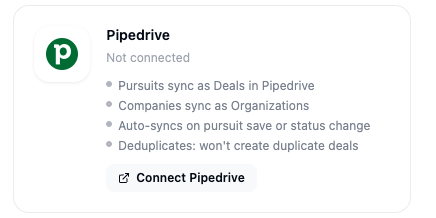
* Pursuits sync as **Deals** in Pipedrive
* Companies sync as **Organizations**
* Auto-syncs on pursuit save or status change
* Deduplicates — won't create duplicate deals
***
## Part 1 — Connect Pipedrive
In the left sidebar, scroll to **Account** and click **Integrations**.
Scroll to the **CRM** section. The **Pipedrive** card shows your current connection status.
Click **Connect** on the Pipedrive card.
A popup opens asking you to log in to Pipedrive and authorize SamSearch. Choose the Pipedrive company account you want to connect, then click **Allow and install**.
## What this integration does
* Pursuits sync as **Deals** in Pipedrive
* Companies sync as **Organizations**
* Auto-syncs on pursuit save or status change
* Deduplicates — won't create duplicate deals
***
## Part 1 — Connect Pipedrive
In the left sidebar, scroll to **Account** and click **Integrations**.
Scroll to the **CRM** section. The **Pipedrive** card shows your current connection status.
Click **Connect** on the Pipedrive card.
A popup opens asking you to log in to Pipedrive and authorize SamSearch. Choose the Pipedrive company account you want to connect, then click **Allow and install**.
 The popup closes and the Pipedrive card now shows **Connected**, along with your Pipedrive company name.
***
## Troubleshooting
**Deals aren't showing up in Pipedrive**
* Confirm the integration status is **Connected** on the Integrations page.
* Auto-sync fires on save or status change; editing unrelated fields won't trigger a new sync.
* Check that you connected the Pipedrive account that matches the pipeline you're expecting deals in.
**I'm seeing duplicate deals**
* SamSearch deduplicates based on the pursuit's linked opportunity ID. If a deal was created manually in Pipedrive before connecting, it won't automatically merge with the synced deal — merge it manually in Pipedrive.
**The OAuth popup closes without connecting**
* Make sure pop-ups aren't blocked for SamSearch in your browser.
* Confirm you have permission to install apps in your Pipedrive account.
**Still stuck?** Contact [support@samsearch.co](mailto:support@samsearch.co) with your SamSearch account email and your Pipedrive company name.
The popup closes and the Pipedrive card now shows **Connected**, along with your Pipedrive company name.
***
## Troubleshooting
**Deals aren't showing up in Pipedrive**
* Confirm the integration status is **Connected** on the Integrations page.
* Auto-sync fires on save or status change; editing unrelated fields won't trigger a new sync.
* Check that you connected the Pipedrive account that matches the pipeline you're expecting deals in.
**I'm seeing duplicate deals**
* SamSearch deduplicates based on the pursuit's linked opportunity ID. If a deal was created manually in Pipedrive before connecting, it won't automatically merge with the synced deal — merge it manually in Pipedrive.
**The OAuth popup closes without connecting**
* Make sure pop-ups aren't blocked for SamSearch in your browser.
* Confirm you have permission to install apps in your Pipedrive account.
**Still stuck?** Contact [support@samsearch.co](mailto:support@samsearch.co) with your SamSearch account email and your Pipedrive company name.