> ## Documentation Index
> Fetch the complete documentation index at: https://docs.samsearch.co/llms.txt
> Use this file to discover all available pages before exploring further.
# Microsoft Teams Setup
> Connect Microsoft Teams to chat with Sammy, get pursuit notifications, and schedule meetings with contacts
Connect Microsoft Teams to message Sammy for opportunity searches and pipeline questions, receive pursuit notifications as Teams messages, and schedule meetings with pursuit contacts.
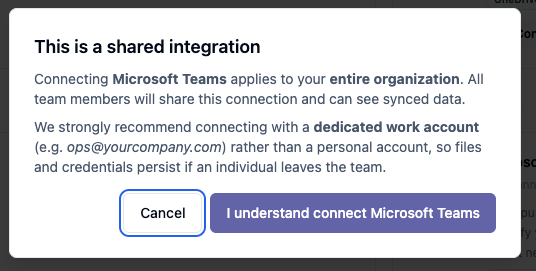
**This is a shared, org-wide integration — not per AI Profile.** Connecting Microsoft Teams applies to your entire SamSearch organization; every AI Profile and every team member shares the same connection and can see synced data. It is **not** possible to connect a specific AI Profile to a specific Team — there is one Teams connection per SamSearch account. SamSearch strongly recommends connecting with a dedicated work account (e.g. `ops@yourcompany.com`) rather than a personal account, so the connection and credentials persist if an individual leaves.
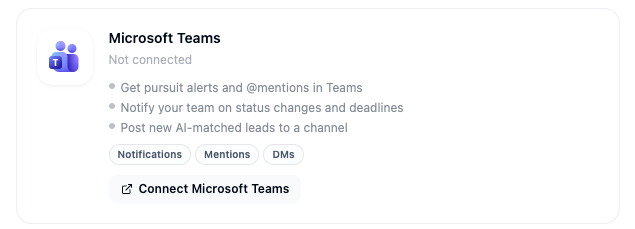 ## What this integration does
* Get pursuit alerts and @mentions in Teams, as direct messages
* Notify your team on status changes, task/pursuit assignments, and amendment updates
* Post a **new leads digest** and **proposal/outline-ready** alerts to two separate Teams channels
* Chat with **@Sammy** directly from Teams
* Schedule and join **meetings** with a pursuit contact directly from the contact row
Connecting is a **two-part process**: first you authorize SamSearch against your Microsoft 365 tenant (Part 1), then you separately install the SamSearch app package inside Teams itself (Part 2). Both are required before Sammy or notifications show up in Teams.
***
## Part 1 — Authorize SamSearch
In the left sidebar, scroll to **Account** and click **Integrations**.
Scroll to the **Messaging & Notifications** section. The **Microsoft Teams** card shows your current connection status.
Click **Connect** on the Microsoft Teams card. A dialog confirms this is a shared, org-wide connection — click **I understand connect Microsoft Teams** to proceed.
## What this integration does
* Get pursuit alerts and @mentions in Teams, as direct messages
* Notify your team on status changes, task/pursuit assignments, and amendment updates
* Post a **new leads digest** and **proposal/outline-ready** alerts to two separate Teams channels
* Chat with **@Sammy** directly from Teams
* Schedule and join **meetings** with a pursuit contact directly from the contact row
Connecting is a **two-part process**: first you authorize SamSearch against your Microsoft 365 tenant (Part 1), then you separately install the SamSearch app package inside Teams itself (Part 2). Both are required before Sammy or notifications show up in Teams.
***
## Part 1 — Authorize SamSearch
In the left sidebar, scroll to **Account** and click **Integrations**.
Scroll to the **Messaging & Notifications** section. The **Microsoft Teams** card shows your current connection status.
Click **Connect** on the Microsoft Teams card. A dialog confirms this is a shared, org-wide connection — click **I understand connect Microsoft Teams** to proceed.
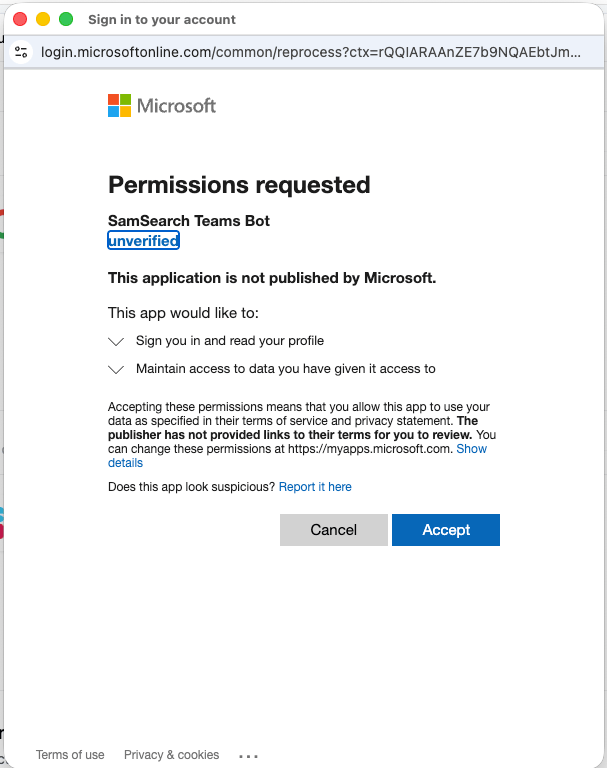
 You're redirected to Microsoft to sign in. Microsoft then shows a **Permissions requested** screen for **SamSearch Teams Bot** — it's flagged **unverified** because the app hasn't gone through Microsoft's publisher verification. Review the requested permissions and click **Accept**.
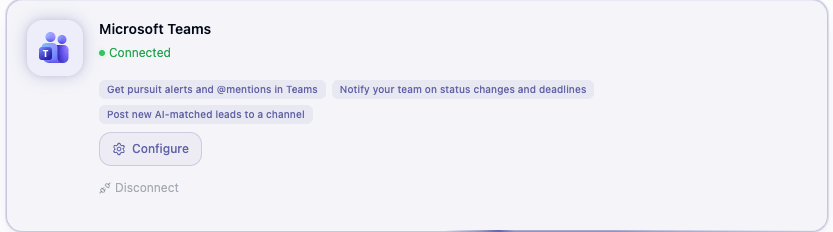
 You're returned to SamSearch and the Microsoft Teams card now shows **Connected**, along with a **Configure** button.
 ***
## Part 2 — Install the SamSearch app in Teams
Click **Configure** on the connected Microsoft Teams card to open the **Set up SamSearch for Teams** wizard. It walks itself forward as you complete each step.
***
## Part 2 — Install the SamSearch app in Teams
Click **Configure** on the connected Microsoft Teams card to open the **Set up SamSearch for Teams** wizard. It walks itself forward as you complete each step.
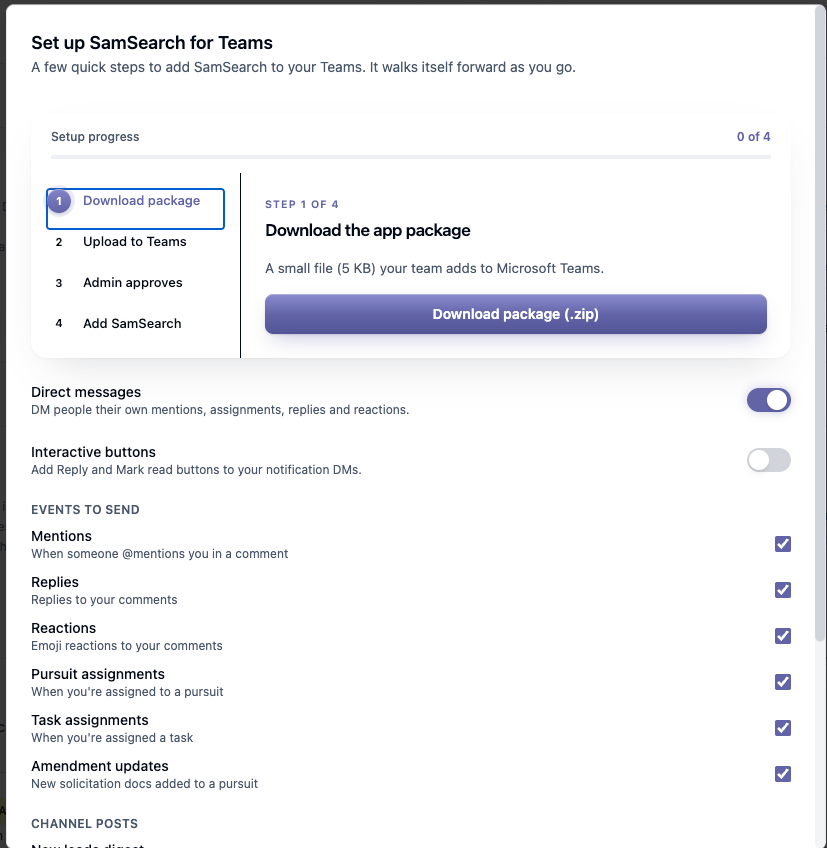 Click **Download package (.zip)** — a small file (5 KB) your team adds to Microsoft Teams in the next step.
1. Open Microsoft Teams and click **Apps** in the far-left sidebar.
2. At the bottom, click **Manage your apps**.
3. Click **Upload an app**, then **Upload a custom app**.
4. Select the `samsearch-teams.zip` file you just downloaded.
A quick check that whoever manages your Teams has SamSearch **Allowed**. New uploads are usually allowed automatically, so this is often just a look.
**If that's you:**
1. Click **Open Teams Admin Center**.
2. In the left sidebar, go to **Teams apps → Manage apps**.
3. Search **SamSearch** and open it.
4. Check its status shows **Allowed**. If it says **Blocked**, open the **Actions** menu (top-right) and click **Allow**.
Not seeing SamSearch in the list? Sign out of the [Teams Admin Center](https://admin.teams.microsoft.com/) and back in — Microsoft only refreshes it on a new sign-in.
**If someone else manages Teams:** click **Copy exact steps for your IT admin** to copy this step's instructions to send them, then click **It's approved, next** once they've confirmed it.
1. In Microsoft Teams, click **Apps** in the far-left sidebar.
2. Open **Built for your org**.
3. Find **SamSearch** and click **Add**.
SamSearch detects this automatically — the wizard's **Waiting for SamSearch to appear in your Teams** message flips to done on its own once it's added, with no need to come back and confirm.
***
## Part 3 — Configure notifications
The same **Configure** panel (scroll down past the 4-step wizard) controls how notifications reach Teams.
Click **Download package (.zip)** — a small file (5 KB) your team adds to Microsoft Teams in the next step.
1. Open Microsoft Teams and click **Apps** in the far-left sidebar.
2. At the bottom, click **Manage your apps**.
3. Click **Upload an app**, then **Upload a custom app**.
4. Select the `samsearch-teams.zip` file you just downloaded.
A quick check that whoever manages your Teams has SamSearch **Allowed**. New uploads are usually allowed automatically, so this is often just a look.
**If that's you:**
1. Click **Open Teams Admin Center**.
2. In the left sidebar, go to **Teams apps → Manage apps**.
3. Search **SamSearch** and open it.
4. Check its status shows **Allowed**. If it says **Blocked**, open the **Actions** menu (top-right) and click **Allow**.
Not seeing SamSearch in the list? Sign out of the [Teams Admin Center](https://admin.teams.microsoft.com/) and back in — Microsoft only refreshes it on a new sign-in.
**If someone else manages Teams:** click **Copy exact steps for your IT admin** to copy this step's instructions to send them, then click **It's approved, next** once they've confirmed it.
1. In Microsoft Teams, click **Apps** in the far-left sidebar.
2. Open **Built for your org**.
3. Find **SamSearch** and click **Add**.
SamSearch detects this automatically — the wizard's **Waiting for SamSearch to appear in your Teams** message flips to done on its own once it's added, with no need to come back and confirm.
***
## Part 3 — Configure notifications
The same **Configure** panel (scroll down past the 4-step wizard) controls how notifications reach Teams.
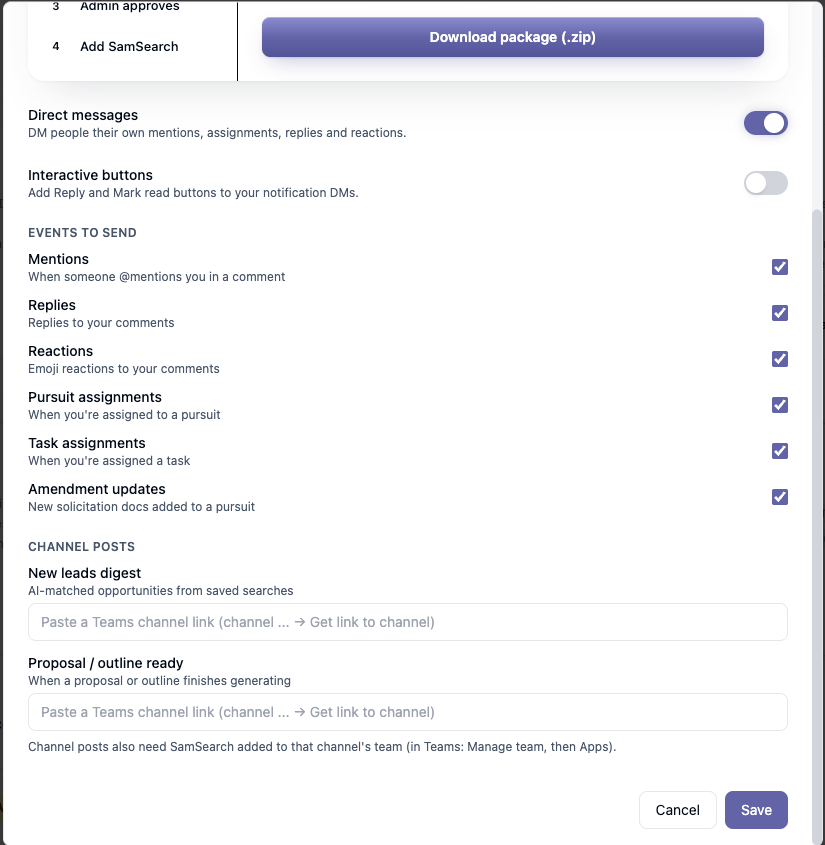 ### Direct messages (personal, to each user)
* **Direct messages** — toggle on to DM people their own mentions, assignments, replies, and reactions.
* **Interactive buttons** — toggle on to add **Reply** and **Mark read** buttons to those notification DMs.
* **Events to send** — checkboxes for exactly which events trigger a DM: **Mentions**, **Replies**, **Reactions**, **Pursuit assignments**, **Task assignments**, and **Amendment updates**. All are on by default; uncheck any you don't want.
### Channel Posts (shared, to a specific channel)
Unlike the DM events above, these two post to a **Teams channel** you choose — and each can go to a **different channel**:
| Channel post | What it sends |
| ---------------------------- | ---------------------------------------------------- |
| **New leads digest** | AI-matched opportunities from your saved searches |
| **Proposal / outline ready** | Fires when a proposal or outline finishes generating |
For each one, paste a Teams channel link into its field (in Teams: right-click the channel → **Get link to channel**), then click **Save**.
Channel posts also need SamSearch added to **that channel's team** — in Teams: **Manage team → Apps** — separately from the org-level install in Part 2. The Part 2 install makes SamSearch and @Sammy usable across your Teams tenant; each individual channel you want posts delivered to needs the app added to it directly.
***
## Part 4 — Chat with @Sammy in Teams
Once connected, Sammy is available directly in Teams:
* **Direct message**: open a chat with **Sammy** in Teams and ask it to find opportunities, start a journey, or answer questions about your pipeline.
* **Channel mention**: type **@Sammy** in any channel it's been added to, followed by your question or request.
Sammy responds in the same thread, so the rest of the channel can follow along.
***
## Part 5 — Schedule meetings with contacts
Microsoft Teams is the only messaging integration that supports scheduling meetings directly from SamSearch.
1. Open a pursuit and go to its **Contacts** section.
2. Find the contact row for the person you want to meet with.
3. Click **Schedule meeting**.
4. Choose a time and confirm — the Teams meeting is created and a calendar invite is sent to the contact.
5. To join later, click **Join meeting** on the same contact row.
***
## Troubleshooting
**SamSearch is stuck on "Blocked" in the Teams Admin Center**
* Open **Teams apps → Manage apps**, find SamSearch, open its **Actions** menu (top-right), and click **Allow**.
**SamSearch isn't in the admin center's app list at all**
* Sign out of the [Teams Admin Center](https://admin.teams.microsoft.com/) and back in — it only refreshes the list on a new sign-in.
**I don't see Sammy in Teams**
* Confirm the integration shows **Connected** on the Integrations page (Part 1) *and* that you completed Step 4 of the Configure wizard — adding SamSearch under **Apps → Built for your org** in Teams (Part 2). Both are required.
**Notifications aren't arriving as DMs**
* Check the **Direct messages** toggle and the **Events to send** checkboxes under Configure.
**Channel posts (new leads digest / proposal ready) aren't arriving**
* Confirm a channel link is saved for that specific post type under Configure.
* Confirm SamSearch has been added to **that channel's team** via **Manage team → Apps** in Teams — the org-level install alone doesn't add it to every channel.
**Schedule meeting doesn't create a Teams event**
* Confirm Part 1 (Connected) is complete — calendar access depends on the initial Microsoft authorization, not the Configure wizard.
* Confirm the contact has a valid email address on file in the pursuit.
**Still stuck?** Contact [support@samsearch.co](mailto:support@samsearch.co) with your SamSearch account email and your Microsoft 365 tenant name.
### Direct messages (personal, to each user)
* **Direct messages** — toggle on to DM people their own mentions, assignments, replies, and reactions.
* **Interactive buttons** — toggle on to add **Reply** and **Mark read** buttons to those notification DMs.
* **Events to send** — checkboxes for exactly which events trigger a DM: **Mentions**, **Replies**, **Reactions**, **Pursuit assignments**, **Task assignments**, and **Amendment updates**. All are on by default; uncheck any you don't want.
### Channel Posts (shared, to a specific channel)
Unlike the DM events above, these two post to a **Teams channel** you choose — and each can go to a **different channel**:
| Channel post | What it sends |
| ---------------------------- | ---------------------------------------------------- |
| **New leads digest** | AI-matched opportunities from your saved searches |
| **Proposal / outline ready** | Fires when a proposal or outline finishes generating |
For each one, paste a Teams channel link into its field (in Teams: right-click the channel → **Get link to channel**), then click **Save**.
Channel posts also need SamSearch added to **that channel's team** — in Teams: **Manage team → Apps** — separately from the org-level install in Part 2. The Part 2 install makes SamSearch and @Sammy usable across your Teams tenant; each individual channel you want posts delivered to needs the app added to it directly.
***
## Part 4 — Chat with @Sammy in Teams
Once connected, Sammy is available directly in Teams:
* **Direct message**: open a chat with **Sammy** in Teams and ask it to find opportunities, start a journey, or answer questions about your pipeline.
* **Channel mention**: type **@Sammy** in any channel it's been added to, followed by your question or request.
Sammy responds in the same thread, so the rest of the channel can follow along.
***
## Part 5 — Schedule meetings with contacts
Microsoft Teams is the only messaging integration that supports scheduling meetings directly from SamSearch.
1. Open a pursuit and go to its **Contacts** section.
2. Find the contact row for the person you want to meet with.
3. Click **Schedule meeting**.
4. Choose a time and confirm — the Teams meeting is created and a calendar invite is sent to the contact.
5. To join later, click **Join meeting** on the same contact row.
***
## Troubleshooting
**SamSearch is stuck on "Blocked" in the Teams Admin Center**
* Open **Teams apps → Manage apps**, find SamSearch, open its **Actions** menu (top-right), and click **Allow**.
**SamSearch isn't in the admin center's app list at all**
* Sign out of the [Teams Admin Center](https://admin.teams.microsoft.com/) and back in — it only refreshes the list on a new sign-in.
**I don't see Sammy in Teams**
* Confirm the integration shows **Connected** on the Integrations page (Part 1) *and* that you completed Step 4 of the Configure wizard — adding SamSearch under **Apps → Built for your org** in Teams (Part 2). Both are required.
**Notifications aren't arriving as DMs**
* Check the **Direct messages** toggle and the **Events to send** checkboxes under Configure.
**Channel posts (new leads digest / proposal ready) aren't arriving**
* Confirm a channel link is saved for that specific post type under Configure.
* Confirm SamSearch has been added to **that channel's team** via **Manage team → Apps** in Teams — the org-level install alone doesn't add it to every channel.
**Schedule meeting doesn't create a Teams event**
* Confirm Part 1 (Connected) is complete — calendar access depends on the initial Microsoft authorization, not the Configure wizard.
* Confirm the contact has a valid email address on file in the pursuit.
**Still stuck?** Contact [support@samsearch.co](mailto:support@samsearch.co) with your SamSearch account email and your Microsoft 365 tenant name.