> ## Documentation Index
> Fetch the complete documentation index at: https://docs.samsearch.co/llms.txt
> Use this file to discover all available pages before exploring further.
# Journey Hub
> Track and manage your government contracting opportunities through the full capture pipeline
Journey Hub is your pipeline management workspace. Create journeys, track them through stages, assign tasks to your team, and generate proposals — all in one place.
 ## What is a Journey?
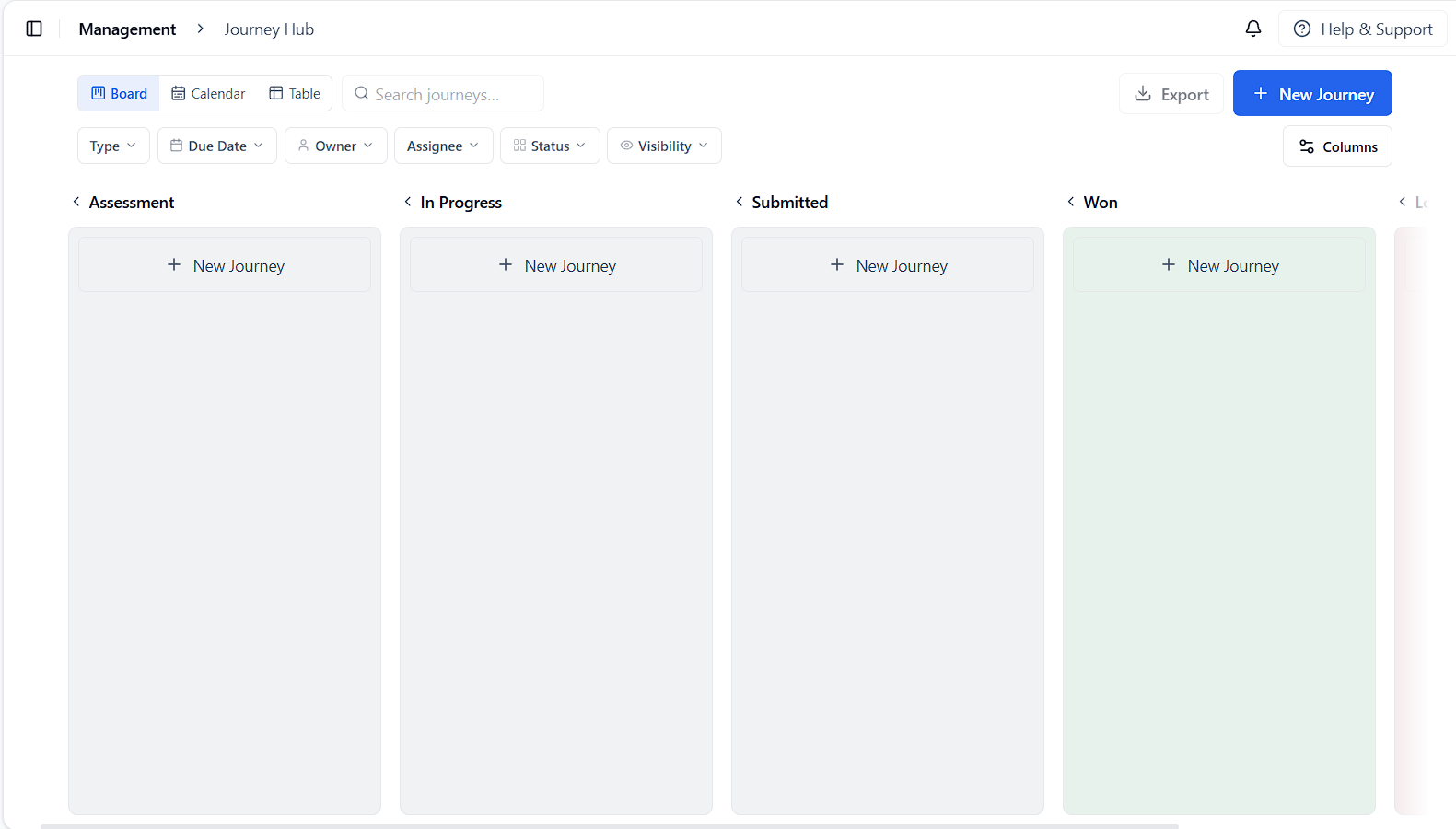
A **Journey** is created when you decide to actively pursue an opportunity. It tracks everything from your initial assessment through final submission — a project workspace for each bid.
### Benefits
* **Stay Organized**: All bid-related information in one place
* **Track Progress**: Monitor each stage of your pipeline visually
* **Collaborate**: Assign team members and coordinate work
* **Meet Deadlines**: Never miss a due date with built-in task management
* **Generate Proposals**: Create tailored AI proposals directly within your journey
## Creating a Journey
### From an Opportunity
1. Open any opportunity from Search, Leads, or Recommendations
2. Click **Start Journey**
3. A journey is created automatically with the opportunity details pre-filled
## What is a Journey?
A **Journey** is created when you decide to actively pursue an opportunity. It tracks everything from your initial assessment through final submission — a project workspace for each bid.
### Benefits
* **Stay Organized**: All bid-related information in one place
* **Track Progress**: Monitor each stage of your pipeline visually
* **Collaborate**: Assign team members and coordinate work
* **Meet Deadlines**: Never miss a due date with built-in task management
* **Generate Proposals**: Create tailored AI proposals directly within your journey
## Creating a Journey
### From an Opportunity
1. Open any opportunity from Search, Leads, or Recommendations
2. Click **Start Journey**
3. A journey is created automatically with the opportunity details pre-filled
 ### From Journey Hub Directly
1. Go to **Journey Hub** under the **Management** section of the left sidebar
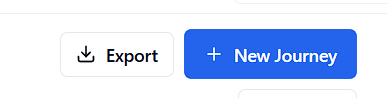
2. Click **+ New Journey** in the top right corner
3. Fill in the title, description, due date, and initial status
## Pipeline Stages
Journeys move through five stages:
Initial evaluation — deciding whether to pursue
Actively working on the bid
Bid has been submitted
Contract awarded successfully
Not selected or decided not to bid
## View Modes
Switch between four views using the controls at the top of Journey Hub:
Default view — see all journeys organized by pipeline stage. Drag and drop cards between columns to update status.
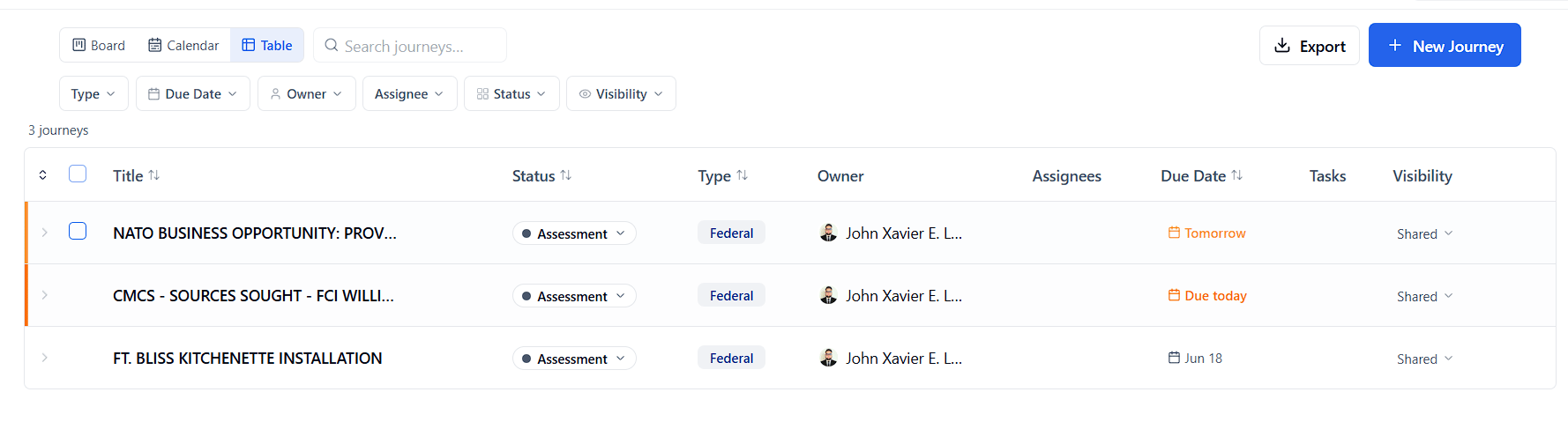
Sortable list with inline status updates and bulk actions. A red **X overdue** badge appears when journeys have passed their due date.
See journeys plotted on a calendar by due date. Useful for workload planning and deadline management.
Your personal task workspace — see every task assigned to you across all journeys in one place. See below for full details.
### From Journey Hub Directly
1. Go to **Journey Hub** under the **Management** section of the left sidebar
2. Click **+ New Journey** in the top right corner
3. Fill in the title, description, due date, and initial status
## Pipeline Stages
Journeys move through five stages:
Initial evaluation — deciding whether to pursue
Actively working on the bid
Bid has been submitted
Contract awarded successfully
Not selected or decided not to bid
## View Modes
Switch between four views using the controls at the top of Journey Hub:
Default view — see all journeys organized by pipeline stage. Drag and drop cards between columns to update status.
Sortable list with inline status updates and bulk actions. A red **X overdue** badge appears when journeys have passed their due date.
See journeys plotted on a calendar by due date. Useful for workload planning and deadline management.
Your personal task workspace — see every task assigned to you across all journeys in one place. See below for full details.
 ## My Tasks
My Tasks is your personal workspace inside Journey Hub — a single view of every task assigned to you across all your journeys, so you never have to open each journey individually to find your work.
### Getting There
* Click **My Tasks** in the view switcher at the top of Journey Hub (next to Board / Calendar / Table)
* Or open your **Dashboard** and click the **My Tasks** card in the bottom-right stats panel
* Or click the **Activity & Deadlines** card title on your Dashboard
### Tasks Tab
The default tab shows all your assigned tasks, grouped by due date:
| Group | What's included |
| ------------- | --------------------------------------------- |
| **Overdue** | Tasks past their due date |
| **Today** | Tasks due today |
| **This Week** | Tasks due in the next 7 days |
| **Later** | Tasks with a future due date beyond this week |
| **Completed** | Tasks you've marked done |
Each task row shows the task title, its parent journey name and type, a color-coded priority dot, and the due date (red if overdue, amber if due today).
**Check off tasks directly** — click the checkbox on any row to mark it done instantly. The task detail page will also reflect the change immediately without a refresh.
**Filters and grouping:**
* **Quick filters** — All / Overdue / Today / This week (with counts)
* **Status filter** — All / To Do / In Progress / Done
* **Group by** — Due date, Journey, Status, or Priority
* **Scope toggle** — Switch between **My tasks** (tasks assigned to you) and **All tasks** (every task across all your journeys, with assignee avatars shown)
Click any task row to open the full task detail.
### Mentions Tab
Shows all @mentions directed at you across every journey. Each mention displays who mentioned you, the message, its parent journey or task, and a timestamp. Unread mentions are highlighted — clicking one marks it read and takes you directly to the relevant task.
### Journeys Tab
Shows every journey you own or are assigned to, with:
* Journey name, type badge, and pipeline stage
* Your due date
* A progress bar showing your completed tasks vs. total tasks assigned to you in that journey
Click any journey card to open its overview.
***
## Filters
Use the filter bar to focus your view:
* **Type**: Filter by opportunity type (Federal, Grant, SLED, etc.)
* **Due Date**: Show only journeys due before a specific date
* **Owner**: Filter by journey owner — "Me" or a specific team member
* **Assignee**: Filter by one or more team members assigned to the journey
* **Visibility**: Organization-wide vs. private journeys
* **Stage**: Filter by pipeline column (Assessment, In Progress, etc.)
You can also **Export** all filtered journeys using the export button.
## Journey Features
### Overview
From any journey's **Overview** tab, click **View Opportunity** to return to the original listing in Search or Leads.
## My Tasks
My Tasks is your personal workspace inside Journey Hub — a single view of every task assigned to you across all your journeys, so you never have to open each journey individually to find your work.
### Getting There
* Click **My Tasks** in the view switcher at the top of Journey Hub (next to Board / Calendar / Table)
* Or open your **Dashboard** and click the **My Tasks** card in the bottom-right stats panel
* Or click the **Activity & Deadlines** card title on your Dashboard
### Tasks Tab
The default tab shows all your assigned tasks, grouped by due date:
| Group | What's included |
| ------------- | --------------------------------------------- |
| **Overdue** | Tasks past their due date |
| **Today** | Tasks due today |
| **This Week** | Tasks due in the next 7 days |
| **Later** | Tasks with a future due date beyond this week |
| **Completed** | Tasks you've marked done |
Each task row shows the task title, its parent journey name and type, a color-coded priority dot, and the due date (red if overdue, amber if due today).
**Check off tasks directly** — click the checkbox on any row to mark it done instantly. The task detail page will also reflect the change immediately without a refresh.
**Filters and grouping:**
* **Quick filters** — All / Overdue / Today / This week (with counts)
* **Status filter** — All / To Do / In Progress / Done
* **Group by** — Due date, Journey, Status, or Priority
* **Scope toggle** — Switch between **My tasks** (tasks assigned to you) and **All tasks** (every task across all your journeys, with assignee avatars shown)
Click any task row to open the full task detail.
### Mentions Tab
Shows all @mentions directed at you across every journey. Each mention displays who mentioned you, the message, its parent journey or task, and a timestamp. Unread mentions are highlighted — clicking one marks it read and takes you directly to the relevant task.
### Journeys Tab
Shows every journey you own or are assigned to, with:
* Journey name, type badge, and pipeline stage
* Your due date
* A progress bar showing your completed tasks vs. total tasks assigned to you in that journey
Click any journey card to open its overview.
***
## Filters
Use the filter bar to focus your view:
* **Type**: Filter by opportunity type (Federal, Grant, SLED, etc.)
* **Due Date**: Show only journeys due before a specific date
* **Owner**: Filter by journey owner — "Me" or a specific team member
* **Assignee**: Filter by one or more team members assigned to the journey
* **Visibility**: Organization-wide vs. private journeys
* **Stage**: Filter by pipeline column (Assessment, In Progress, etc.)
You can also **Export** all filtered journeys using the export button.
## Journey Features
### Overview
From any journey's **Overview** tab, click **View Opportunity** to return to the original listing in Search or Leads.
 #### Win Themes
The **Win Themes** section defines the core narrative of your bid. Click **Generate for Me** to have AI suggest win themes based on the opportunity and your company profile. Win themes guide [proposal generation](/features/proposal).
### Tasks
Break your work into specific, trackable action items.
#### Win Themes
The **Win Themes** section defines the core narrative of your bid. Click **Generate for Me** to have AI suggest win themes based on the opportunity and your company profile. Win themes guide [proposal generation](/features/proposal).
### Tasks
Break your work into specific, trackable action items.
 * Create tasks with deadlines and priority levels
* Assign tasks to team members
* Mark tasks complete to track progress
* Add notes and context to each task
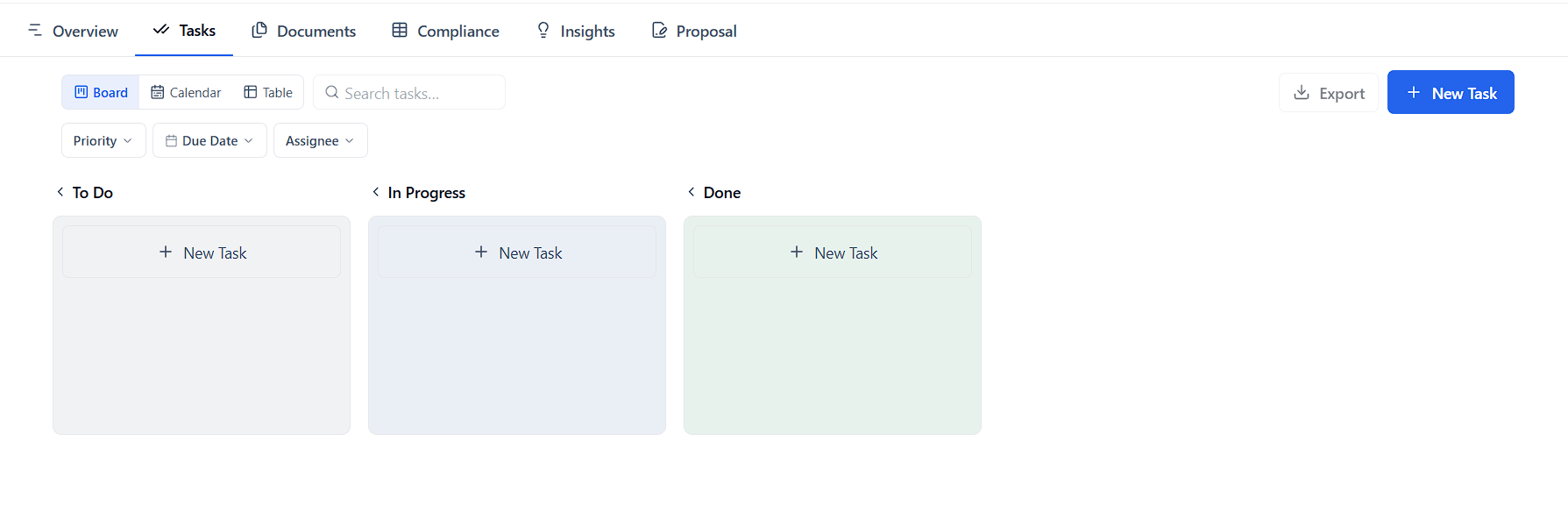
The **Tasks** tab has its own view modes:
* **Board** — Kanban columns: To Do, In Progress, Done
* **Calendar** — tasks plotted by due date
* **Table** — sortable list with bulk actions
Filter tasks by Priority, Due Date, or Assignee using the filter bar.
Want to see all your tasks across every journey at once? Use [**My Tasks**](#my-tasks) in the Journey Hub view switcher.
**Common task types:**
* Review RFP requirements
* Gather company documentation
* Contact references
* Prepare technical approach
* Review pricing strategy
* Submit bid package
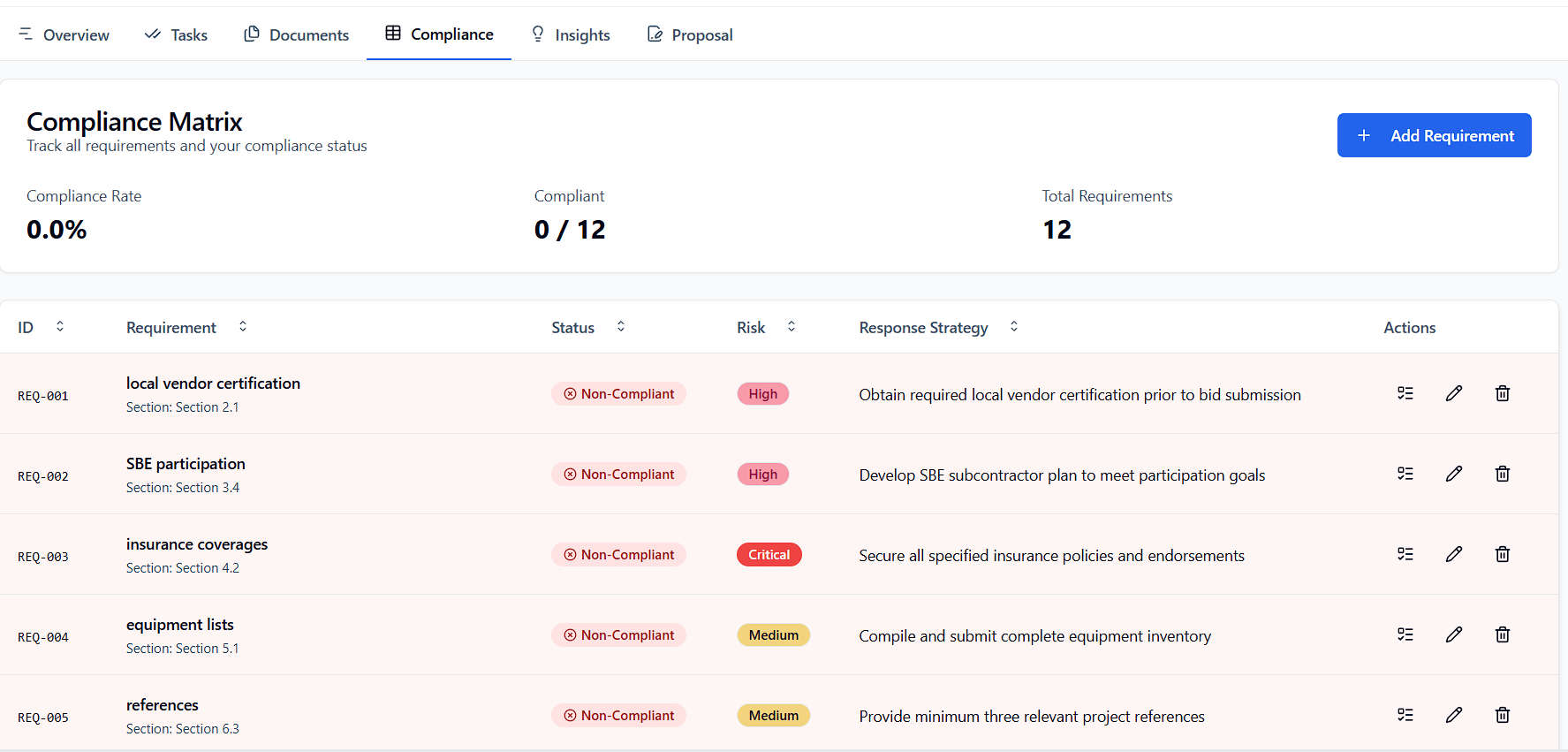
### Compliance Matrix
Track RFP compliance requirements directly within the journey.
* Create tasks with deadlines and priority levels
* Assign tasks to team members
* Mark tasks complete to track progress
* Add notes and context to each task
The **Tasks** tab has its own view modes:
* **Board** — Kanban columns: To Do, In Progress, Done
* **Calendar** — tasks plotted by due date
* **Table** — sortable list with bulk actions
Filter tasks by Priority, Due Date, or Assignee using the filter bar.
Want to see all your tasks across every journey at once? Use [**My Tasks**](#my-tasks) in the Journey Hub view switcher.
**Common task types:**
* Review RFP requirements
* Gather company documentation
* Contact references
* Prepare technical approach
* Review pricing strategy
* Submit bid package
### Compliance Matrix
Track RFP compliance requirements directly within the journey.
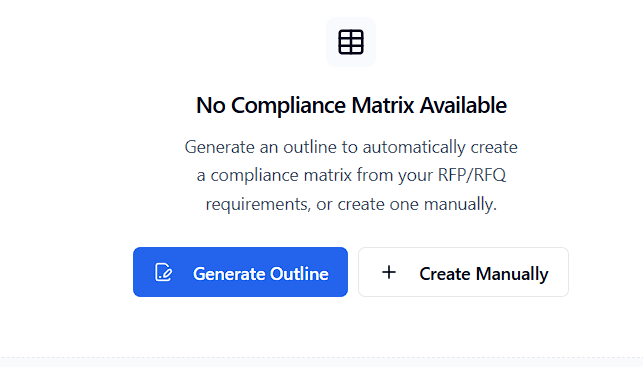 * **Generate from outline** — click **Generate Outline** to extract requirements from your RFP/RFQ
* **Create manually** — click **Create Manually** to build the matrix row by row
* Use the matrix to ensure every requirement is addressed before submission
* **Generate from outline** — click **Generate Outline** to extract requirements from your RFP/RFQ
* **Create manually** — click **Create Manually** to build the matrix row by row
* Use the matrix to ensure every requirement is addressed before submission
 ### Strategy Insights
Get AI-generated strategy recommendations for your journey.
### Strategy Insights
Get AI-generated strategy recommendations for your journey.
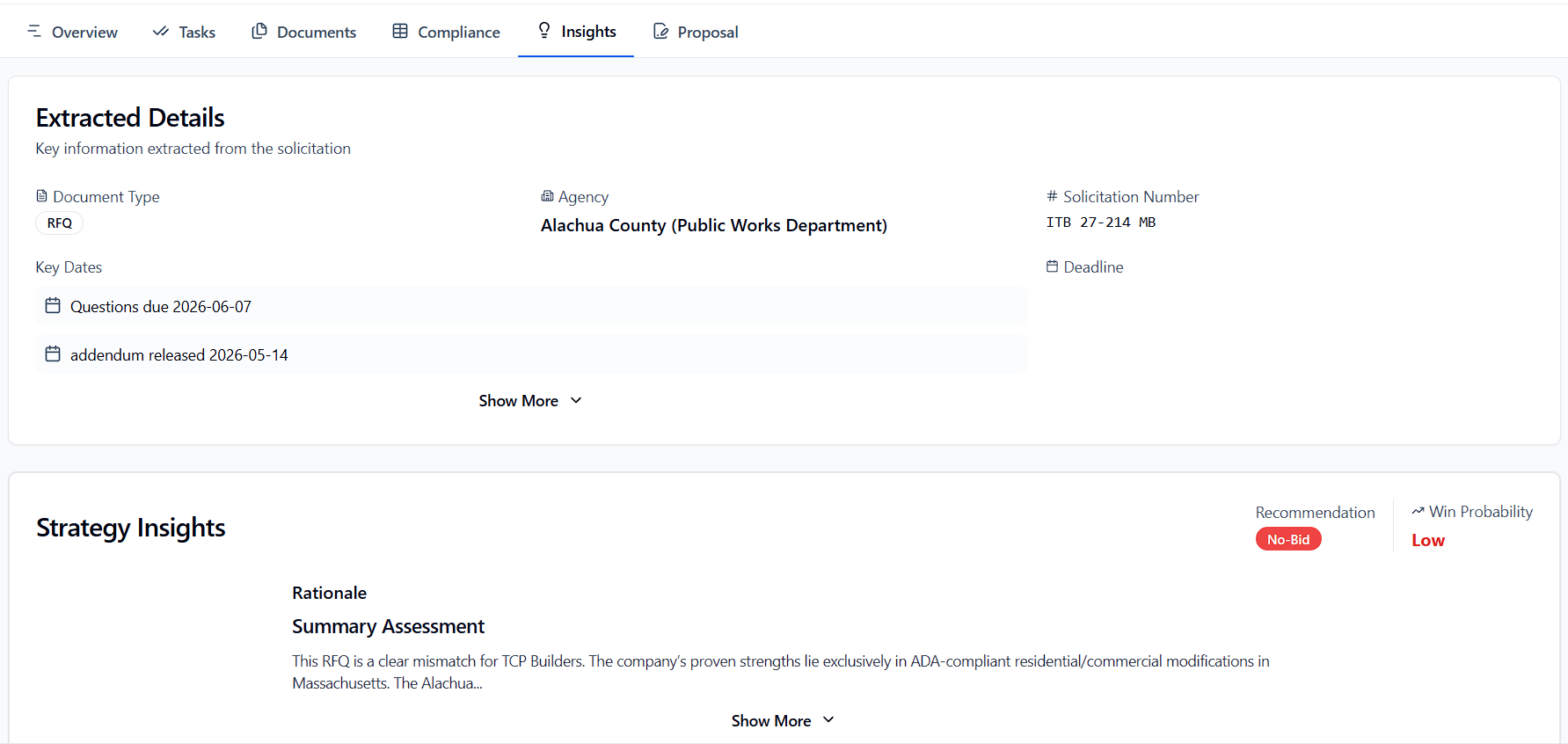 * Click **Generate Outline** to create insights based on your RFP and business profile
* Insights surface competitive positioning, risk factors, and recommended approach angles
* Use insights to inform Win Themes and your proposal narrative
### AI Chat (Sammy)
Chat with Sammy directly within any journey to analyze the RFP, understand requirements, or get help drafting content. [Learn more about Sammy →](/features/chat)
### Proposal Generation
Generate AI-powered proposals directly from your journey:
1. Add win themes in the Overview section
2. Go to the **Proposal** tab
3. Select your relevant company documents
4. Click **Generate Outline**, then **Generate Proposal**
[Learn more about Proposal Generation →](/features/proposal)
### Document Management
Store all bid-related documents within the journey:
* Original RFP and attachments
* Draft proposals and versions
* Supporting documents (certs, past performance, etc.)
## Supported Opportunity Types
Journey Hub works with all opportunity types:
* Federal Contracts
* State, Local & Education (SLED)
* Forecasts
* Subcontracting
* Grants
* DIBBS
* Upload (manually created opportunities)
## Team Collaboration
Team collaboration in Journey Hub is available on multi-seat plans. Set up your organization and invite teammates from the **Settings** page first.
Journey Hub is built for teams. Every journey can be owned, assigned, and shared across your organization.
### Roles
| Role | What they can do |
| ---------- | ------------------------------------------------------------------------------------ |
| **Owner** | Full access — manage billing, invite/remove members, change roles, edit org settings |
| **Admin** | Invite and manage members, access all journeys |
| **Member** | Standard access to journeys and tasks |
### Inviting Team Members
Admins and Owners can invite teammates from **Settings → Organization**:
1. Click **Invite Member**
2. Enter their email address
3. Select their role (**Member** or **Admin**)
4. Click **Send Invite** — they'll receive an email invitation
The invite button only appears when you have available seats. If you're out of seats, upgrade your plan or remove inactive members first.
### Managing Members
From **Settings → Organization** you can:
* **Change a member's role** — Use the role dropdown next to any member
* **Remove a member** — Click **Remove** to revoke their access
* **See pending invites** — Invited members show a **Pending** badge until they accept
* **Update org name** — Click the edit icon next to your organization name
* **Upload org logo** — Click the upload button on the organization avatar
### Assigning Journeys
Each journey has an **Owner** (who created or is responsible for it) and can have one or more **Assignees** (team members actively working on it).
Use the **Owner** and **Assignee** filters in Journey Hub to see:
* Only journeys assigned to you
* Journeys owned by a specific teammate
* The full team's pipeline across all members
### Assigning Tasks
Within a journey, individual tasks can be assigned to specific team members — reviewing the RFP, gathering past performance, pricing, and more.
### Visibility
Journeys can be set as:
* **Organization-wide** — visible to all members of your organization
* **Private** — visible only to you and directly assigned members
Use the **Visibility** filter to toggle between your personal pipeline and the full organization view.
***
## Best Practices
1. **Use clear titles** — Make each journey easy to identify at a glance
2. **Set due dates early** — Allow time for review and revision, not just submission
3. **Break work into tasks** — Specific tasks are easier to complete than vague to-dos
4. **Keep statuses current** — Move cards through stages as work progresses
5. **Assign ownership** — Every journey should have a clear owner
6. **Use visibility settings** — Keep sensitive journeys private; share the rest with your team
7. **Check My Tasks daily** — Start your day in My Tasks to see what's overdue, due today, and coming up this week across all your active bids
* Click **Generate Outline** to create insights based on your RFP and business profile
* Insights surface competitive positioning, risk factors, and recommended approach angles
* Use insights to inform Win Themes and your proposal narrative
### AI Chat (Sammy)
Chat with Sammy directly within any journey to analyze the RFP, understand requirements, or get help drafting content. [Learn more about Sammy →](/features/chat)
### Proposal Generation
Generate AI-powered proposals directly from your journey:
1. Add win themes in the Overview section
2. Go to the **Proposal** tab
3. Select your relevant company documents
4. Click **Generate Outline**, then **Generate Proposal**
[Learn more about Proposal Generation →](/features/proposal)
### Document Management
Store all bid-related documents within the journey:
* Original RFP and attachments
* Draft proposals and versions
* Supporting documents (certs, past performance, etc.)
## Supported Opportunity Types
Journey Hub works with all opportunity types:
* Federal Contracts
* State, Local & Education (SLED)
* Forecasts
* Subcontracting
* Grants
* DIBBS
* Upload (manually created opportunities)
## Team Collaboration
Team collaboration in Journey Hub is available on multi-seat plans. Set up your organization and invite teammates from the **Settings** page first.
Journey Hub is built for teams. Every journey can be owned, assigned, and shared across your organization.
### Roles
| Role | What they can do |
| ---------- | ------------------------------------------------------------------------------------ |
| **Owner** | Full access — manage billing, invite/remove members, change roles, edit org settings |
| **Admin** | Invite and manage members, access all journeys |
| **Member** | Standard access to journeys and tasks |
### Inviting Team Members
Admins and Owners can invite teammates from **Settings → Organization**:
1. Click **Invite Member**
2. Enter their email address
3. Select their role (**Member** or **Admin**)
4. Click **Send Invite** — they'll receive an email invitation
The invite button only appears when you have available seats. If you're out of seats, upgrade your plan or remove inactive members first.
### Managing Members
From **Settings → Organization** you can:
* **Change a member's role** — Use the role dropdown next to any member
* **Remove a member** — Click **Remove** to revoke their access
* **See pending invites** — Invited members show a **Pending** badge until they accept
* **Update org name** — Click the edit icon next to your organization name
* **Upload org logo** — Click the upload button on the organization avatar
### Assigning Journeys
Each journey has an **Owner** (who created or is responsible for it) and can have one or more **Assignees** (team members actively working on it).
Use the **Owner** and **Assignee** filters in Journey Hub to see:
* Only journeys assigned to you
* Journeys owned by a specific teammate
* The full team's pipeline across all members
### Assigning Tasks
Within a journey, individual tasks can be assigned to specific team members — reviewing the RFP, gathering past performance, pricing, and more.
### Visibility
Journeys can be set as:
* **Organization-wide** — visible to all members of your organization
* **Private** — visible only to you and directly assigned members
Use the **Visibility** filter to toggle between your personal pipeline and the full organization view.
***
## Best Practices
1. **Use clear titles** — Make each journey easy to identify at a glance
2. **Set due dates early** — Allow time for review and revision, not just submission
3. **Break work into tasks** — Specific tasks are easier to complete than vague to-dos
4. **Keep statuses current** — Move cards through stages as work progresses
5. **Assign ownership** — Every journey should have a clear owner
6. **Use visibility settings** — Keep sensitive journeys private; share the rest with your team
7. **Check My Tasks daily** — Start your day in My Tasks to see what's overdue, due today, and coming up this week across all your active bids