> ## Documentation Index
> Fetch the complete documentation index at: https://docs.samsearch.co/llms.txt
> Use this file to discover all available pages before exploring further.
# GSA eBuy Setup
> Receive private RFQs and RFPs from GSA eBuy directly in SamSearch
Connect GSA eBuy to SamSearch to receive private RFQs and RFPs in Search under the **GSA eBuy** source — without checking eBuy separately.
You must be an **administrator** on your GSA eBuy account to add a Point of Contact (POC).
## What this integration does
GSA eBuy sends **private** requests for quotes (RFQs) and proposals (RFPs) to contractors on GSA schedules. After setup, those opportunities appear in SamSearch on the **Search** page under the **GSA eBuy** source.
***
## Part 1 — Start in SamSearch
Click your **name** in the bottom-left corner of SamSearch, then select **Settings**.
Scroll to the bottom of Settings and find the **Integrations** section.
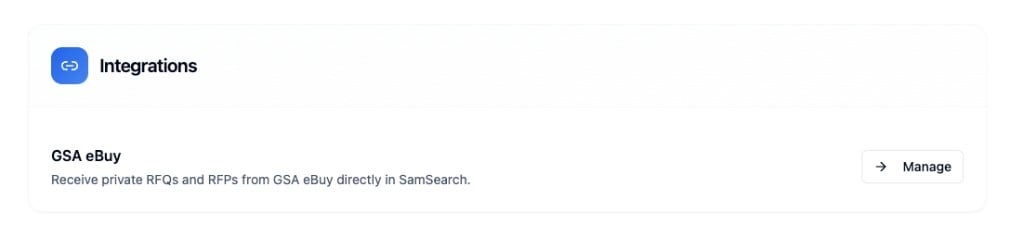
Under **GSA eBuy**, click **Manage**.
 The **GSA eBuy** panel shows your integration status and the email SamSearch uses for this connection.
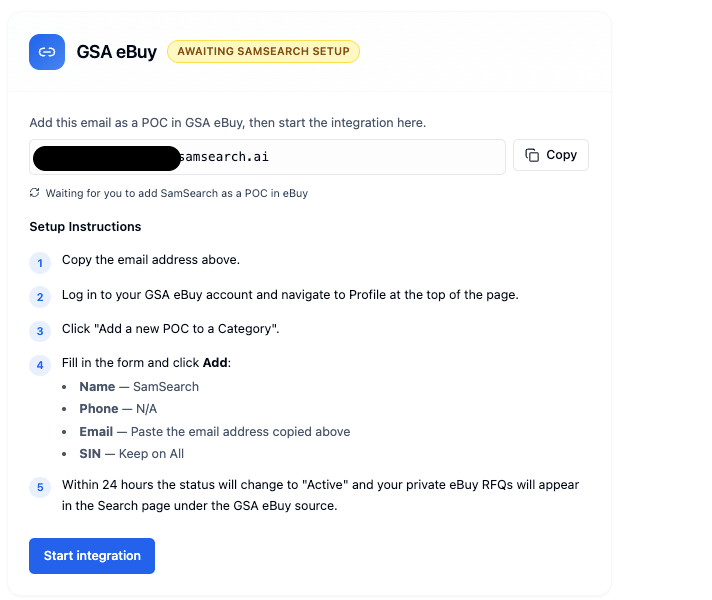 1. Click **Copy** next to the email address shown by SamSearch.
2. Keep this panel open — you will paste that email into GSA eBuy in Part 2.
***
## Part 2 — Add SamSearch in GSA eBuy
**Step 1 — Log in to GSA eBuy**
Go to [ebuy.gsa.gov](https://www.ebuy.gsa.gov) and sign in with your GSA credentials.
**Step 2 — Open your Profile**
Click the **Profile** tab in the top navigation.
1. Click **Copy** next to the email address shown by SamSearch.
2. Keep this panel open — you will paste that email into GSA eBuy in Part 2.
***
## Part 2 — Add SamSearch in GSA eBuy
**Step 1 — Log in to GSA eBuy**
Go to [ebuy.gsa.gov](https://www.ebuy.gsa.gov) and sign in with your GSA credentials.
**Step 2 — Open your Profile**
Click the **Profile** tab in the top navigation.
.png?fit=max&auto=format&n=0Q_wEPN9PhIuTTZN&q=85&s=340d8927358a03f0754b404c7f35c405) **Step 3 — Add a new Point of Contact**
Click **Add a new POC to a Category**.
**Step 3 — Add a new Point of Contact**
Click **Add a new POC to a Category**.
.png?fit=max&auto=format&n=0Q_wEPN9PhIuTTZN&q=85&s=a609f992204678a8e25f98dfbe8f0fcf) **Step 4 — Fill in the form**
| Field | Value |
| --------- | -------------------------------------------------- |
| **Name** | SamSearch |
| **Phone** | N/A |
| **Email** | Paste the email you copied from SamSearch (Part 1) |
| **SIN** | All (or all applicable SINs for your categories) |
Click **Add** to save.
***
## Part 3 — Activate in SamSearch
1. Return to **Settings → Integrations → GSA eBuy → Manage** in SamSearch.
2. Click **Start integration**.
SamSearch shows **Awaiting SamSearch setup** until your POC is added in eBuy. After eBuy recognizes the POC, status updates to **Active** — usually within **24 hours**.
When active, private eBuy RFQs and RFPs appear on the **Search** page under the **GSA eBuy** source.
***
## Troubleshooting
**Status stays on “Awaiting setup”**
* Confirm you pasted the **email from SamSearch** (not a different address) into the eBuy POC form.
* Confirm you clicked **Start integration** in SamSearch after adding the POC.
* Allow up to 24 hours for activation.
**No GSA eBuy results in Search**
* Check that integration status is **Active** in Settings → Integrations.
* Select the **GSA eBuy** source on the Search page.
**Still stuck?** Contact [support@samsearch.co](mailto:support@samsearch.co) with your SamSearch account email and a screenshot of your GSA eBuy integration status.
**Step 4 — Fill in the form**
| Field | Value |
| --------- | -------------------------------------------------- |
| **Name** | SamSearch |
| **Phone** | N/A |
| **Email** | Paste the email you copied from SamSearch (Part 1) |
| **SIN** | All (or all applicable SINs for your categories) |
Click **Add** to save.
***
## Part 3 — Activate in SamSearch
1. Return to **Settings → Integrations → GSA eBuy → Manage** in SamSearch.
2. Click **Start integration**.
SamSearch shows **Awaiting SamSearch setup** until your POC is added in eBuy. After eBuy recognizes the POC, status updates to **Active** — usually within **24 hours**.
When active, private eBuy RFQs and RFPs appear on the **Search** page under the **GSA eBuy** source.
***
## Troubleshooting
**Status stays on “Awaiting setup”**
* Confirm you pasted the **email from SamSearch** (not a different address) into the eBuy POC form.
* Confirm you clicked **Start integration** in SamSearch after adding the POC.
* Allow up to 24 hours for activation.
**No GSA eBuy results in Search**
* Check that integration status is **Active** in Settings → Integrations.
* Select the **GSA eBuy** source on the Search page.
**Still stuck?** Contact [support@samsearch.co](mailto:support@samsearch.co) with your SamSearch account email and a screenshot of your GSA eBuy integration status.