> ## Documentation Index
> Fetch the complete documentation index at: https://docs.samsearch.co/llms.txt
> Use this file to discover all available pages before exploring further.
# Google Workspace Setup
> Import Drive files, send pursuit emails via Gmail, and sync due dates to Google Calendar
Connect Google Workspace to bring Drive files into your pursuits, send pursuit emails through Gmail, and keep due dates in sync with Google Calendar.
Google Workspace and Microsoft Workspace are **mutually exclusive** — you must disconnect one before connecting the other.
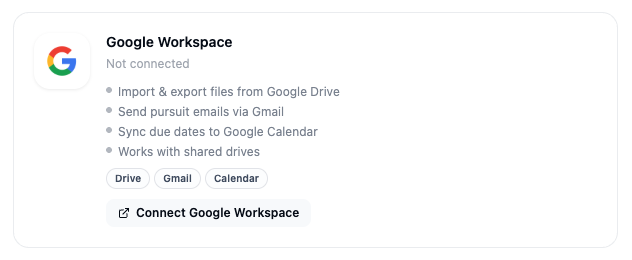 ## What this integration does
* **Import** files from Google Drive into SamSearch (one-way — Drive to SamSearch)
* Send pursuit emails via **Gmail**
* Sync due dates to **Google Calendar**
* Works with shared drives
Google Drive import is **one-way**: files flow from Drive into SamSearch. Exporting SamSearch files back to Drive is not currently supported.
***
## Part 1 — Connect Google Workspace
In the left sidebar, scroll to **Account** and click **Integrations**.
Scroll to the **Cloud Storage** section. The **Google Workspace** card shows your current connection status.
Google Workspace and Microsoft Workspace can't be connected at the same time. If the Microsoft Workspace card shows **Connected**, click **Disconnect** on it before continuing.
Click **Connect** on the Google Workspace card.
A popup opens asking you to sign in with your Google account and grant access to Drive, Gmail, and Calendar. Review the requested permissions and click **Allow**.
## What this integration does
* **Import** files from Google Drive into SamSearch (one-way — Drive to SamSearch)
* Send pursuit emails via **Gmail**
* Sync due dates to **Google Calendar**
* Works with shared drives
Google Drive import is **one-way**: files flow from Drive into SamSearch. Exporting SamSearch files back to Drive is not currently supported.
***
## Part 1 — Connect Google Workspace
In the left sidebar, scroll to **Account** and click **Integrations**.
Scroll to the **Cloud Storage** section. The **Google Workspace** card shows your current connection status.
Google Workspace and Microsoft Workspace can't be connected at the same time. If the Microsoft Workspace card shows **Connected**, click **Disconnect** on it before continuing.
Click **Connect** on the Google Workspace card.
A popup opens asking you to sign in with your Google account and grant access to Drive, Gmail, and Calendar. Review the requested permissions and click **Allow**.
 The popup closes and the Google Workspace card now shows **Connected**, along with your Google account email.
***
## Using the integration
* **Attach a Drive file**: from a pursuit, click **Attach file → Google Drive** and select the file. It imports a copy into SamSearch.
* **Send an email**: from a pursuit, click **Email → Send via Gmail** to compose and send using your connected Gmail account.
* **Calendar sync**: pursuit due dates automatically appear on your connected Google Calendar. Updating a due date in SamSearch updates the calendar event.
***
## Troubleshooting
**"Can't connect — Microsoft Workspace is already connected"**
* Google Workspace and Microsoft Workspace are mutually exclusive. Disconnect Microsoft Workspace on the Integrations page, then try connecting Google Workspace again.
**Files aren't importing from Drive**
* Confirm the integration status is **Connected** on the Integrations page.
* Confirm you have view access to the file in Google Drive — SamSearch can only import files your Google account can already access.
* Shared drive files require the connected account to be a member of that shared drive.
**Due dates aren't appearing on my calendar**
* Confirm Calendar permission was granted during the OAuth step — re-run the connection if you declined it initially.
* Check that you're looking at the same Google Calendar tied to the connected account.
**Still stuck?** Contact [support@samsearch.co](mailto:support@samsearch.co) with your SamSearch account email and your Google account email.
The popup closes and the Google Workspace card now shows **Connected**, along with your Google account email.
***
## Using the integration
* **Attach a Drive file**: from a pursuit, click **Attach file → Google Drive** and select the file. It imports a copy into SamSearch.
* **Send an email**: from a pursuit, click **Email → Send via Gmail** to compose and send using your connected Gmail account.
* **Calendar sync**: pursuit due dates automatically appear on your connected Google Calendar. Updating a due date in SamSearch updates the calendar event.
***
## Troubleshooting
**"Can't connect — Microsoft Workspace is already connected"**
* Google Workspace and Microsoft Workspace are mutually exclusive. Disconnect Microsoft Workspace on the Integrations page, then try connecting Google Workspace again.
**Files aren't importing from Drive**
* Confirm the integration status is **Connected** on the Integrations page.
* Confirm you have view access to the file in Google Drive — SamSearch can only import files your Google account can already access.
* Shared drive files require the connected account to be a member of that shared drive.
**Due dates aren't appearing on my calendar**
* Confirm Calendar permission was granted during the OAuth step — re-run the connection if you declined it initially.
* Check that you're looking at the same Google Calendar tied to the connected account.
**Still stuck?** Contact [support@samsearch.co](mailto:support@samsearch.co) with your SamSearch account email and your Google account email.